
External Script: Overview
The External Script step runs a custom script or program on your FMX Windows computer as part of a workflow. Use it to trigger automations, sync data to other systems, or apply your own logic while the guest continues their experience.
What Is the External Script Step?
External Script is a feature step in the Workflow Builder that launches a local script or executable when the flow reaches it.
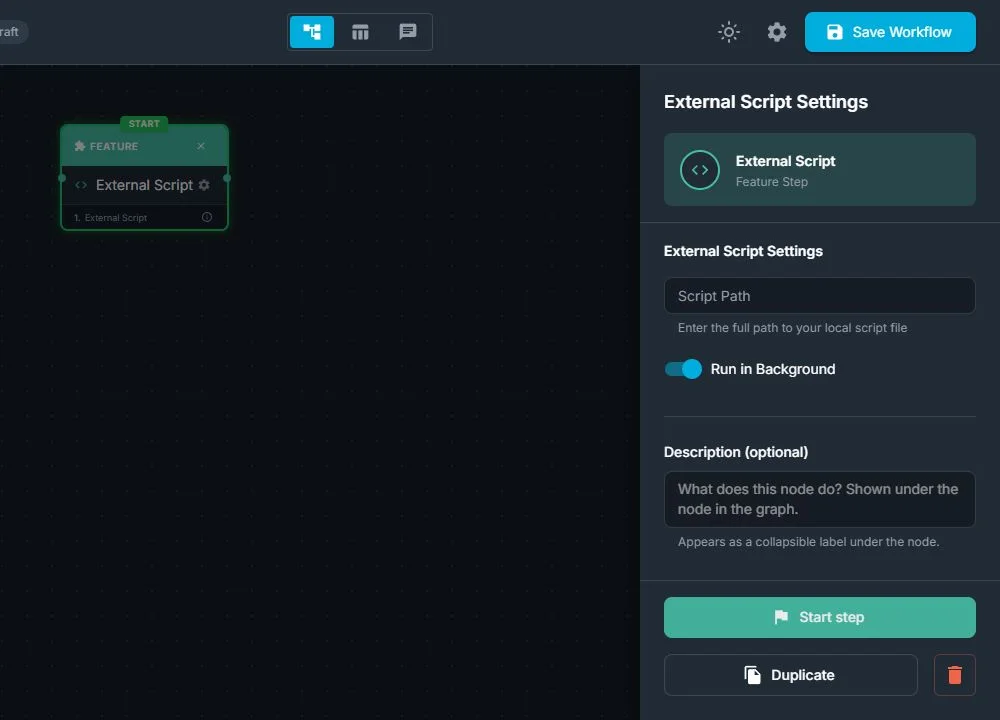
From the workflow point of view, the External Script step:
- Runs a script or executable on your Windows machine using the full file path you configure (for example: C:\Tools\MyScript.bat)
- Can keep FMX on top of all windows (background style) or allow the external window to appear in front (foreground style)
- Automatically passes the path of the most recent original photo as a command-line argument when a photo exists in the current session
- Is available on Windows only
From the guest's point of view:
- In most setups, nothing special appears: the experience simply continues to the next screen
- In background use, the guest only sees FMX; your script runs quietly in the background
- If you allow the external window to appear in front, the guest may briefly see a console or helper app, but their FMX journey keeps going forward
When Should You Use an External Script Step?
Use an External Script step when you want to extend FMX with your own logic on the local Windows machine:
- Custom automations on disk: copying, renaming, backing up, or moving photos and videos
- Sending data or files to another system (for example, a CRM, analytics tool, or local database) using your own uploader
- Triggering local tools that are not built into FMX (encoders, watermark tools, reporting scripts, etc.)
- Writing your own logs or audit files for each session, beyond FMX's standard reports
External Script is designed for advanced operators who are comfortable writing and testing scripts on Windows. You usually don't need an External Script for standard booth behavior like capture, AI effects, layouts, printing, and sharing; those are handled by other built-in steps.
How External Script Fits in the Workflow
In the Workflow Builder, add an External Script like any other step:
- Select External Script in the Steps Library
- Enter the full path to the script or executable on your Windows computer
- Choose how the external window should behave: keep FMX in front (background style), or allow the external window to appear in front (foreground style)
- Connect the External Script step between the steps that should run before and after it
Behavior in the flow:
- When the workflow reaches External Script, FMX launches your script or program
- If there is a recent original photo in the current session, FMX passes its file path as a quoted argument to the script
- The workflow immediately moves on to the next step; it does not pause to wait for the script to complete
- If the script fails to start, FMX logs the issue internally, but the guest experience continues
Typical Use Cases
File Automation After Capture
Organize or back up photos automatically for each session.
Example flow:
Take Photo → Preview → External Script (file automation) → Print Copies
Your script might:
- Copy the original photo to a network folder
- Rename it according to an event or sponsor naming scheme
- Compress the file or prepare it for a separate upload process
Why an External Script Is Useful
For event operators and integrators:
- Custom automations: add your own behavior without waiting for a built-in feature
- Local integrations: connect FMX to any Windows tool or script you can run from a path
- Non-blocking: scripts never freeze the booth; the guest journey always continues
- Flexible placement: insert the step anywhere you need extra logic: after capture, after preview, after sharing, or at the end of the session
Important Notes and Limitations
- External Script is a launcher: it starts the script or executable you point to, using the full Windows path
- The workflow does not branch or change based on script success or failure; there is no built-in success or error path
- All logic, error handling, communication with other systems, and any user interface belong to your script
- The automatic photo path argument is provided only if the latest original photo exists in the current session
- External Script is available only on Windows; it is not supported on iPadOS
Was this helpful?
Related articles
FMX for Windows: Customizing Your Experience
Everything at a photo booth event (the overlays, the countdown, the on-screen text, the email guests receive, the gallery they get a link to) is something you control. This guide m
FMX for Windows: System Requirements
Before installing FMX on your Windows computer, make sure your system meets the requirements below. Meeting the recommended specifications will ensure smooth performance during eve
Installing FMX on Windows
When to Use First-time installation of FMX on a Windows PC Reinstalling FMX on the same machine Upgrading FMX to a newer version using the latest installer Requirements Windows 10
Login to FMX
When to Use Immediately after installing FMX When switching operators or moving the license to a different PC Requirements A Foto Master Cloud Account (email and password) At least
Building a FMX Preset From Scratch: Video Tutorial
This video covers the basics of building a workflow and layout in FMX: a good starting point before exploring the individual workflow step articles.