
Games: Overview
The Games step adds quick, interactive mini-games into your FMX workflow. Guests play a short game as part of their journey, turning waiting time into fun, branded time. Games currently supports two built-in games: 3 Shell Game and Tic Tac Toe.
What Is the Games Step?
A Games step is a feature step that runs a mini-game full screen inside FMX and then returns guests to the rest of the flow.
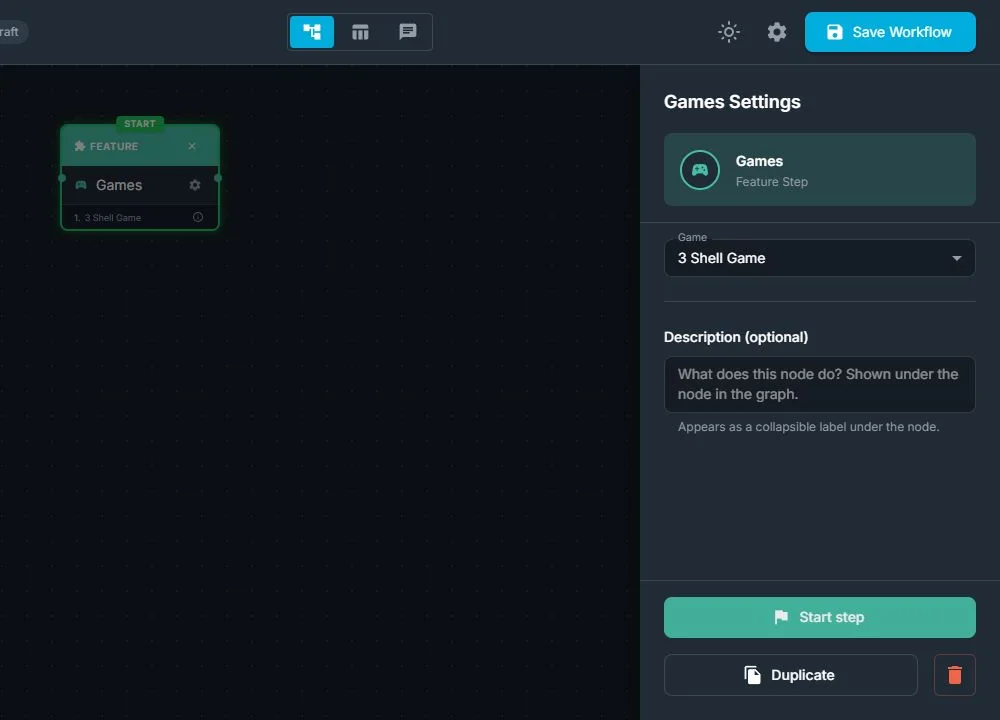
From the workflow point of view, Games:
- Loads one of the built-in games you select: 3 Shell Game or Tic Tac Toe
- Shows the game full-screen when the workflow reaches the Games step
- Lets guests play until the game reaches its natural end
- Automatically continues to the next step when the game is finished
- Can be exited early by the operator using FMX's operator controls if needed (for example, if time is short)
From the guest's point of view:
- They see a game appear in place of the usual photo or video screen
- They play one quick round of the game
- When the round is over and the result is shown, the experience automatically moves on
Game Types
- 3 Shell Game: A short, luck-based game built from a fixed sequence of animations. Guests watch three cups shuffle, then tap the one they think hides the object. The game plays a reveal animation (win or lose) and then ends. The whole round lasts only a few seconds and always moves forward when the reveal is done.
- Tic Tac Toe: A classic 3×3 grid game. Guests take turns placing marks on the board against the built-in opponent. The game detects a win, a loss, or a draw, shows a brief result overlay, and then returns to the workflow.
There is no complex configuration inside the Games step itself: you simply choose which game to run and place the step where you want the game to appear.
When Should You Use Games?
Use a Games step when you want the guest to interact instead of just waiting on a static screen.
Typical reasons:
- Keep guests busy while AI or cloud processing runs in the background
- Warm guests up before standing in front of the camera
- Add a playful moment to a branded experience
- Turn an idle station into a simple game attraction
Games work especially well:
- Before capture: a short icebreaker to relax guests
- Between slower steps: such as AI effects, uploads, or video processing
- As a light standalone activity: when you want a simple game without photos
How Games Fit in the Workflow
A game step is a regular step in your FMX workflows. You add and connect it to the canvas like any other step.
Typical setup:
- Select Games in the Steps Library
- Choose which game to load: 3 Shell Game or Tic Tac Toe
- Place the Games step before or after other steps, depending on when you want guests to play
- Connect it to the next step in the journey (for example, Capture, AI, Preview, or Print)
When the workflow reaches the Games step:
- FMX opens the selected game full-screen
- Guests play one round until the game ends
- The result is shown briefly (for example, win/lose in Shell Game or Tic Tac Toe)
- The workflow automatically continues to the next step you connected to
Examples:
- Welcome → Games (Tic Tac Toe) → Capture → Preview → Print
- Capture → Games (3 Shell Game) → AI Effect → Preview
- Games (Tic Tac Toe) → Thank You / Session End
In practice, Games acts as a short, fun stop inside your experience, without changing the overall structure of the flow.
Was this helpful?
Related articles
FMX for Windows: Customizing Your Experience
Everything at a photo booth event (the overlays, the countdown, the on-screen text, the email guests receive, the gallery they get a link to) is something you control. This guide m
FMX for Windows: System Requirements
Before installing FMX on your Windows computer, make sure your system meets the requirements below. Meeting the recommended specifications will ensure smooth performance during eve
Installing FMX on Windows
When to Use First-time installation of FMX on a Windows PC Reinstalling FMX on the same machine Upgrading FMX to a newer version using the latest installer Requirements Windows 10
Login to FMX
When to Use Immediately after installing FMX When switching operators or moving the license to a different PC Requirements A Foto Master Cloud Account (email and password) At least
Building a FMX Preset From Scratch: Video Tutorial
This video covers the basics of building a workflow and layout in FMX: a good starting point before exploring the individual workflow step articles.