
No Sound with Bluetooth Microphone in FMX (iPadOS)Updated 2 months ago
If you are experiencing issues where no audio is captured while using an external Bluetooth microphone, please follow these steps to identify and resolve the problem.
1. Verify Workflow Settings
Before checking the iPad, ensure the software is configured to record audio within your event settings.
Log in to your Foto Master Cloud account.
Select Events from the left-hand menu and locate your specific event.
Click the Edit icon (blue pencil) next to the Workflows dropdown.
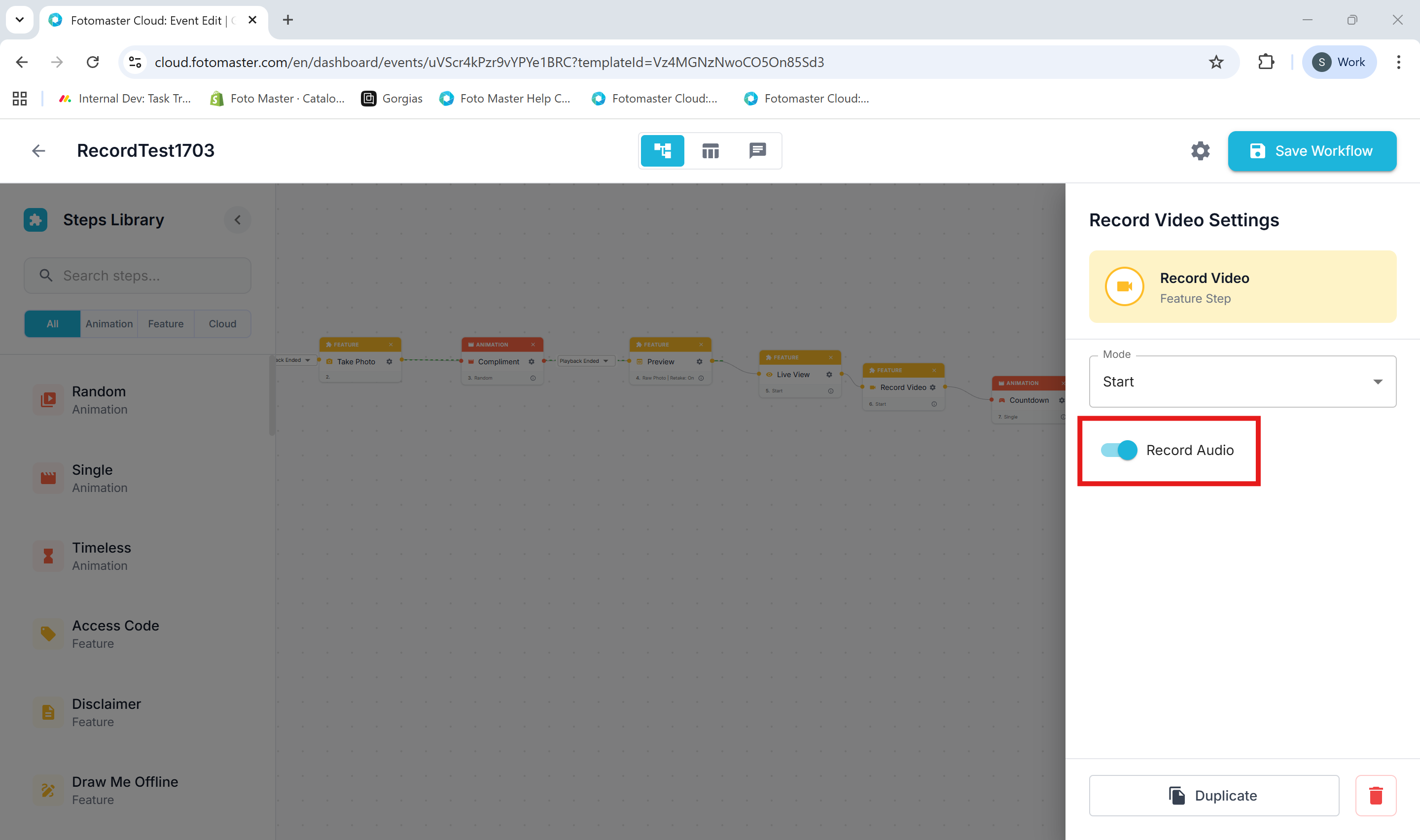
Locate the Record Video node (Mode: Start).
Ensure the Record Audio toggle is switched ON.
2. Check Video Output Volume
The audio might be recorded but muted during the final processing stage.
In the event settings, click the Edit icon next to Video Outputs.
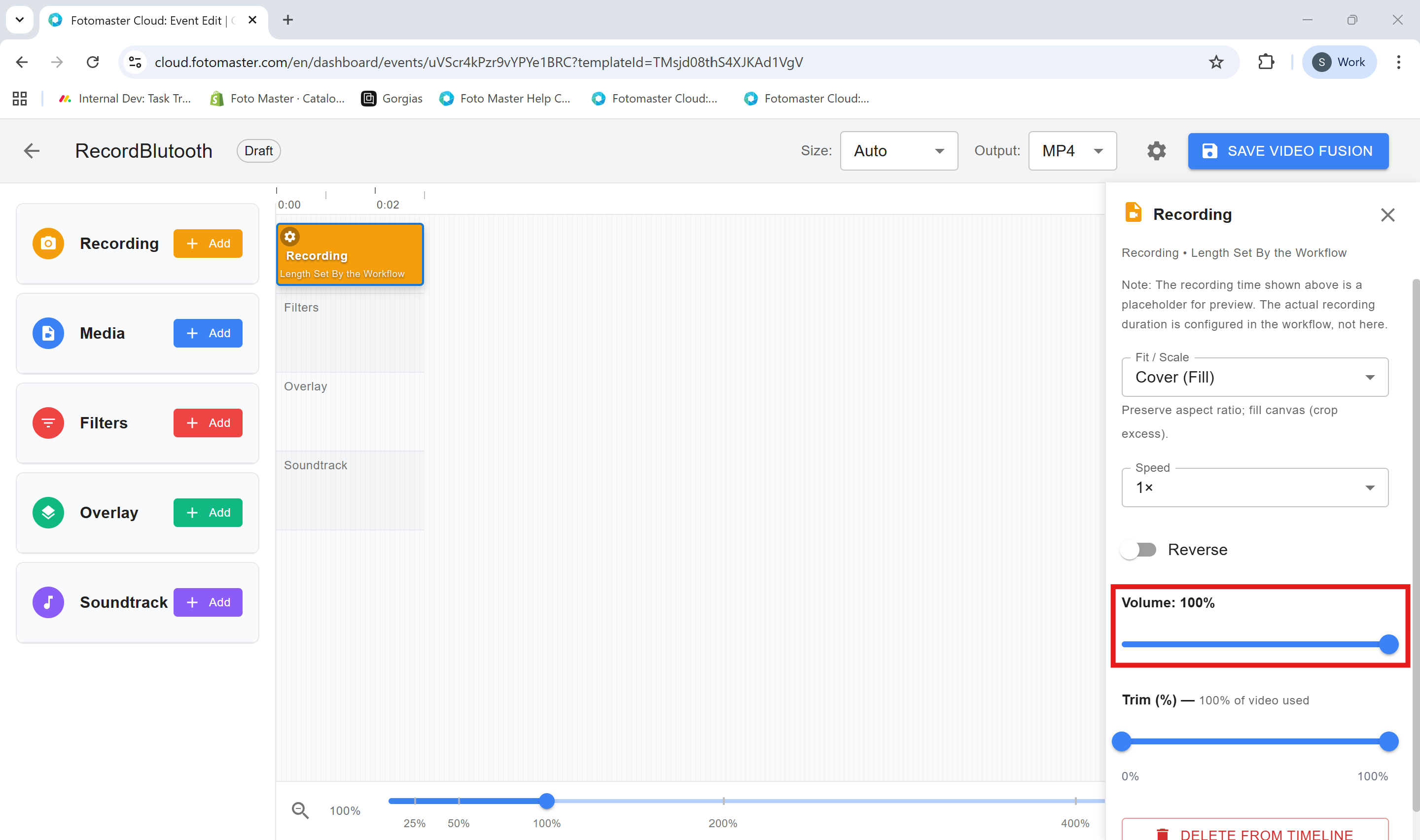
Select the recording layer in the timeline.
Check the Volume slider on the right sidebar and ensure it is not set to 0%.
3. Test iPad Native Recording
Determine if the issue is with the FMX app or the iPad hardware.
Close the FMX app.
Open the native iOS Voice Memos or Camera app.
Record a short clip using the Bluetooth mic. If there is no sound here, the problem lies with the Bluetooth pairing or the microphone itself.
4. Verify App Permissions
FMX must have permission to access the iPad's audio input.
Go to iPad Settings.
Select Apps from the side menu.
Locate and select FMX.
Ensure the Microphone toggle is enabled.
5. Force External Microphone Input
Ensure the iPad is prioritizing the Bluetooth device over the built-in mic.
Go to iPad Settings.
Select Sound.
Under the Input section, ensure the external Bluetooth microphone is selected (avoid "Automatic" or "Internal" if possible).
6. Validate Hardware Integrity
Confirm the microphone works on a different device (e.g., a smartphone).
If the microphone fails to record across different devices, the hardware may be faulty or the battery may be low.
7. Perform a Clean Reinstall
If all settings are correct but the issue persists only in FMX:
Uninstall the FMX app from the iPad.
Restart the iPad.
Reinstall FMX from the App Store to reset all internal configurations.