
Record Video: Overview
The Record Video step captures short video clips as part of your FMX experience. Instead of a single photo, guests can move, talk, dance, or perform an action, and the whole moment is saved as a video.
What Is the Record Video Step?
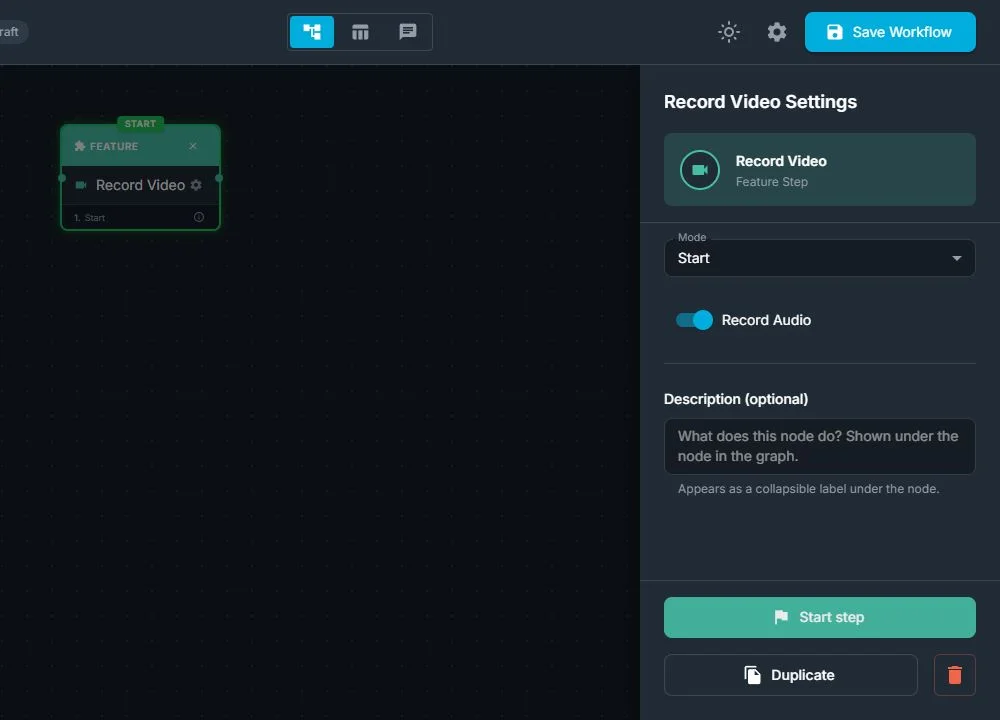
From the workflow point of view, Record Video:
- Is a capture step that always works in two parts: one step to start recording and one step to stop it
- Starts recording when the workflow reaches a Record Video (Start) step
- Keeps recording while the workflow goes through the steps between Start and Stop
- Stops recording and saves the clip when it reaches a Record Video (Stop) step
You place any countdowns, prompts, or animations between Start and Stop. Everything that happens in front of the camera during that time is captured in one video file.
When Should You Use Record Video?
Use a Record Video sequence when you want to capture motion and (optionally) sound, not just still photos.
Typical reasons:
- Let guests record short video messages or greetings
- Run dance, action, or challenge style activations
- Collect customer testimonials or interview-style clips
- Create dynamic, social-media-friendly content instead of (or in addition to) photos
Record Video is especially useful at events where movement, personality, and voice are part of the experience.
How Record Video Fits in the Workflow
Record Video steps are regular steps in your FMX workflows. You add them to the canvas like any other step.
In the Workflow Builder:
- Select Record Video in the Steps Library
- Choose the Mode for each step: Start (begins recording when this step runs) or Stop (ends recording and saves the video)
- Place Record Video (Start) and Record Video (Stop) around the content you want to happen while recording
A basic pattern looks like:
Countdown or instructions → Record Video (Start) → Guest action while recording → Record Video (Stop) → Preview → Share / QR
Key points:
- You must always use both a Start and a Stop step
- The length of the video is mainly determined by what you place between Start and Stop
- There may also be a maximum duration limit in the configuration, which acts as a safety cap so that clips don't become too long
- You usually add a Preview step after Record Video (Stop), so guests can watch the clip, keep it, or retake
- If you turn audio recording off in the Start step, the same workflow creates silent video clips (for example, when you plan to add music later in editing)
Why Record Video Is Useful
For event operators:
- Flexible content: works for messages, dances, interviews, and more
- Configurable quality and audio: balance file size, visual quality, and sound per event needs
- Simple structure: just place a Start and Stop around the moment you want to capture
For clients and guests:
- More expressive: guests can move, talk, and show personality
- Share ready: short, vertical-style clips are ideal for sharing
- Professional feel: the controlled timing and preview/retake flow make the experience polished and comfortable
Was this helpful?
Related articles
FMX for Windows: Customizing Your Experience
Everything at a photo booth event (the overlays, the countdown, the on-screen text, the email guests receive, the gallery they get a link to) is something you control. This guide m
FMX for Windows: System Requirements
Before installing FMX on your Windows computer, make sure your system meets the requirements below. Meeting the recommended specifications will ensure smooth performance during eve
Installing FMX on Windows
When to Use First-time installation of FMX on a Windows PC Reinstalling FMX on the same machine Upgrading FMX to a newer version using the latest installer Requirements Windows 10
Login to FMX
When to Use Immediately after installing FMX When switching operators or moving the license to a different PC Requirements A Foto Master Cloud Account (email and password) At least
Building a FMX Preset From Scratch: Video Tutorial
This video covers the basics of building a workflow and layout in FMX: a good starting point before exploring the individual workflow step articles.