
Screen Capture: Overview
The Screen Capture step takes a still screenshot of what's on the screen at a specific moment in your FMX experience. Instead of capturing the guest with the camera, it captures the booth screen itself: layouts, animations, game results, AI effects, menus, and any other on-screen content. Screen Capture is designed for Windows setups and saves the screenshot as an image in the event's photo folder, just like a regular photo.
What Is the Screen Capture Step?
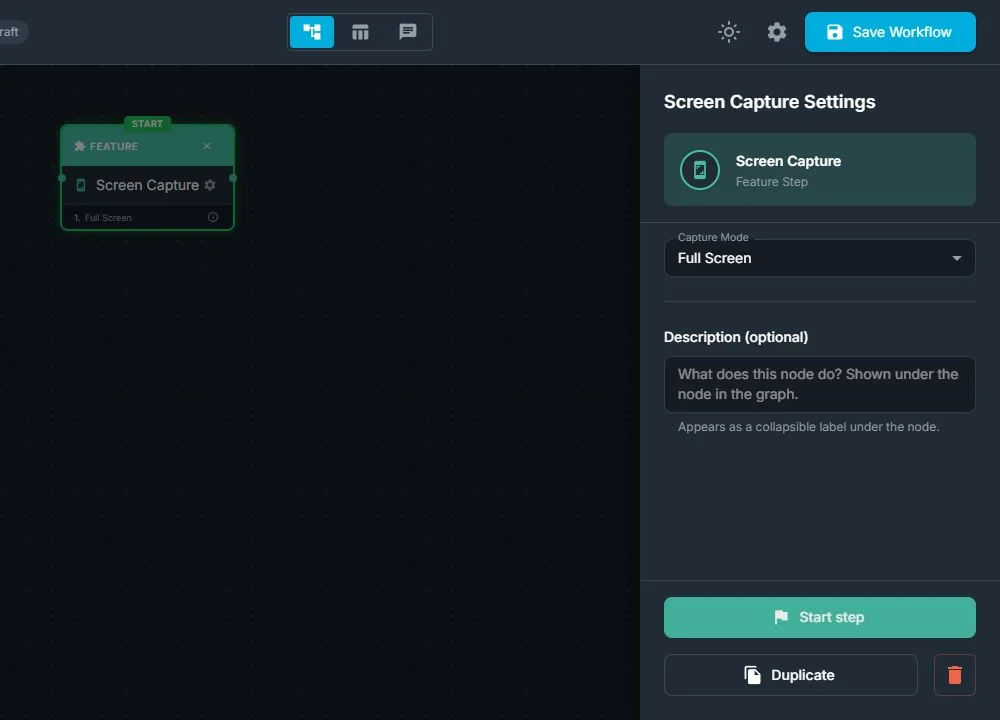
From the operator's perspective, Screen Capture:
- Takes a single screenshot of the screen exactly when the workflow reaches the Screen Capture step
- Allows you to choose whether to capture the entire screen or only a specific area of the screen
- Runs instantly and silently in the background: it does not show its own UI or controls to the guest
- Saves the captured image into the event's Raw photos folder, where it behaves like any other photo in the session
- Is available on Windows setups only (it does not run on iPadOS)
From the guest's perspective:
- They simply see the screen you designed: for example, a result layout, game score, AI effect, or any other content
- They are not shown any special screenshot UI coming from this step
- If you want them to know the screen is being captured, you communicate that with your own instructions, overlays, or animations
- The experience continues smoothly to the next step: for example, Preview, Print, or Share, without any interruption
When Should You Use Screen Capture?
Use a Screen Capture step when you want to save what appears on the screen as an image, instead of (or in addition to) capturing only the camera photo.
Typical reasons:
- Capture a final result screen that includes branding, overlays, or UI elements around the photo
- Save game results or scoreboards as images that guests can keep or share
- Document survey answers or interactive choices shown on screen for reporting or recap purposes
- Create before and after content by capturing the screen before an effect and again after it
- Build a visual record of the guest journey by capturing specific key screens throughout the workflow
You usually don't need Screen Capture for:
- Classic photo booth flows where only the camera photo or the final layout is important
- Simple AI or layout experiences that already output a final photo without needing an on-screen screenshot
- Standard video or reaction recording: those are handled by the Record Video or Screen Recording steps
Screen Capture is best for events where what appears on the screen is part of the story you want to save and share.
How Screen Capture Fits in the Workflow
In the Workflow Builder, add Screen Capture like any other step:
- Select Screen Capture in the Steps Library
- Choose the capture mode: Full Screen (capture everything that is shown on the screen) or Custom Area (capture only a specific rectangle on the screen: for example, just the main photo area, without buttons or sidebars)
- Place the Screen Capture step right after the screen you want to freeze into an image (for example, after an AI result, game, or layout display)
- Connect it to the steps that come before and after it in the guest journey
The captured image is:
- Automatically saved as a photo in the event's Raw photos folder
- Treated like any other photo in the session: it can appear in a Preview carousel, be printed, or be shared by email, QR, and other sharing steps
- Available to any later steps that are designed to work with photos (such as layouts, AI effects, or external tools that use session photos)
If you are using multiple screens or only want part of the screen:
- Full-screen capture will take the entire screen that the booth is using
- Custom Area capture lets you focus only on the guest-facing content and avoid internal controls or extra UI, useful for multi-monitor setups or more precise framing
Why Screen Capture Is Useful
For event operators:
- Extra content: creates an additional visual asset showing exactly what the guest saw on screen, not just the raw camera photo
- Flexible: can be dropped anywhere in the workflow where it makes sense to snapshot the on-screen state
- Great for documentation: useful for creating recap material, training examples, and visual records of games, quizzes, or branded flows
- Works with existing flows: the captured image behaves like a regular photo, so it fits naturally into your existing Preview, Print, and Share steps
For clients and guests:
- Richer outputs: guests can receive not only a final photo, but also screenshots of the layouts, effects, or results screens they interacted with
- Stronger storytelling: screen captures show the full frame with branding, graphics, and context, not just the underlying image
- Memorable moments: game endings, quiz results, and dramatic reveal screens can be saved as images that guests and clients can reuse and share
Was this helpful?
Related articles
FMX for Windows: Customizing Your Experience
Everything at a photo booth event (the overlays, the countdown, the on-screen text, the email guests receive, the gallery they get a link to) is something you control. This guide m
FMX for Windows: System Requirements
Before installing FMX on your Windows computer, make sure your system meets the requirements below. Meeting the recommended specifications will ensure smooth performance during eve
Installing FMX on Windows
When to Use First-time installation of FMX on a Windows PC Reinstalling FMX on the same machine Upgrading FMX to a newer version using the latest installer Requirements Windows 10
Login to FMX
When to Use Immediately after installing FMX When switching operators or moving the license to a different PC Requirements A Foto Master Cloud Account (email and password) At least
Building a FMX Preset From Scratch: Video Tutorial
This video covers the basics of building a workflow and layout in FMX: a good starting point before exploring the individual workflow step articles.