
Sign & Draw: Overview
The Sign & Draw step lets guests use the touchscreen to sign, write, or draw directly on the screen as part of your FMX experience. They can add a simple signature, write a short message, or decorate their photo with doodles and stamps.
Sign & Draw has three modes: Signature, Draw on Final Photo, and Draw on Original Photo.
In FMX for Windows 2.0, the guest toolbar is designed for touch use with larger controls, clear pressed states, and foreground colors that adapt to the selected theme for readable contrast.
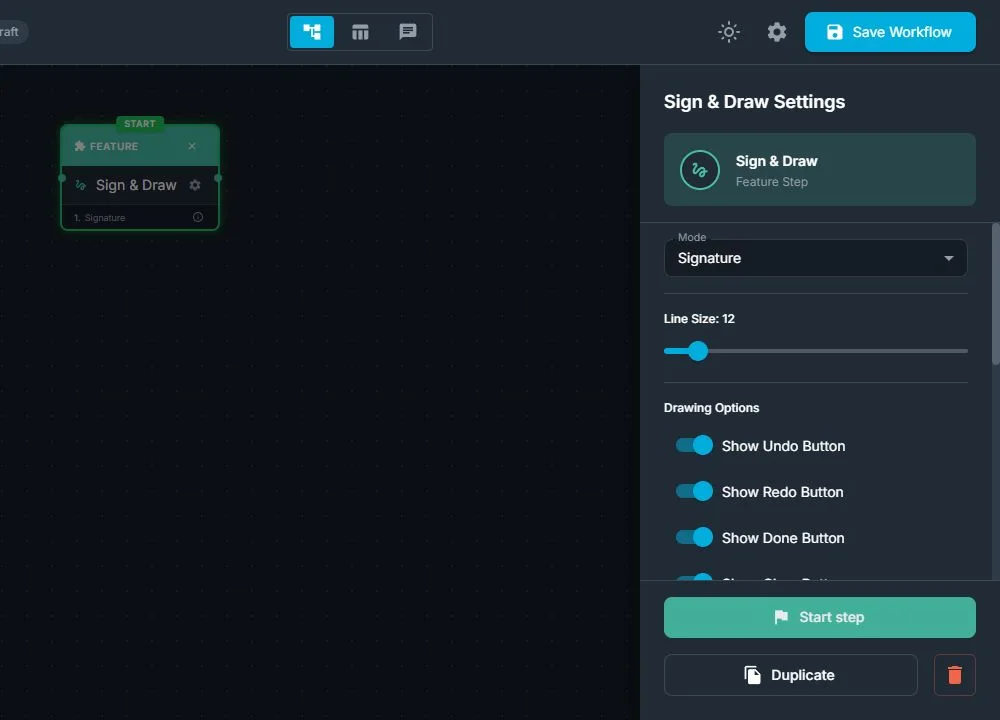
What Is the Sign & Draw Step?
From the operator's perspective, Sign & Draw:
- Is an interactive drawing/signature screen that you add as a regular step in the workflow
- Works in three modes:
- Signature: guests sign on a blank canvas
- Draw on Final Photo: guests draw on the processed/layout photo
- Draw on Original Photo: guests draw on the original captured photo before effects
- Allows you to control the drawing experience with options like:
- Line thickness (thin pen for signatures, thicker strokes for doodles)
- Showing or hiding buttons: Undo, Redo, Clear, Done
- Showing or hiding a color palette and a stamp (stickers/emoji) picker
- Enabling an optional timer that automatically finishes after a set number of seconds
- Saves the result as an image that is attached to the session and can be used in layouts, prints, sharing, or guest books
From the guest's perspective:
- They see either a blank canvas (for signatures) or their photo on screen (for drawing)
- They can draw with their finger or a stylus using different colors (if enabled), add fun stamps or emoji (if enabled), and undo their last stroke, redo, or clear and start over (depending on the buttons you choose to show)
- They tap a Done button when they are happy with the result, or the step can finish automatically when a visible or hidden timer runs out
- The experience then continues: for example, to Preview, Print, or Share, using the signed/drawn-on version of the photo or the saved signature image
When Should You Use Sign & Draw?
Use a Sign & Draw step when you want guests to add a personal, hand-drawn element to the experience.
Typical reasons:
- Let guests sign their name or write a short message (for example, for a wedding guest book or VIP wall)
- Allow guests to doodle on their photo: drawing glasses, mustaches, hearts, or small decorations
- Collect simple digital signatures for consent, waivers, or confirmations (in a visually friendly way)
- Create interactive art station experiences, especially for kids' events and family activations
- Combine hand-drawn content with AI or layouts. For example, draw on the original photo and then apply an AI effect
You usually don't need Sign & Draw for:
- Very fast, high-throughput booths where you only want a quick capture → preview → print flow
- Simple corporate or ID-style photos where clean, unedited images are required
- Experiences that are entirely automatic and don't ask guests to interact with the screen
How Sign & Draw Fits in the Workflow
In the Workflow Builder, add Sign & Draw like any other step:
- Select Sign & Draw in the Steps Library
- Choose the Mode:
- Signature: guests sign on a clean canvas
- Draw on Final Photo: guests draw on the finished, processed photo
- Draw on Original Photo: guests draw on the original capture before further effects
- Decide which tools to offer:
- Line size (pen thickness)
- Show or hide Undo, Redo, Clear, and Done buttons
- Show or hide color selection and stamp selection
- Turn on an optional timer and set how many seconds the guest has, and whether to show the countdown on screen
Typical placement in the flow:
- To collect signatures without a photo: Instructions → Sign & Draw (Signature) → Next step (for example, save/thank you)
- To decorate the original photo before effects: Take Photo → Sign & Draw (Draw on Original Photo) → AI Effect or Layout → Preview → Print / Share
- To decorate the final result after all effects: Take Photo → AI / Layout → Sign & Draw (Draw on Final Photo) → Preview → Print / Share
Basic behavior in the flow:
- When the workflow reaches the Sign & Draw step, the drawing screen opens with the chosen mode and tools
- The guest interacts until they tap Done, or the optional timer runs out (if enabled)
- The step saves the drawing or signature as part of the session and moves on to the next step you connected to
Why Sign & Draw Is Useful
For event operators:
- Higher engagement: guests spend more time interacting with the screen, which makes the experience feel richer and more memorable
- Flexible design: the same step can be configured for formal signatures, fun doodles, quick annotations, or kids' drawings, just by changing its options
- Fits many concepts: works for weddings, brand activations, kids' parties, corporate events, and more, without changing hardware or adding complexity
- Time control: optional timer keeps the line moving at busy events while still giving guests a meaningful, creative moment
For clients and guests:
- Personalization: every result feels theirs because they actually wrote or drew on it
- Storytelling: messages, signatures, and doodles add context and emotion to the photo
- Fun factor: kids and adults alike enjoy drawing, stamping, and decorating their photos on screen
- Keepsakes: signed or decorated photos make stronger souvenirs, especially for milestone events like weddings, birthdays, or brand launches
Customize the buttons and stamps in FMX for Windows
Open Global Settings → Theme to choose the built-in Sign & Draw artwork or custom asset folders.
Under Sign & Draw Button Assets, switch to Customize to replace any of these top-level PNG files:
| File | Control |
|---|---|
clear.png | Clear |
undo.png | Undo |
redo.png | Redo |
color.png | Color picker |
stamps.png | Stamp picker |
done.png | Done |
Use square transparent PNG files, ideally around 256 × 256 pixels. A custom image replaces that control's complete appearance, so include any desired label in the artwork. If one file is missing or invalid, only that control falls back to the built-in design. The color control retains a small live color indicator.
Under Signature Stamps Assets, switch to Customize and choose a folder of top-level PNG files. FMX lists them alphabetically. Square transparent artwork around 500 × 500 pixels is recommended; guests can scale and rotate a placed stamp.
The fallback order is custom stamps, packaged stamps, then the built-in emoji set. Click Save Changes before leaving Global Settings. An in-memory preview alone does not preserve the new folders after restart.
Touch-screen test checklist
- Confirm each enabled control is large enough to press comfortably at the booth's resolution.
- Press Undo, Redo, Clear, Color, Stamps, and Done and verify the active/pressed state is visible.
- Test the lightest and darkest theme colors for readable contrast.
- Place, rotate, and resize several custom stamps.
- Let the timer expire once and confirm the expected saved result and continuation.
Was this helpful?
Related articles
FMX for Windows: Customizing Your Experience
Everything at a photo booth event (the overlays, the countdown, the on-screen text, the email guests receive, the gallery they get a link to) is something you control. This guide m
FMX for Windows: System Requirements
Before installing FMX on your Windows computer, make sure your system meets the requirements below. Meeting the recommended specifications will ensure smooth performance during eve
Installing FMX on Windows
When to Use First-time installation of FMX on a Windows PC Reinstalling FMX on the same machine Upgrading FMX to a newer version using the latest installer Requirements Windows 10
Login to FMX
When to Use Immediately after installing FMX When switching operators or moving the license to a different PC Requirements A Foto Master Cloud Account (email and password) At least
Building a FMX Preset From Scratch: Video Tutorial
This video covers the basics of building a workflow and layout in FMX: a good starting point before exploring the individual workflow step articles.