
How to Customize Your Video Flip Printout
Legacy Article: This article covers the legacy Video Flip software. This product has been discontinued and has no direct replacement.
Now that you've created the perfect flipbook in your Video-Flip software, why not print a great photo as well? This tutorial shows how to adjust everything and create the perfect photo memorabilia for your clients.
Getting Started
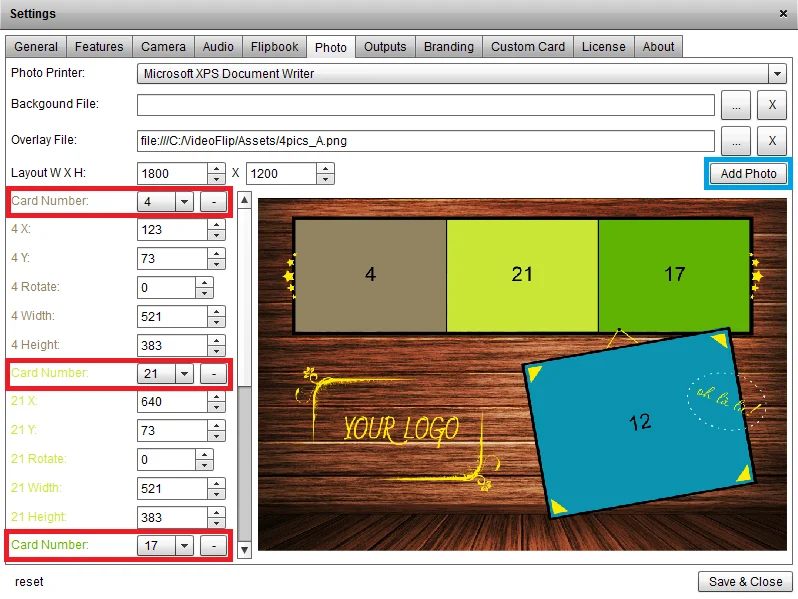
Open the Video-Flip software and click the "Photo" tab. On the preview screen, you can see how the final product will appear.
Customization Options
Background
You can add any background you like by adding a file in the background section.

Overlay
You can add an overlay of your choosing by uploading a file in the overlay section.

Adjusting the Cards
Each colored card in the preview window represents a specific frame from your recorded video. You have several options:
- Add Photos: Click the "Add Photo" button (marked in blue) to include another photo/frame
- Remove Photos: Click the [-] button (marked in red) to delete a photo
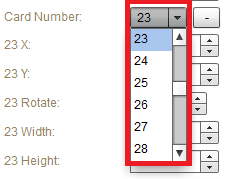
- Change Frames: Select a different frame using the drop-down menu to switch which video frame is displayed
Positioning and Sizing
You can customize the placement and dimensions of your cards:
-
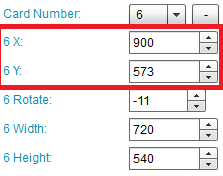
Move Cards: Adjust position on the X and Y axes using the positioning values
-
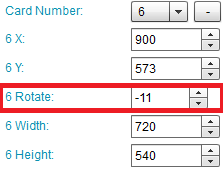
Add Rotation: Apply rotation effects to your cards
-
Resize: Modify the width and height (WxH) of your cards
Once you've made all your adjustments, you're ready to create your customized photo product.
Related articles
Page and Card Padding
Achieving proper calibration becomes straightforward once you understand the fundamental principles. This guide explains how various settings impact page and inner card padding. Pa
VideoFlip Software Tutorial
This tutorial walks you through the VideoFlip software. The full walkthrough is delivered via video: Watch the VideoFlip Software Tutorial on YouTube
Cutter Calibration - Step By Step
This guide provides step-by-step instructions for calibrating a printer cutter for the first time. Step 1: Set Tray Position Adjust the cutter's trays to match your paper size usin
How to Import Videos to the VideoFlip Software
This guide explains how to import video files into VideoFlip software and create flipbooks from them. Prerequisites - VideoFlip V10 or later - MP4 video files Steps to Import Video