
FMShare for iPad: Overview
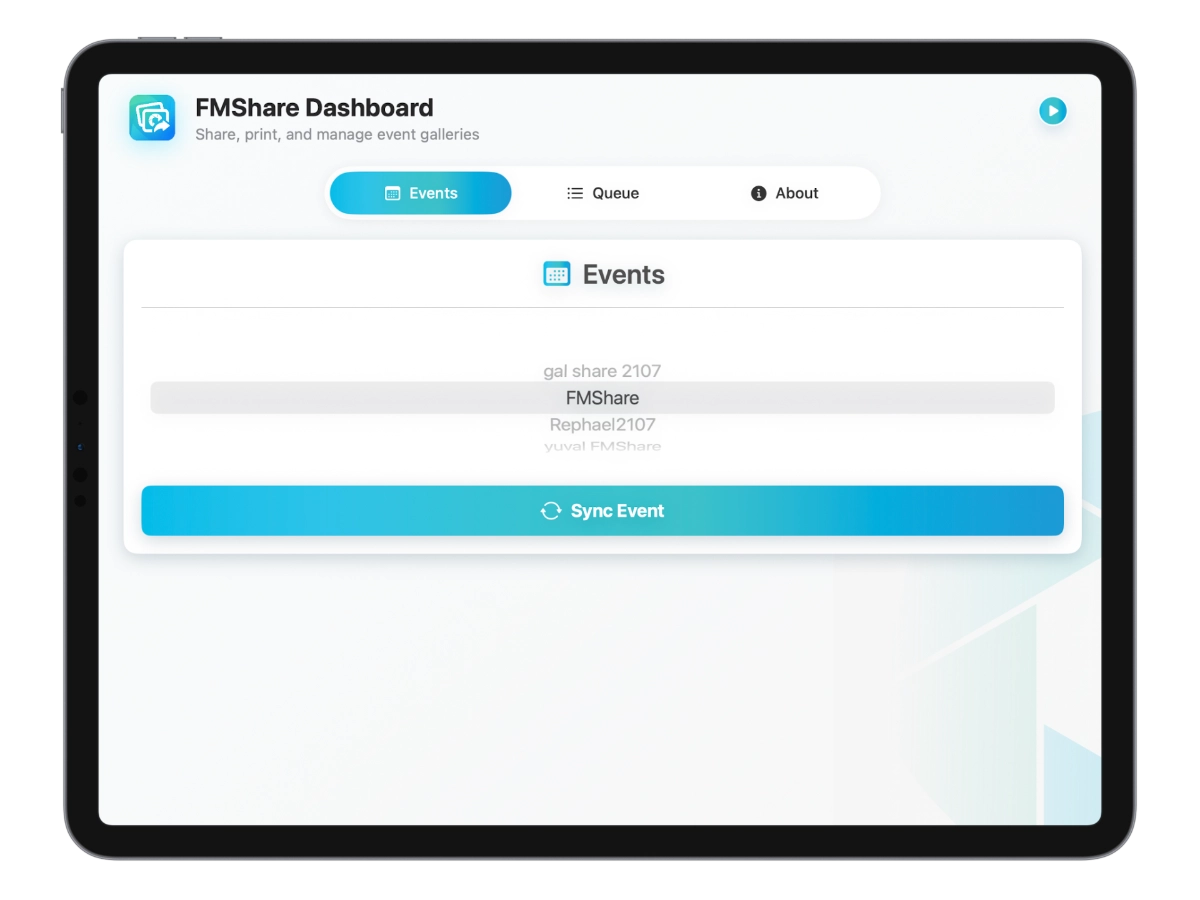
How FMShare Works
- Sign in with your Foto Master Cloud account.
- Select the event you want to run on this iPad.
- Sync the event's settings from the cloud.
- Open the gallery and hand the iPad to guests.
- New photos, videos, and GIFs appear automatically as they become available.
Key Features
Live Event Gallery
Guest Sharing Options
- Email - send the selected item to an email address.
- SMS - text the selected item to a phone number.
- QR code - let guests scan a code to open the item on their phone.
- AirDrop - share quickly to nearby Apple devices.
Photo Printing
- FMPrint - send photos to your FMPrint station.
- AirPrint - use a nearby AirPrint-compatible printer.
Event-Based Customization
Easy Event Switching
Offline-Friendly Experience
Getting Started
- Install FMShare on an iPad.
- Sign in with your Foto Master Cloud account.
- Select the event you want to use.
- Tap Sync Event to bring in the latest settings.
- Open the gallery and start sharing.
Was this helpful?
Related articles
FMShare for iPad: System Requirements
FMShare for iPad requires an iPad running iPadOS 17 or later.Supported DevicesFMShare is intended for modern iPad models that support iPadOS 17.For best results, use an iPad with e
FMShare for iPad: General Tab
FMShare's look is built in the Foto Master Cloud, not on the iPad. This article covers the General tab of an FMShare preset, where you name the template and choose how your gallery
FMShare for iPad: Branding Tab
The Branding tab is where you make FMShare look like your client's event instead of a stock app. It holds four cards: Background, System Icons Theme, Event Title, and Media Border.
FMShare for iPad: Media Filters Tab
The Media Filters tab holds two cards: Filter Tabs, which controls what guests can tap, and Media Types, which controls what the iPad downloads at all. They sound similar and they
FMShare for iPad: Sharing Tab
The Sharing tab decides how guests get their photos. It holds four cards: Sharing Actions, Action Bar, Email Disclaimer, and SMS Disclaimer. Sharing Actions Each sharing action can