
FMShare for iPad: Sharing Tab
The Sharing tab decides how guests get their photos. It holds four cards: Sharing Actions, Action Bar, Email Disclaimer, and SMS Disclaimer.
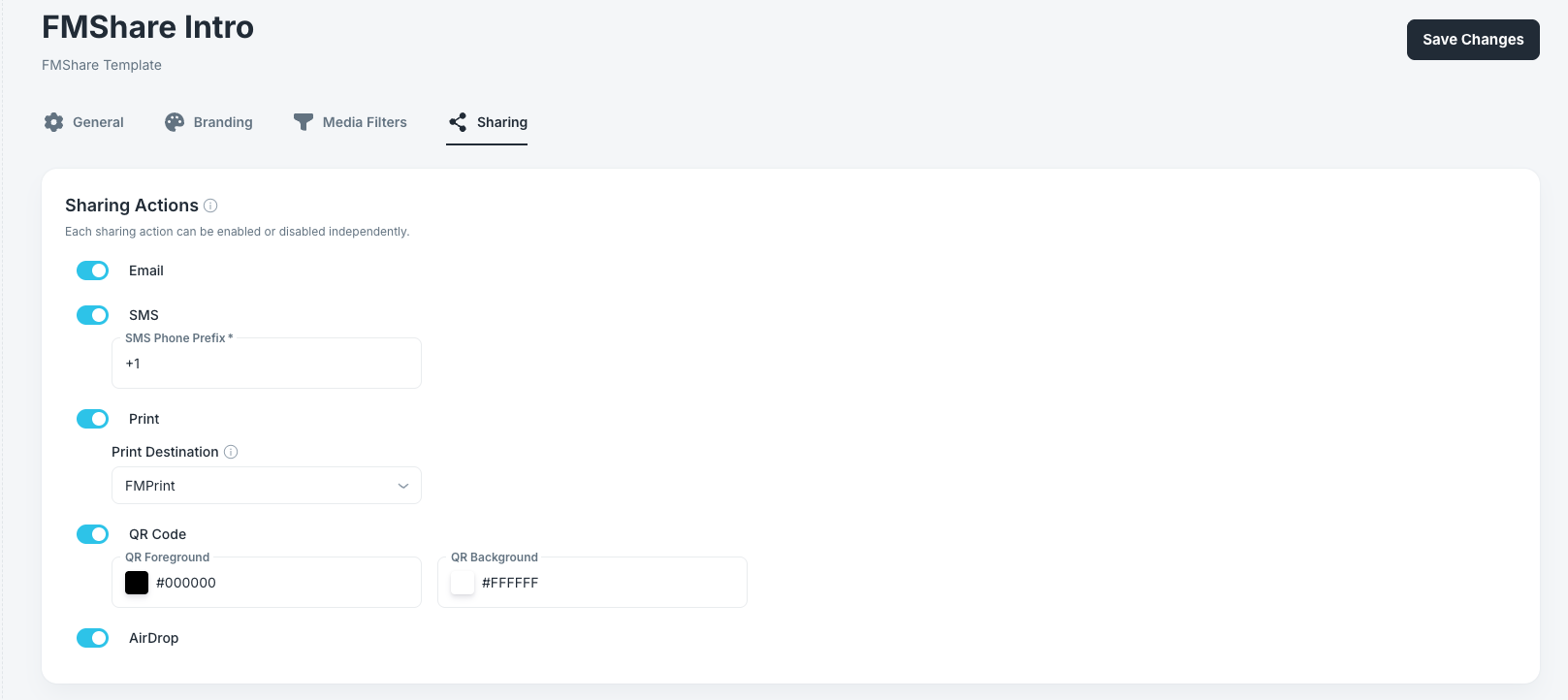
Sharing Actions
Each sharing action can be enabled or disabled independently, and turning one on reveals its own settings underneath.
Note: If you switch every method off, guests see no share bar at all in the fullscreen viewer.
Options: On, Off. Default: On.
Offers Email sharing. Messages are sent by the Foto Master Cloud, so no mail account is needed on the iPad.
SMS
Options: On, Off. Default: On.
Offers SMS sharing. Texts are sent by the server, not from the iPad's Messages app.
SMS Phone Prefix Format: A plus sign followed by 1 to 5 digits. Default: +1. This field is required while SMS is on.
This prefix is added automatically to local numbers your guests type. A guest who enters a full international number keeps their own prefix.
Set this to match the country you are working in, for example +1 for the United States, +44 for the United Kingdom, or +972 for Israel. Getting it right means guests can enter their number the way they normally would, without thinking about country codes.
Note: If guests at a specific event report that their texts never arrive, this prefix is the first thing to check.
Options: On, Off. Default: On.
Offers printing. Printing is available for photos only and never appears on videos or GIFs, regardless of this setting.
Print Destination Options: FMPrint, AirPrint. Default: FMPrint.
FMPrint sends jobs to the FMPrint station linked to your event. Jobs are queued on the iPad, retry automatically if the connection drops, and survive app restarts. This is the right choice for almost every event.
AirPrint sends jobs to a local AirPrint-compatible printer through Apple's printer picker. Jobs are handed straight to iPadOS and are not queued by FMShare, so a failed AirPrint job cannot be retried from the Dashboard.
Choose AirPrint only when you have no FMPrint station and a compatible printer is on the same network as the iPad.
QR Code
Options: On, Off. Default: On.
Offers QR-code sharing. Guests scan the code and the photo opens in their phone's browser, with no login required.
QR Foreground Default: Black (#000000). The color of the code itself.
QR Background Default: White (#FFFFFF). The color behind the code.
Both are entered as hex values with a color swatch. Keep strong contrast between them. Phone cameras need it, and a low-contrast code styled to match a client's brand palette often will not scan at all. If you must brand the code, darken the foreground rather than lightening it, and test it with an actual phone before the event.
AirDrop
Options: On, Off. Default: On.
Offers AirDrop sharing. The guest receives the original full-quality file. iPadOS controls the nearby-device list, so that screen will always look like Apple's.
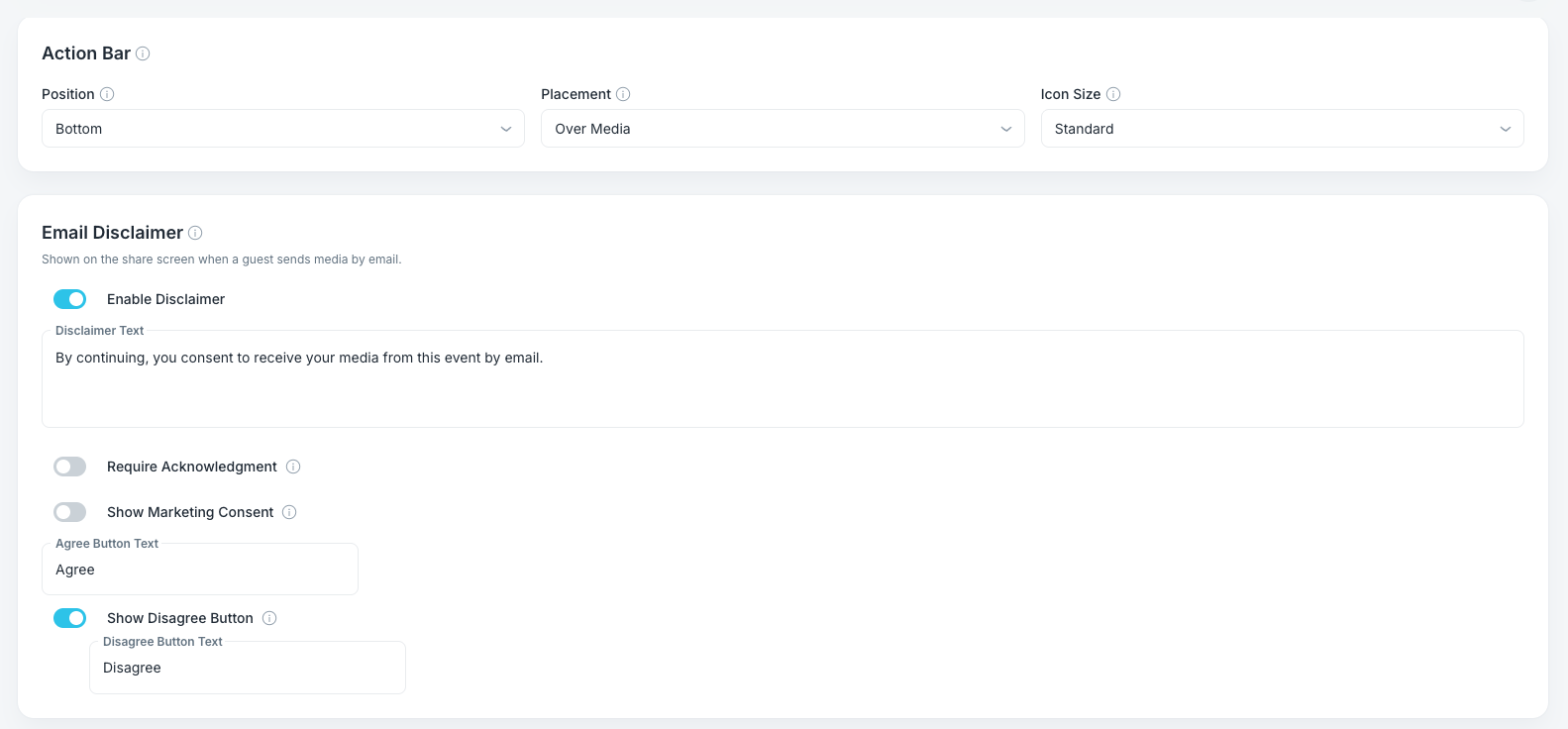
Action Bar
This card controls where the row of sharing icons sits in the fullscreen viewer and how large it is.
Position
Options: Top, Bottom. Default: Bottom.
Which edge of the viewer holds the sharing actions. Bottom suits a handheld or low-mounted iPad, since it puts the buttons near the guest's thumbs. Top can work better on a high-mounted display.
Placement
Options: Over Media, Outside Media. Default: Over Media.
Over Media floats the controls on top of the photo on a dark gradient. It gives the photo the full screen but covers a strip of it.
Outside Media reserves a separate strip for the controls, so they never cover any part of the image.
Use Outside Media when the client cares about guests seeing the whole photo, for example when the design has a logo or text near the edge that the bar would sit on top of.
Icon Size
Options: Small, Standard, Large. Default: Standard.
The size of the labeled sharing buttons. Go to Large for events with older guests or a busy, low-light venue where people are reading the labels quickly. Small is worth it only when you have all five sharing methods on and the labels are crowding each other.
Email Disclaimer
This card controls the consent screen shown before a guest sends a photo to themselves by email.
Enable Disclaimer
Options: On, Off. Default: On.
When on, guests see a DISCLAIMER screen before the Email share panel. Turning it off sends guests straight to the share panel.
Disclaimer Text
Default: "By continuing, you consent to receive your media from this event by email."
The message shown to the guest. Replace it with your client's wording where an event requires specific language.
Note: Consent wording carries legal weight and varies by region and client. Have the client or your own legal advisor approve any custom text before an event. The defaults are a starting point, not legal advice.
Require Acknowledgment
Options: On, Off. Default: Off.
When on, a checkbox appears that the guest must tick before the agree button unlocks, and an Acknowledgment Text field appears here for its label.
Turn this on when a client needs proof that guests actively agreed rather than simply proceeding.
Show Marketing Consent
Options: On, Off. Default: Off.
When on, an optional marketing-consent checkbox appears on the disclaimer screen, and a Marketing Consent Text field appears here for its label. The guest's choice is recorded with the send.
This is how a client collects opt-ins for their mailing list. Keep the label plain and specific about who is contacting the guest and why.
Agree Button Text
Default: "Agree".
The label on the button that continues to the share panel. Wording like "I Agree" or "Continue" works equally well.
Show Disagree Button
Options: On, Off. Default: On.
Shows a second button that closes the panel instead of continuing.
Disagree Button Text Default: "Disagree".
Note: Disclaimer colors are not set here. They come from Branding → System Icons Theme, which also styles the sharing screens and the gallery filter buttons.
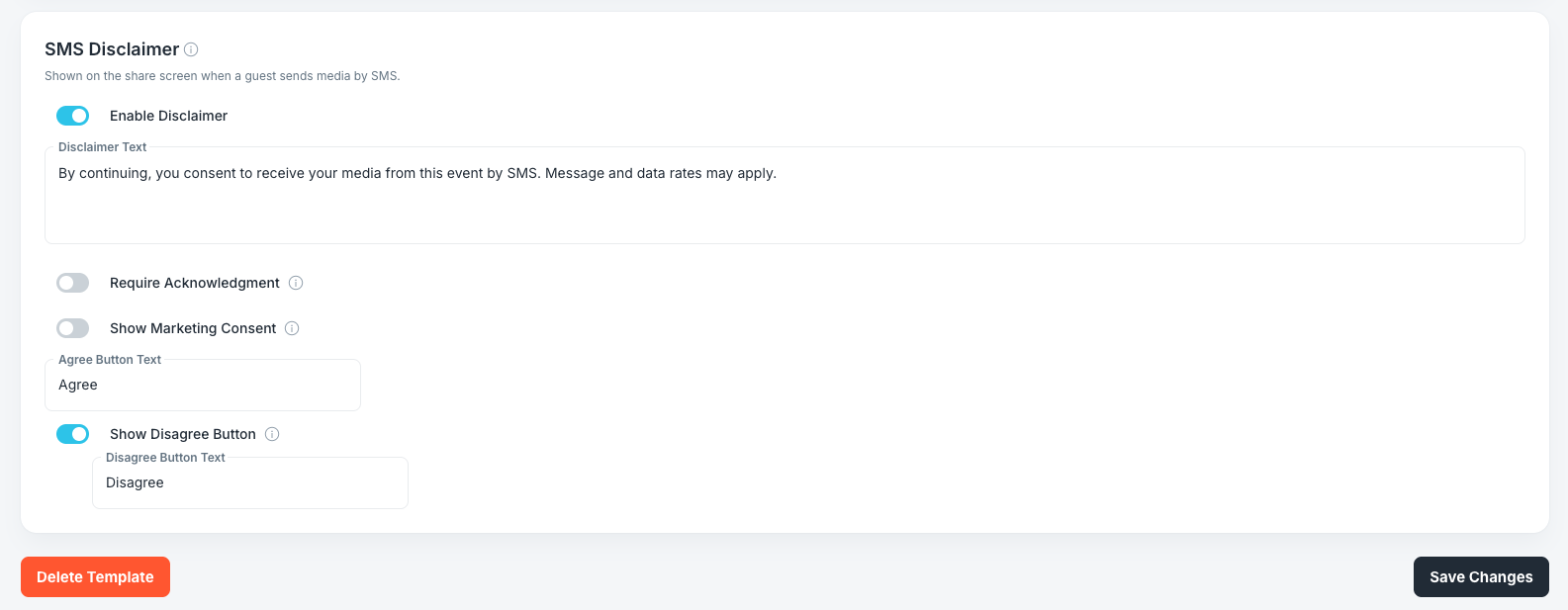
SMS Disclaimer
This card is identical in structure to the Email Disclaimer and is configured separately, so each channel can have its own wording. It is also on by default.
Disclaimer Text default: "By continuing, you consent to receive your media from this event by SMS. Message and data rates may apply."
The SMS default deliberately mentions message and data rates, which the email version does not. If you write custom SMS wording, keep that disclosure in it. Carrier messaging rules in many regions expect it.
The remaining settings behave exactly as they do for Email: Require Acknowledgment (off by default), Show Marketing Consent (off by default), Agree Button Text ("Agree"), and Show Disagree Button (on by default) with its Disagree Button Text ("Disagree").
Saving Your Changes
Click Save Changes at the top right or the bottom right of the page. Both buttons do the same thing.
The red Delete Template button sits at the bottom left.
Seeing Your Changes on the iPad
Sharing settings are the ones most worth testing before guests arrive, because a broken share method is not visible from the gallery.
- On the iPad, open the FMShare Dashboard and select the Events tab.
- Spin the wheel to your event.
- Tap Sync Event and wait for Sync complete in green.
- Tap the play button to open the gallery, then tap any photo to open it fullscreen.
Then run through this check:
- Confirm the share bar appears in the right Position, with the right Placement and Icon Size.
- Confirm only the methods you enabled are showing.
- Tap Email and confirm your disclaimer text, buttons, and any checkboxes appear as intended.
- Tap SMS and do the same, then send one test message to your own phone to confirm the prefix produces a working number.
- If QR Code is on, scan the code with a phone to confirm your color choices still scan.
- Open a video or GIF and confirm Print is correctly absent.
Note: If several iPads are running this event, press Sync Event on each one and each iPad requires its own License.
And you're good to go!
Was this helpful?
Related articles
FMShare for iPad: Overview
FMShare turns an iPad into a live sharing station for your event. It shows a continuously updating gallery of the event's photos, videos, and GIFs, and lets guests send items to th
FMShare for iPad: System Requirements
FMShare for iPad requires an iPad running iPadOS 17 or later.Supported DevicesFMShare is intended for modern iPad models that support iPadOS 17.For best results, use an iPad with e
FMShare for iPad: General Tab
FMShare's look is built in the Foto Master Cloud, not on the iPad. This article covers the General tab of an FMShare preset, where you name the template and choose how your gallery
FMShare for iPad: Branding Tab
The Branding tab is where you make FMShare look like your client's event instead of a stock app. It holds four cards: Background, System Icons Theme, Event Title, and Media Border.
FMShare for iPad: Media Filters Tab
The Media Filters tab holds two cards: Filter Tabs, which controls what guests can tap, and Media Types, which controls what the iPad downloads at all. They sound similar and they