
FMShare for iPad: General Tab
FMShare's look is built in the Foto Master Cloud, not on the iPad. This article covers the General tab of an FMShare preset, where you name the template and choose how your gallery wall is laid out, sorted, and animated.
Note: An FMShare preset is a starting template. When you create a new event, the preset seeds that event's settings. From that point the event keeps its own independent copy, so editing the preset later does not change events that already exist.
Finding Your FMShare Presets
- Sign in to the Foto Master Cloud.
- In the left sidebar, click Presets to expand it.
- Click FMShare.
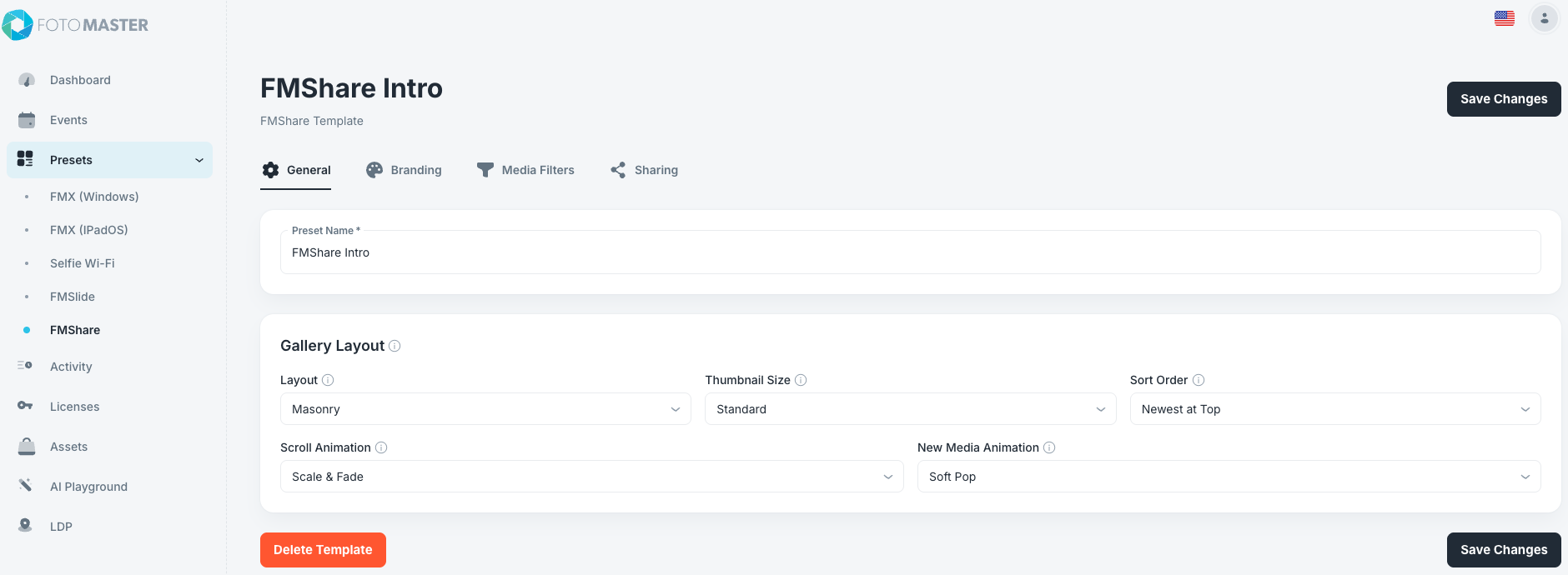
Naming Your Template
The Preset Name field at the top is the name you will recognize this template by when you apply it to an event. It is required.
Give it a name that describes the look, not the client. Names like "Elegant Wedding," "Corporate Dark," or "Bright Grid" stay useful across dozens of events, whereas a client name only helps once.
Gallery Layout Settings
The Gallery Layout panel holds five settings. Together they control the shape and the motion of the photo wall your guests see.
Layout
Options: Masonry, Grid. Default: Masonry.
This is the biggest visual decision on the page, so make it first.
Masonry is a staggered photo wall that keeps every item at its original shape. Tall photos stay tall, wide photos stay wide, and nothing is cropped. It looks organic and works well when your event mixes portrait and landscape captures.
Grid puts every item in a uniform cell, so the wall reads as clean and orderly. Choosing Grid reveals additional controls for the number of columns, the shape of each cell, and how media is scaled inside it.
For most events, Masonry is the safer choice because it never crops a guest's face out of frame. Choose Grid when the client wants a formal, symmetrical look and your captures are all the same shape.
Thumbnail Size
Options: Tiny, Smaller, Standard, Larger, Extra Large. Default: Standard.
This controls how big each photo appears by changing how many columns fit across the screen. Smaller sizes fit more columns and show more photos at once. Larger sizes fit fewer columns and make each photo more prominent.
Match this to how guests will view the iPad. For a handheld station where one guest at a time is hunting for their own photo, Larger or Extra Large makes photos easier to recognize at arm's length. For a mounted display that doubles as event decor, Smaller or Tiny fills the screen with more of the event.
Sort Order
Options: Newest at Top, Newest at Bottom. Default: Newest at Top.
This decides where new captures land on the wall.
Newest at Top puts the most recent photo at the top of the gallery, which is what most guests expect. They walk up, and their photo is right there.
Newest at Bottom builds the wall downward in chronological order, so it reads like a timeline of the event from start to finish.
Leave this on Newest at Top unless the client specifically wants a chronological story.
Scroll Animation
Options: None, Scale & Fade, Parallax & Depth, Rotation & Lift, Gentle Float, Depth Drift, Soft Focus, Card Stack, Column Wave, Spotlight, Gallery Drift. Default: Scale & Fade.
This is a decorative animation applied to the tiles while the gallery scrolls. It is purely cosmetic and does not affect how guests find or share photos.
Scale & Fade is a subtle default that suits almost any event. The more dramatic options like Card Stack, Spotlight, and Rotation & Lift draw attention to the screen, which works well for a mounted display in a busy room. Choose None for a corporate or formal event where movement would feel out of place.
New Media Animation
Options: Soft Pop, Glow, Light Sweep, Lift, New Badge, Ripple, Center Stage, Spotlight Bloom, Shutter Flash, Card Deal, Polaroid Drop, Focus Snap, Border Tilt, Random, None. Default: Soft Pop.
This is the highlight animation that plays when a brand new capture arrives on the wall. It is what tells a waiting guest that their photo just landed.
Two options behave differently from the rest:
- Random picks a different effect each time a photo arrives, so the wall never repeats itself.
- New Badge shows a "NEW" pill on the item instead of animating it, which is the clearest option if guests are struggling to spot their arrival.
Set this to None only if the client wants a completely still wall.
Deleting a Template
The red Delete Template button sits at the bottom left of the page.
Do not delete a template you are unsure about.
Seeing Your Changes on the iPad
Cloud changes never appear on an iPad on their own. To check your work:
- On the iPad, open the FMShare Dashboard and select the Events tab.
- Spin the wheel to the event you want.
- Tap Sync Event and wait for Sync complete in green.
- Tap the play button at the top right to open the gallery.
You should now see your Layout, Thumbnail Size, and Sort Order choices reflected in the wall itself. Scroll the gallery to see your Scroll Animation, and wait for a fresh capture to see your New Media Animation.
And you're good to go!
Was this helpful?
Related articles
FMShare for iPad: Overview
FMShare turns an iPad into a live sharing station for your event. It shows a continuously updating gallery of the event's photos, videos, and GIFs, and lets guests send items to th
FMShare for iPad: System Requirements
FMShare for iPad requires an iPad running iPadOS 17 or later.Supported DevicesFMShare is intended for modern iPad models that support iPadOS 17.For best results, use an iPad with e
FMShare for iPad: Branding Tab
The Branding tab is where you make FMShare look like your client's event instead of a stock app. It holds four cards: Background, System Icons Theme, Event Title, and Media Border.
FMShare for iPad: Media Filters Tab
The Media Filters tab holds two cards: Filter Tabs, which controls what guests can tap, and Media Types, which controls what the iPad downloads at all. They sound similar and they
FMShare for iPad: Sharing Tab
The Sharing tab decides how guests get their photos. It holds four cards: Sharing Actions, Action Bar, Email Disclaimer, and SMS Disclaimer. Sharing Actions Each sharing action can