
FMShare for iPad: Media Filters Tab
The Media Filters tab holds two cards: Filter Tabs, which controls what guests can tap, and Media Types, which controls what the iPad downloads at all. They sound similar and they are not, so read the Media Types section carefully before changing anything.
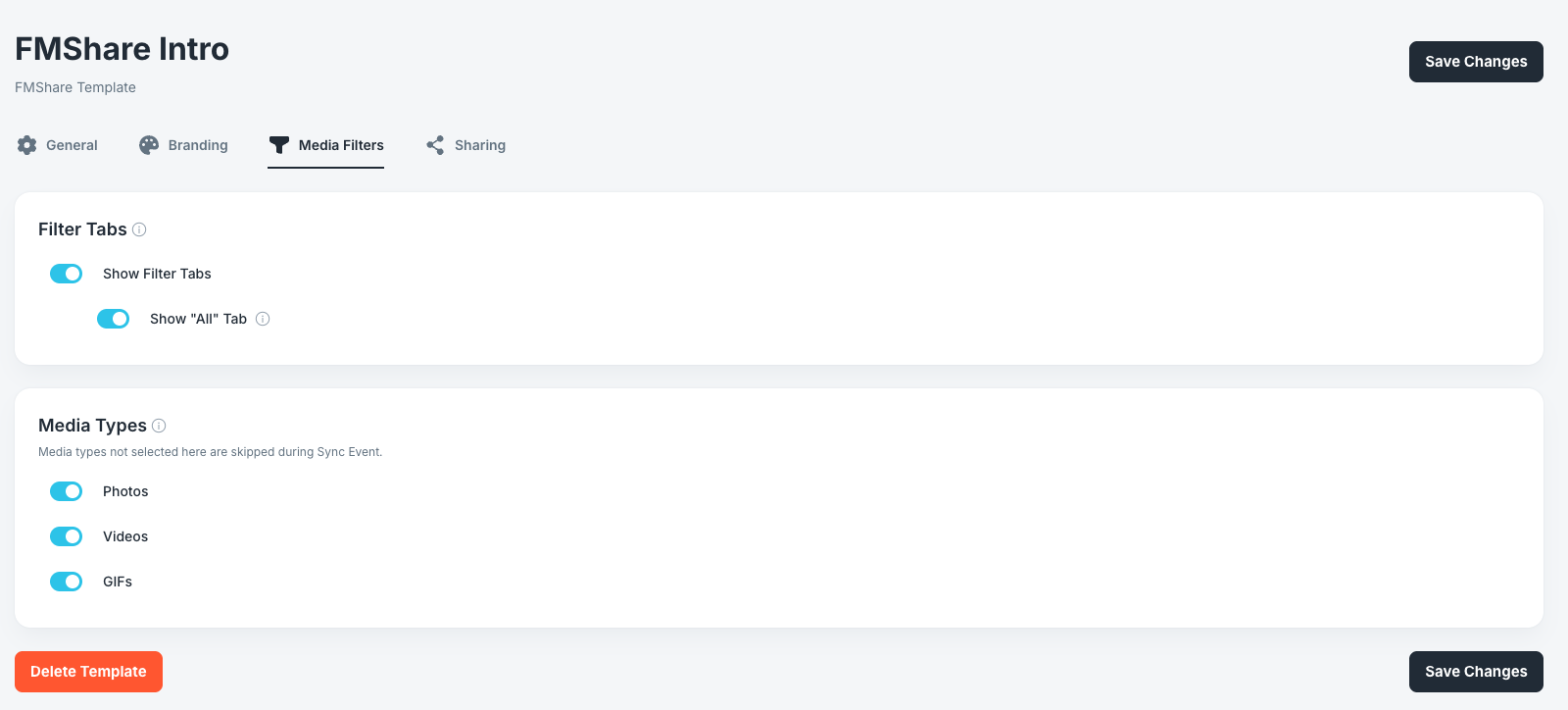
Filter Tabs
This card is purely visual. It decides whether guests get the row of media type tabs at the bottom of the gallery.
Show Filter Tabs
Options: On, Off. Default: On.
Shows the All, Photo, Video, and GIF tabs at the bottom of the gallery, letting guests narrow the wall to one media type.
Turning it off hides the row entirely and also hides the setting below it.
Note: The tabs only appear when the gallery actually contains more than one media type. At a photo-only event they stay hidden even with this setting on, and that is correct behavior rather than a fault.
Show "All" Tab
Options: On, Off. Default: On.
Adds the combined All tab alongside the individual type tabs. This setting is nested under Show Filter Tabs and only applies while that toggle is on.
Leave it on. Without it, guests can view one type at a time but cannot get back to the full mixed wall.
Media Types
This card is not a display filter. The helper text on the card says it plainly: media types not selected here are skipped during Sync Event.
Photos, Videos, and GIFs
Options: On, Off. Default: On for all three.
Each toggle controls whether the iPad downloads that media type from the Foto Master Cloud. A type switched off here is skipped entirely, not merely hidden from the gallery.
Why This Distinction Matters
Turning a type off has consequences that a display filter would not:
- Those files are never downloaded to the iPad, so they cannot be shown, shared, or printed.
- Files already on the iPad from an earlier sync stay on disk. Turning a type off does not free up storage retroactively. To reclaim that space, remove the event folder under Files → On My iPad → FMShare → FMShare Events.
- Turning a type back on and syncing again will download it, which takes time and bandwidth at a live event.
Use this deliberately. The main reason to switch a type off is bandwidth or storage on a long event where the client does not need that format, for example turning off Videos at a venue with weak Wi-Fi.
The Two Gates on Media
This is the most common source of "the gallery is missing photos" reports, because there are two independent controls and both must allow a media type.
Gate one is in the cloud. The event's Gallery setting Showing Media Type decides which items the Foto Master Cloud returns at all. FMShare cannot download something the cloud never sends.
Gate two is here. Media Types decides which of the returned items the iPad actually downloads.
When media is missing, check both. Confirming one and stopping is why these tickets take longer than they should.
Saving Your Changes
Click Save Changes at the top right or the bottom right of the page. Both buttons do the same thing.
The red Delete Template button sits at the bottom left.
Seeing Your Changes on the iPad
- On the iPad, open the FMShare Dashboard and select the Events tab.
- Spin the wheel to your event.
- Tap Sync Event and wait for Sync complete in green.
- Tap the play button to open the gallery.
Check the bottom of the gallery for the filter tabs, and confirm each type you left enabled is actually appearing on the wall.
Note: Media Types changes take effect on the next sync. Turning a type on does not retrieve media that was skipped during earlier syncs until you press Sync Event again.
Note: If several iPads are running this event, press Sync Event on each one and each iPad requires its own License.
And you're good to go!
Was this helpful?
Related articles
FMShare for iPad: Overview
FMShare turns an iPad into a live sharing station for your event. It shows a continuously updating gallery of the event's photos, videos, and GIFs, and lets guests send items to th
FMShare for iPad: System Requirements
FMShare for iPad requires an iPad running iPadOS 17 or later.Supported DevicesFMShare is intended for modern iPad models that support iPadOS 17.For best results, use an iPad with e
FMShare for iPad: General Tab
FMShare's look is built in the Foto Master Cloud, not on the iPad. This article covers the General tab of an FMShare preset, where you name the template and choose how your gallery
FMShare for iPad: Branding Tab
The Branding tab is where you make FMShare look like your client's event instead of a stock app. It holds four cards: Background, System Icons Theme, Event Title, and Media Border.
FMShare for iPad: Sharing Tab
The Sharing tab decides how guests get their photos. It holds four cards: Sharing Actions, Action Bar, Email Disclaimer, and SMS Disclaimer. Sharing Actions Each sharing action can