
Hardware onboarding
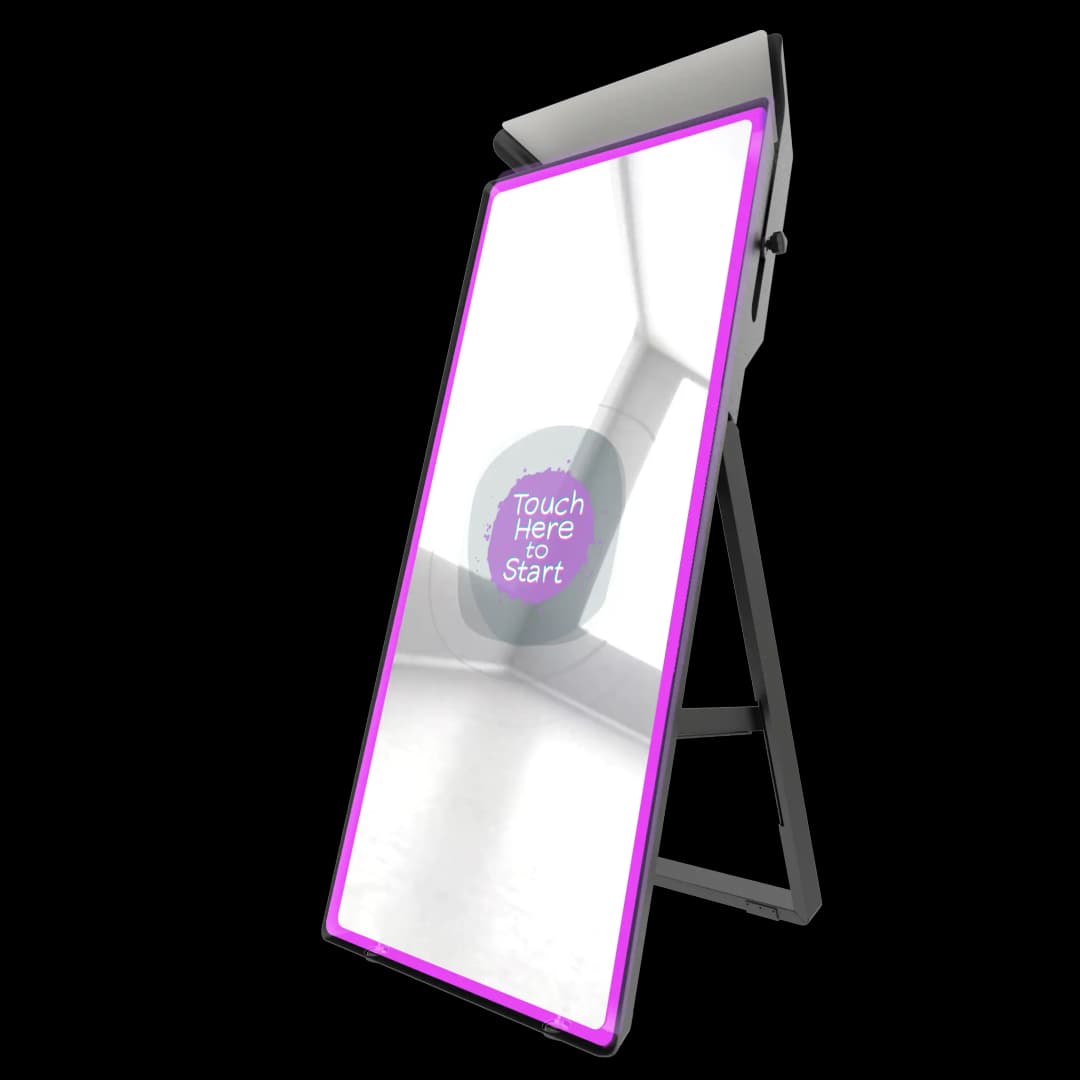
Mirror Photo Booths
Start here when you receive a mirror booth. Follow the flow from physical setup through FMX, cloud sync, sharing, and the first live test.
Best setup flow
Move through these sections in order. Each one links to the most relevant articles for that part of the setup.
Identify the booth and prepare the space
Set up the computer, FMX, and camera
Connect the booth to Foto Master Cloud
Configure the guest experience
Validate sharing, printing, and event operations
1. Identify the booth and prepare the space
Confirm the booth model, choose a stable location, plan power and internet, and leave enough room for guests, staff, and props.
2. Set up the computer, FMX, and camera
Verify Windows requirements, connect the DSLR or webcam, confirm live view, and make sure FMX can see every device.
3. Connect the booth to Foto Master Cloud
Create or choose the event, confirm the license, connect the booth, and sync the assigned preset before guests arrive.
Cloud Dashboard Overview
When you log into cloud.fotomaster.com, you're greeted by the Cloud Dashboard -- your central hub for managing events, AI features, galleries, assets, and connected devices. This a
Creating a Cloud Event
Events are the foundation of how Foto Master Cloud organizes your photo booth operations. Cloud-synced media, galleries, sharing, AI usage, surveys, and print activity are tied to
Event Settings
Every event in Foto Master Cloud has its own settings that control the online gallery, Pro Slideshow, email and SMS delivery, surveys, white-label branding, and which Foto Master s
4. Configure the guest experience
Choose the workflow and layout, test the start screen, configure saving and sharing, then run a full session from start to final photo.
Presets: Overview
Presets are one of the most time-saving features in Foto Master Cloud. A preset packages your booth setup, including workflow, layout, video settings, and related assets, into a re
Preset vs. Template: What's the Difference
Both presets and templates help you set up events faster, but they serve different purposes. Understanding the distinction will help you choose the right approach for each situatio
5. Validate sharing, printing, and event operations
Run email/SMS/share tests, check printing if needed, review the online gallery, and know where to recover offline sessions.
Online Galleries Overview
Online galleries are one of the most powerful features of Foto Master Cloud. They give your guests a beautiful, branded space to view, download, and share their photos from any dev
Sharing Gallery Links & QR Codes
Getting guests to your online gallery should be effortless. Foto Master Cloud provides multiple ways to share gallery access -- from QR codes displayed at the booth to shareable li