
How To Use the AI Face Switch Feature
AI Face Switch swaps the faces of people in a photo with each other. It is a playful event feature for groups and works best when faces are clear, front-facing, and well-lit.
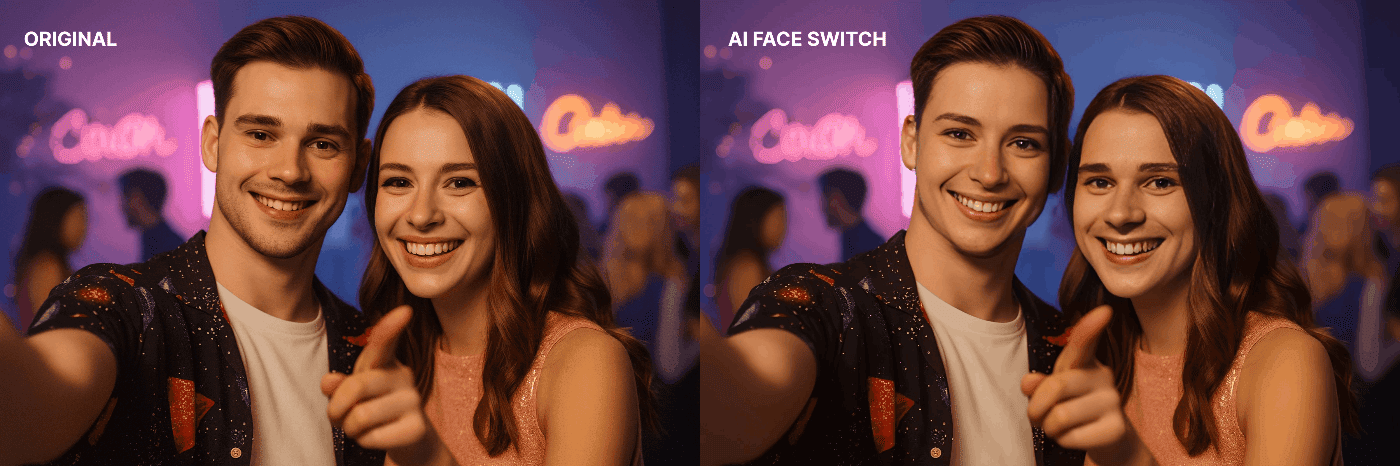
When To Use It
Use Face Switch for casual events, parties, branded entertainment, and group experiences where the goal is a surprising or funny result.
Setup Options
You can start from a prepared preset or build the feature into your own workflow.
If a preset is available in your account, load it, sync FMX, and test before the event.
Manual Workflow Setup
- Open the workflow.
- Add the photo capture step.
- Add the AI Face Switch step after capture.
- Add an AI Processed trigger or equivalent wait step so the workflow does not continue before the AI result is ready.
- Add a reload or preview step so the generated image is shown to the guest.
- Confirm the final layout uses the generated result.
- Save, sync, and test.
Layout Notes
The photo element should match the capture orientation. If the result appears stretched, check the photo element angle, aspect ratio, and whether Keep Aspect Ratio is enabled.
Best Practices
- Use even lighting.
- Keep faces visible and unobstructed.
- Avoid extreme side angles.
- Test with the same group size expected at the event.
- Keep a non-AI fallback workflow ready for poor internet conditions.
Was this helpful?
Related articles
AI Features Overview
Foto Master Cloud brings the power of artificial intelligence directly into your photo booth workflow. With 14+ AI-powered features available at cloud.fotomaster.com, you can offer
AI Playground
AI Playground is a space inside Foto Master Cloud where you can test and explore AI features without setting up a workflow or connecting a booth. Upload a photo, pick a feature, co
AI Modify
AI Modify is a generative AI feature that transforms photos taken at the booth. It works on the original photo (the people, faces, poses, and group layout stay intact) and AI appli
AI Combine
Can't see the video? Watch on YouTube AI Combine generates new AI images using a reference image and a text prompt: producing results that maintain consistent visual style, brandin
AI Background Removal
AI Background Removal automatically strips the background from any photo, isolating the subject cleanly without needing a physical green screen. This means you can place guests aga