
Setting Up User-Generated AI Prompts in FMX via Survey Feature
Instead of using a fixed prompt, this setup lets guests type their own description at the booth, and the AI uses it to generate their photo. It works with both AI Headshot, AI Modify, and AI Draw Me.
Step 1: Open or Load a Workflow
Open an existing workflow that uses AI Headshot or AI Modify, or load a template to follow along:
- Go to your FMX Templates page.
- Click Load Template and select Comics AI Modify.
Step 2: Add a Survey Step
- Add a Survey Step at the beginning of the workflow.
- This can be placed before or after the Touch Here to Start animation.
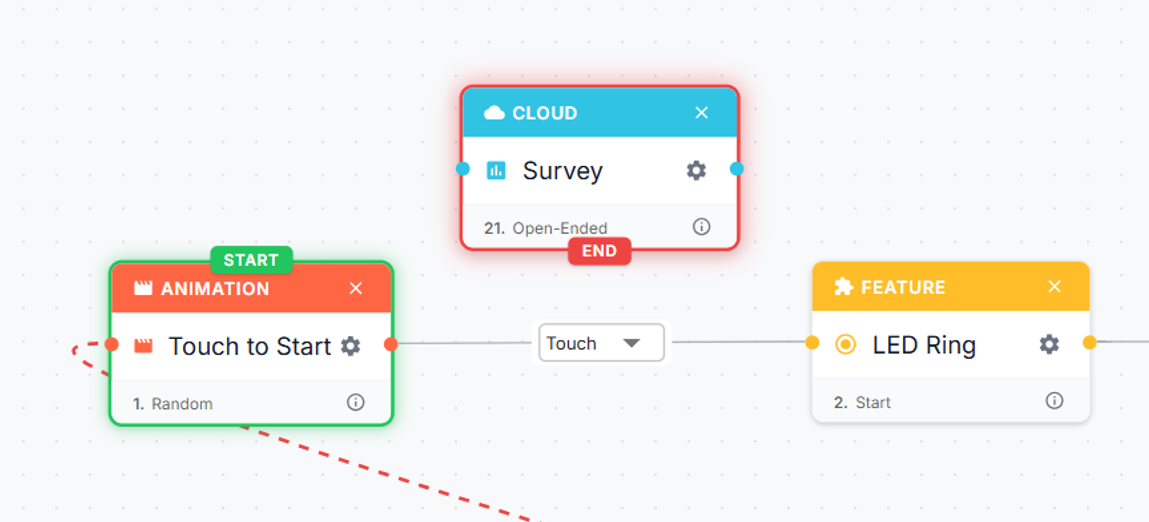
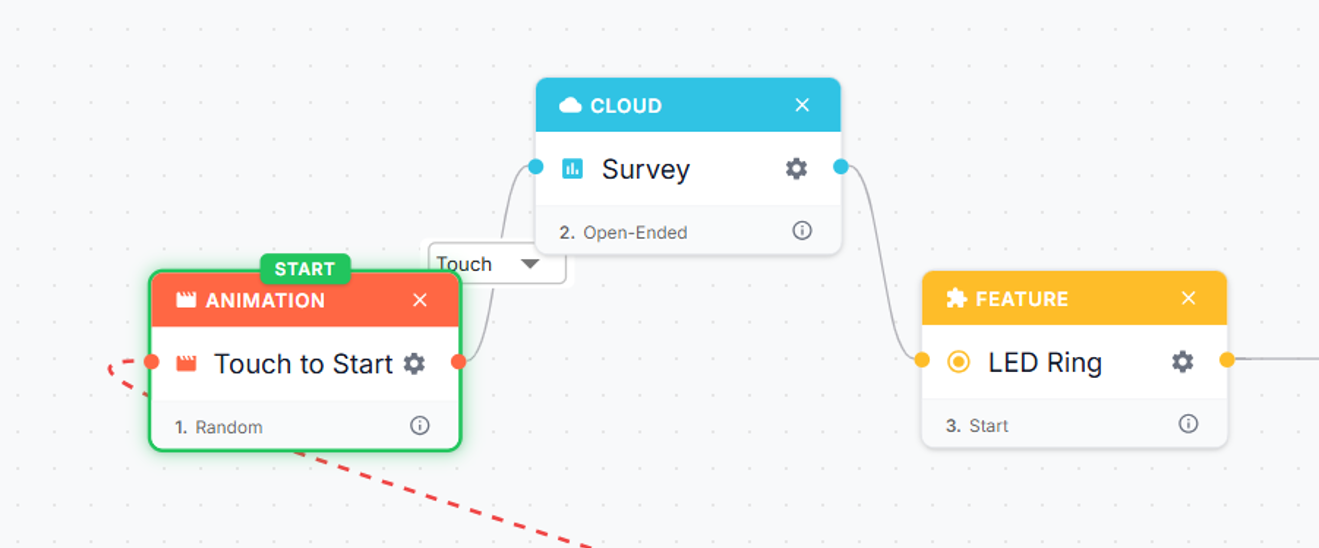
Step 3: Connect the Survey Step
- Connect the Survey Step's start node to the previous step.
- Connect its end node to the next step.
Step 4: Configure the Survey
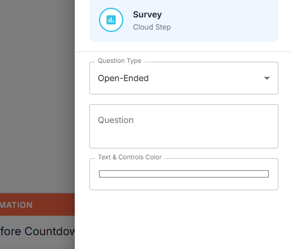
- Click the Gear icon ⚙️ on the Survey Step.
- Set the Question Type to Open-Ended.
- In the Question field, enter a question for your guests to answer. Whatever they enter will be passed directly to the AI step to generate their photo.
Example: "What would you like to be dressed as?"
Step 5: Configure the AI Step
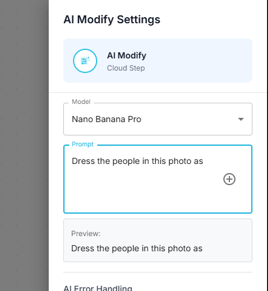
- Find your AI Headshot or AI Modify step and click its Gear icon ⚙️.
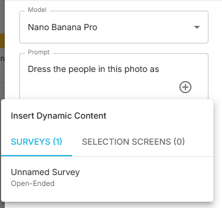
- Clear the existing text in the Prompt field.
💡 Tip: Add a short starting phrase to guide the AI for better results. Example: "Dress the people in this photo as…"
Step 6: Link the Survey to the AI Prompt
- In the Prompt field, click the + button.
- Switch to the Survey tab.
- Select the Survey step you created.
Step 7: Save and Sync
- Save your workflow.
- Sync it to apply the changes to your booth.
Guests will now see a text input at the booth where they can type the answer based on your question.
Whatever they enter will be passed directly to the AI step to generate their photo.
Was this helpful?
Related articles
AI Features Overview
Foto Master Cloud brings the power of artificial intelligence directly into your photo booth workflow. With 14+ AI-powered features available at cloud.fotomaster.com, you can offer
AI Playground
AI Playground is a space inside Foto Master Cloud where you can test and explore AI features without setting up a workflow or connecting a booth. Upload a photo, pick a feature, co
AI Modify
AI Modify is a generative AI feature that transforms photos taken at the booth. It works on the original photo (the people, faces, poses, and group layout stay intact) and AI appli
AI Combine
Can't see the video? Watch on YouTube AI Combine generates new AI images using a reference image and a text prompt: producing results that maintain consistent visual style, brandin
AI Background Removal
AI Background Removal automatically strips the background from any photo, isolating the subject cleanly without needing a physical green screen. This means you can place guests aga