
Lock Settings Behind a Code
FMX for iPad now includes a Lock Settings option that helps prevent guests from entering the Settings panel during an event.
This is especially useful for unattended booths, retail kiosks, self-service activations, or any setup where guests may interact with the booth without an operator standing nearby.
What It Does
When enabled, the Exit to Settings corner shortcut will no longer open Settings immediately.
Instead, FMX displays a full-screen lock screen asking for a numeric code. Only after the correct code is entered will the operator be allowed into Settings.
The corner shortcut itself still works the same way: press and hold the top-left corner of the screen for 1 second. The lock simply adds a PIN step before allowing access to the Settings panel.
How to Set It Up
-
Open Global Settings.
-
Scroll to the Advanced section.
-
Find Lock Settings.
-
Turn the toggle On.
-
In the Access Code field that appears, enter your numeric code, up to 12 digits.
-
Tap Save at the top of the Global Settings panel.
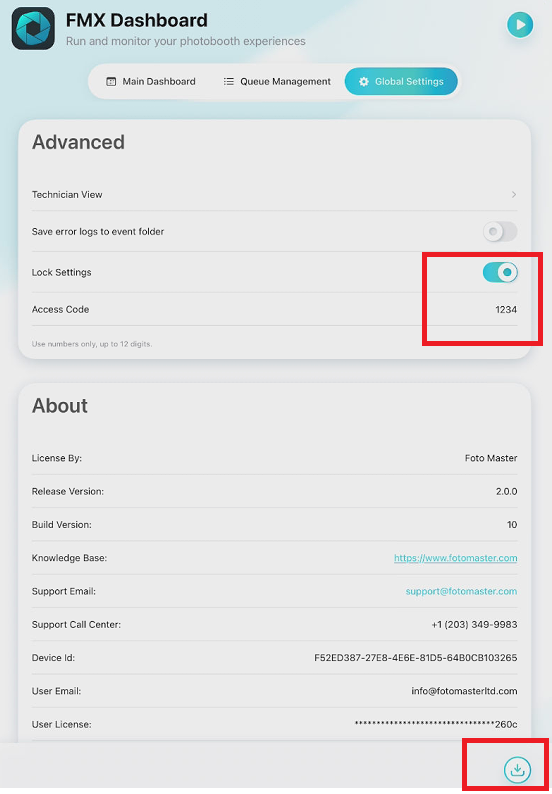
The next time someone triggers the Exit to Settings corner shortcut, the keypad will appear before Settings opens.
What the Lock Screen Looks Like
The lock screen appears as a clean full-screen overlay with:
-
A numeric keypad from 0 to 9
-
A masked code input field
-
A delete key next to the 0 for corrections
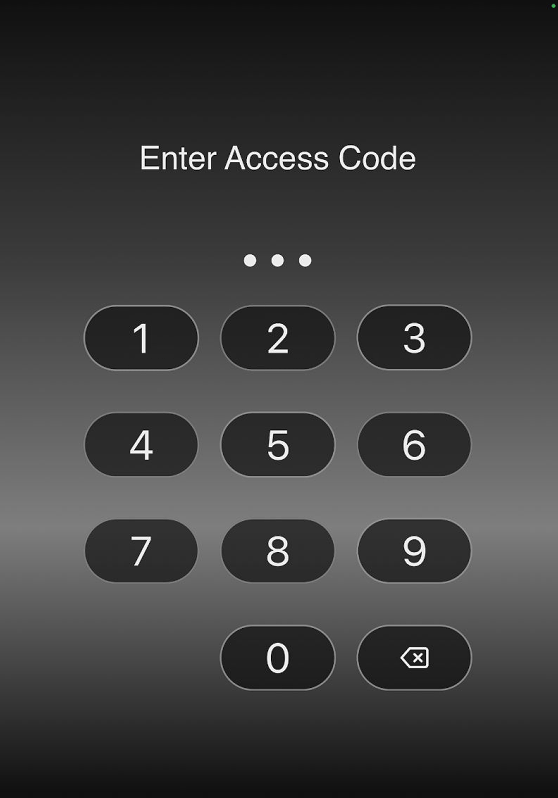
Once the correct code is entered, FMX unlocks Settings. If the code is incorrect, the input field shakes briefly and the lock screen closes automatically, returning the user to the guest experience. There is no Cancel button and no retry loop, simply trigger the corner shortcut again to try once more.
Important Notes
-
The code is numeric only, making it easy to use on touch screens.
-
The code can be up to 12 digits.
-
If the lock is enabled but no code is configured, FMX will use the default fallback code: 1234.
-
Set your own code before deploying the booth at an event.
-
The lock only protects the Exit to Settings corner shortcut.
-
It does not change the rest of the guest experience.
-
If you try to type letters or symbols into the Access Code field in Settings, a small toast reminds you that only numbers are allowed.
-
Changes only take effect after tapping Save at the top of the Global Settings panel.
-
The lock is re-armed every time you exit Settings: the next trip back to Settings always requires the code, even within the same session.
-
Closing and reopening the FMX app does not trigger the lock screen on launch. The lock is only checked when the corner shortcut is pressed from inside the guest experience.
Why This Matters
Unattended booths give guests direct access to the screen, which can sometimes lead to accidental or intentional attempts to exit the experience.
The Lock Settings feature gives operators fast access when needed while keeping end users out of the booth configuration.
Operators can still reach Settings quickly, but guests cannot enter without the correct code.
Was this helpful?
Related articles
FMX for iPad: Customizing Your Experience
Everything at a photo booth event (the look of the experience, the on-screen text, the animations, the email guests receive, what shows on the external display) is something you co
FMX for iPad: System Requirements
FMX for iPadOS is a native Swift application that delivers the full photo booth experience on Apple's iPad platform. Before installing, ensure your iPad meets these requirements. S
FMX for iPad: Main Dashboard
When something goes wrong with FMX for iPadOS, diagnostic logs and systematic troubleshooting are your best tools for identifying and resolving issues. This guide covers how to col
Installing FMX on iPad
Requirements Before You Start iPad running iPadOS 16 or later (iPadOS 17+ recommended) Apple ID with access to the App Store Active Foto Master Cloud account with an iPad license A
FMX for iPad: Sharing Methods
What Sharing Settings Control In FMX for iPad, guests can receive their photos via email, SMS, or QR code. Sharing Methods QR Code: displays a scannable QR code on the FMX screen a