
Age Gate: Overview
Age Gate - restrict parts of your workflow by age
Overview
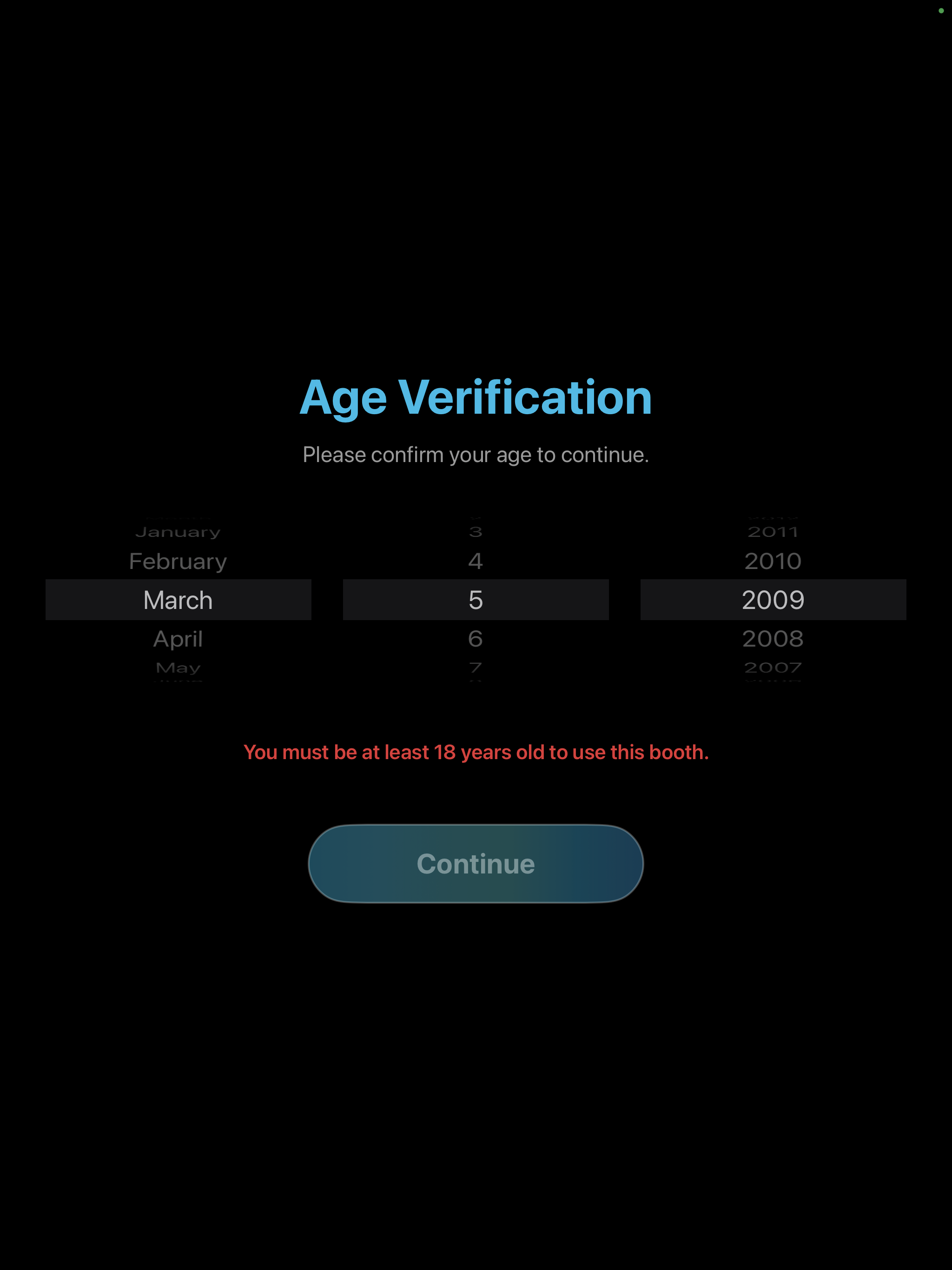
Age Gate asks guests for their date of birth and only lets the flow continue when they meet the minimum age you set. Add it from the cloud Workflow Builder by dragging the Age Gate feature node onto the canvas and editing its settings.
What is the Age Gate step?
- A Workflow Builder feature that pauses the flow and shows a touch-first Month/Day/Year picker.
- Verifies the guest’s age against the configured Age Limit.
- From the guest’s interaction the step produces two outcomes: Verified or Underage.
- Guests cannot cancel from the on-screen picker; an operator can exit the step externally if needed.
From the workflow point of view
- Shows a compact DOB picker UI with large month/day/year controls and a Continue button.
- Calculates age (today vs selected DOB) and compares to Age Limit (default 18).
- If age >= Age Limit the workflow advances to the next step (Verified).
- If age < Age Limit the UI shows a transient error; if an Age Error route is enabled the workflow receives Underage and can route to the configured step.
- No attempt limit is enforced: guests may retry until Verified or an operator exits.
From the guest’s point of view
- They see an editable heading and short description.
- They pick Month, Day and Year and tap Continue.
- Future dates or incomplete selections show an on‑screen error prompt.
- Verified guests proceed immediately. Underage guests see the error and either remain on the Age Gate or are routed to the configured Age Error step.
When to use Age Gate
- Whenever a specific step, branch, promotion, or prize entry must be limited to guests above a configured age.
- Place it near the start of a flow or directly before the branch you want to protect.
How to add & configure (cloud Workflow Builder)
- Login to your account on cloud.fotomaster.com → Workflow Builder (Presets → FMX (IPadOS)).
- Choose your workflow or create a new one.
- From Steps Library → Feature, drag “Age Gate” onto the canvas.
- Click the Age Gate node and edit:
- Age Limit (years)
- Heading and Description (shown to guests)
- Error Message (shown to underage guests)
- Toggle “Go to specific step on Age Error” to route Underage guests
- Optional node description (appears under the node in workflow builder) - Save Workflow.
Why Age Gate is useful
- Simple, clear control of who reaches a step or branch.
- Flexible routing for underage guests (optional Age Error path).
- Privacy-friendly: the feature only signals outcome (Verified / Underage); birth dates are not exposed by the result.
Tips & example wording
- Heading: “Age Verification”
- Description: “Please confirm your age to continue.”
- Error message: “You must be at least 18 years old to use this experience.”
Was this helpful?
Related articles
FMX for iPad: Customizing Your Experience
Everything at a photo booth event (the look of the experience, the on-screen text, the animations, the email guests receive, what shows on the external display) is something you co
FMX for iPad: System Requirements
FMX for iPadOS is a native Swift application that delivers the full photo booth experience on Apple's iPad platform. Before installing, ensure your iPad meets these requirements. S
FMX for iPad: Main Dashboard
When something goes wrong with FMX for iPadOS, diagnostic logs and systematic troubleshooting are your best tools for identifying and resolving issues. This guide covers how to col
Installing FMX on iPad
Requirements Before You Start iPad running iPadOS 16 or later (iPadOS 17+ recommended) Apple ID with access to the App Store Active Foto Master Cloud account with an iPad license A
FMX for iPad: Sharing Methods
What Sharing Settings Control In FMX for iPad, guests can receive their photos via email, SMS, or QR code. Sharing Methods QR Code: displays a scannable QR code on the FMX screen a