
How to Set Up a Flipbook on FMX for iPad using Select-Sync-Play
Overview
This guide covers how to set up a Flipbook (AI) event on FMX for iPad, including what equipment you need, configuring your event in Cloud, and connecting your printer.
ℹ️ Info: Flipbook must use a horizontal camera. For iPad, an AI Modify step is added to the workflow to flip the image from vertical to horizontal.
ℹ️ Info: Flipbook must use a horizontal camera. For iPad, an AI Modify step is added to the workflow to flip the image from vertical to horizontal.
What You'll Need
- iPad running FMX for iPad
- Printer
- Printer cable
- USB‑C to USB adapter
Step 1: Set Up the Event in Cloud
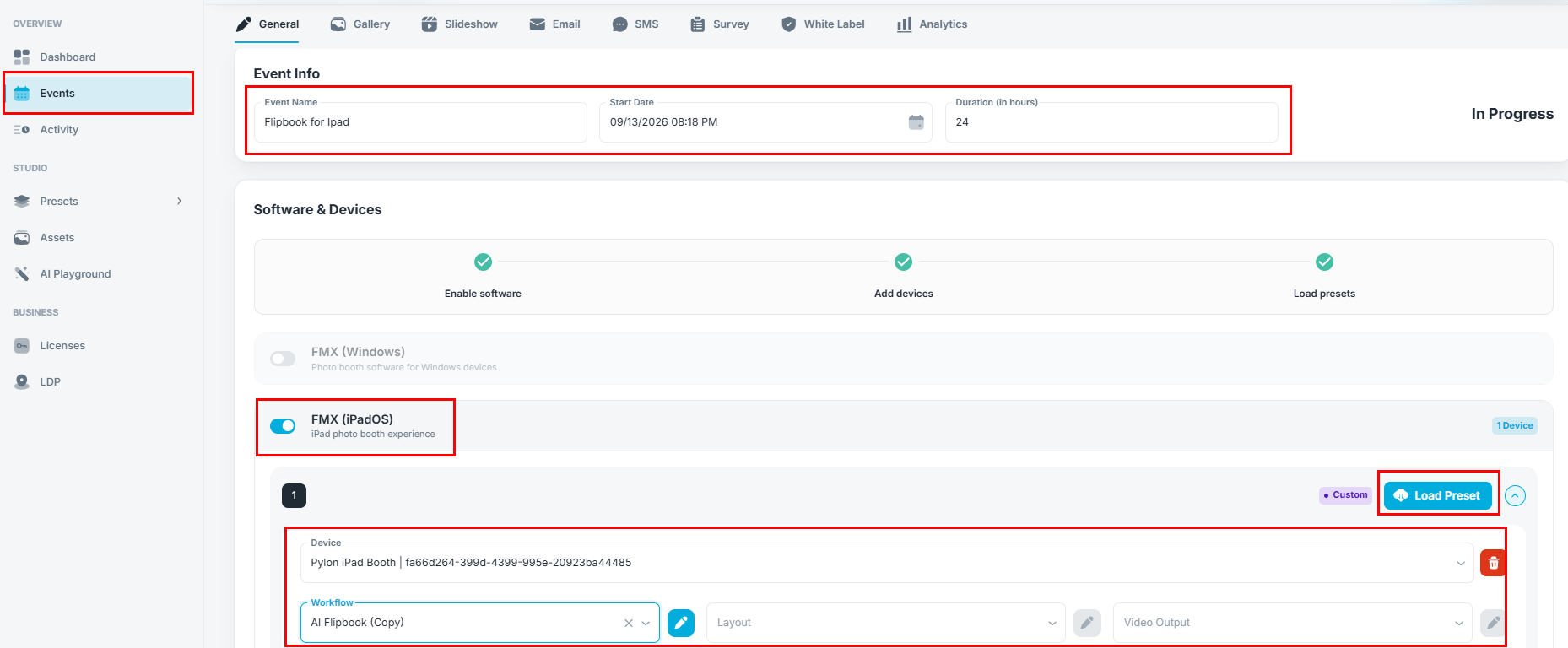
- Go to your Cloud account.
- Select the Events tab.
- Tap Create an Event.
- Fill out the event information.
- Enable FMX (iPadOS) for the event.
- Press Load Preset.
- Select Flipbook (AI).
Step 2: Sync the Event on Your iPad
- Open FMX and go to the Dashboard.
- Select the event name you just created.
- Press Sync Event.
Step 3: Connect Your Printer
Before you start the event, make sure your printer is connected.
- Turn on the printer and connect the printer cable.
- Connect the printer cable to the USB‑C adapter, then connect the adapter to your iPad.
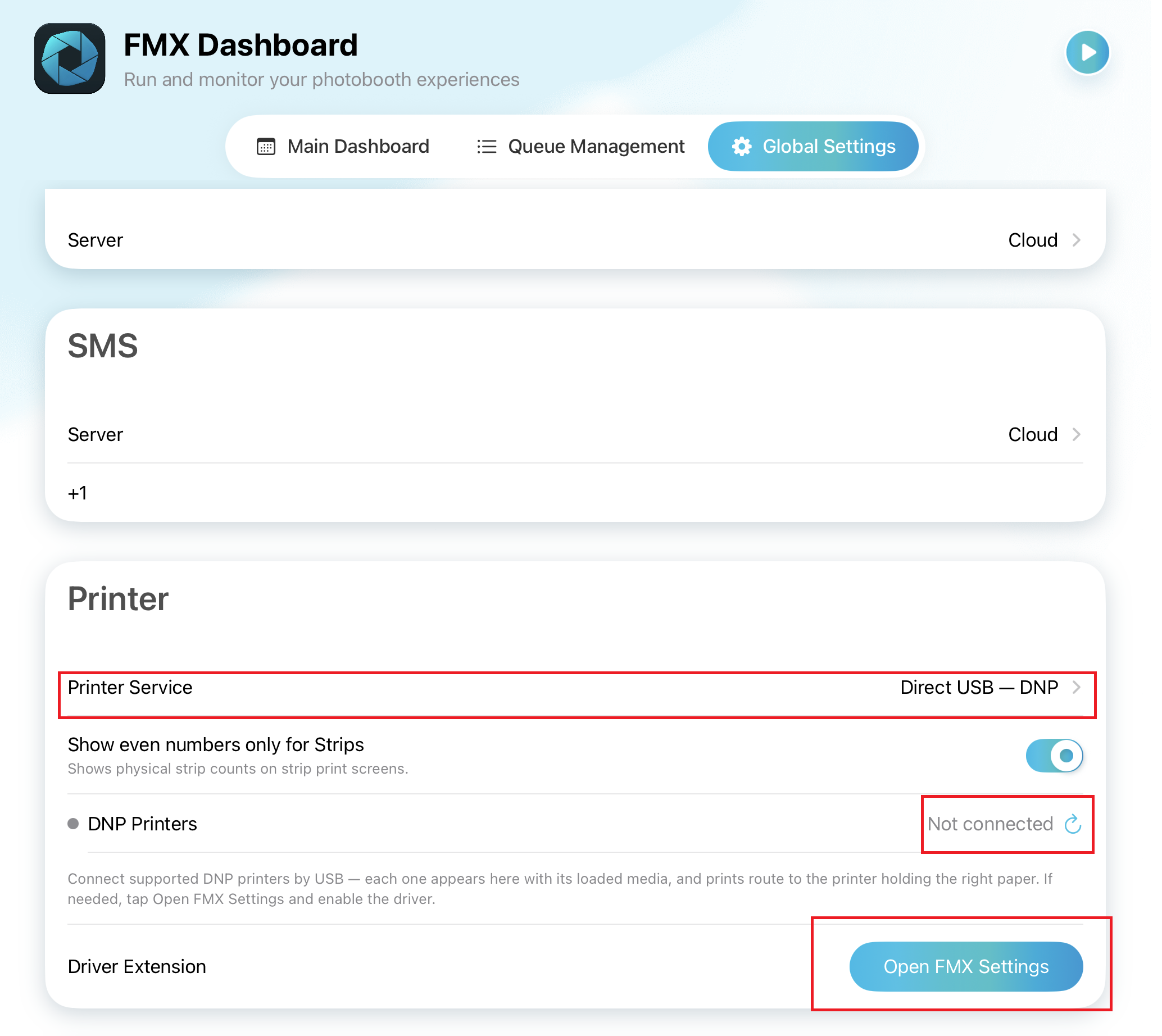
- Once connected, open Global Settings in FMX.
- Scroll down to the Printer section.
- Set Printer Service to Direct USB – DNP.
- Check the DNP Printers row. It will show Not connected until the printer is detected.
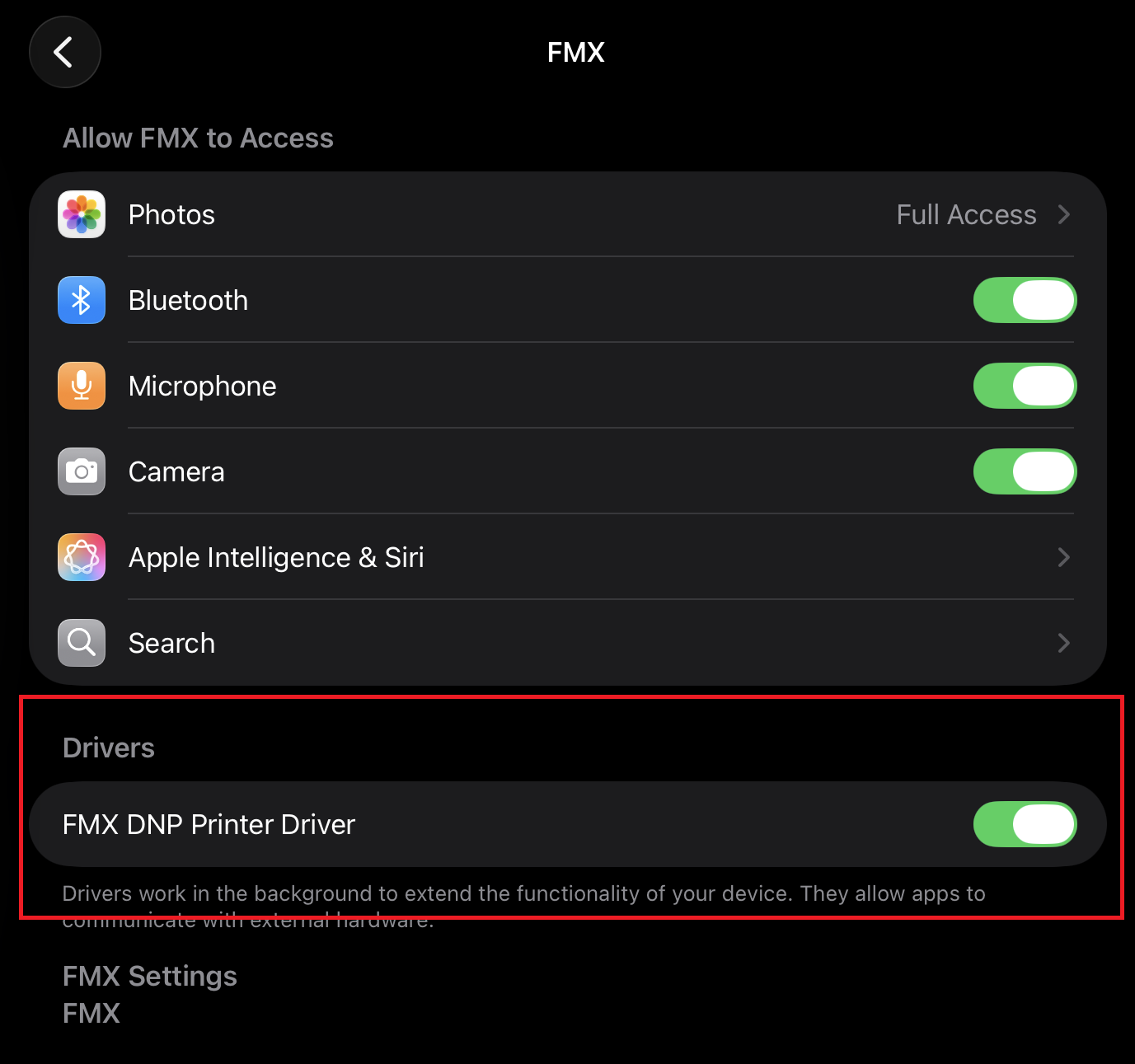
- If it still shows as not connected, try pressing Refresh. In some cases, an Open FMX Settings button will appear under Driver Extension — tap it to open the iPad's Settings app directly to the FMX page.
- Under Drivers, turn on the FMX DNP Printer Driver toggle.
- Return to the FMX app and confirm the printer now shows as connected. If it doesn't, press Refresh again.
Was this helpful?
Related articles
FMX for iPad: Customizing Your Experience
Everything at a photo booth event (the look of the experience, the on-screen text, the animations, the email guests receive, what shows on the external display) is something you co
FMX for iPad: System Requirements
FMX for iPadOS is a native Swift application that delivers the full photo booth experience on Apple's iPad platform. Before installing, ensure your iPad meets these requirements. S
FMX for iPad: Main Dashboard
When something goes wrong with FMX for iPadOS, diagnostic logs and systematic troubleshooting are your best tools for identifying and resolving issues. This guide covers how to col
Installing FMX on iPad
Requirements Before You Start iPad running iPadOS 16 or later (iPadOS 17+ recommended) Apple ID with access to the App Store Active Foto Master Cloud account with an iPad license A
FMX for iPad: Sharing Methods
What Sharing Settings Control In FMX for iPad, guests can receive their photos via email, SMS, or QR code. Sharing Methods QR Code: displays a scannable QR code on the FMX screen a