
How to Set Up Direct USB DNP Printing on FMX for iPad
This guide covers how to connect a supported DNP printer directly to your iPad by USB using FMX for iPad, including which printers and iPad models are supported and how to complete setup.
Supported DNP Printers
Direct USB printing in the current App Store and TestFlight build supports the following DNP printers:
- DNP DS40
- DNP DS80
- DNP RX1 / RX1HS
Note: The following DNP models are not currently supported for Direct USB printing: DS620, DS820, and QW410.
Supported iPad Models
Direct USB DriverKit printing requires iPadOS 16 or later and an iPad with an M1 chip or newer. iPads with an A-series chip, including every iPad mini and standard iPad, are not supported.
iPad Pro:
- iPad Pro 11-inch (3rd generation), M1, 2021
- iPad Pro 12.9-inch (5th generation), M1, 2021
- iPad Pro 11-inch (4th generation), M2, 2022
- iPad Pro 12.9-inch (6th generation), M2, 2022
- iPad Pro 11-inch (M4), 2024
- iPad Pro 13-inch (M4), 2024
- iPad Pro 11-inch (M5), 2025
- iPad Pro 13-inch (M5), 2025
iPad Air:
- iPad Air (5th generation), M1, 2022
- iPad Air 11-inch (M2), 2024
- iPad Air 13-inch (M2), 2024
- iPad Air 11-inch (M3), 2025
- iPad Air 13-inch (M3), 2025
- iPad Air 11-inch (M4), 2026
- iPad Air 13-inch (M4), 2026
Setting Up Direct USB Printing
- Open the FMX Dashboard and go to Global Settings. Scroll down to the Printer section.
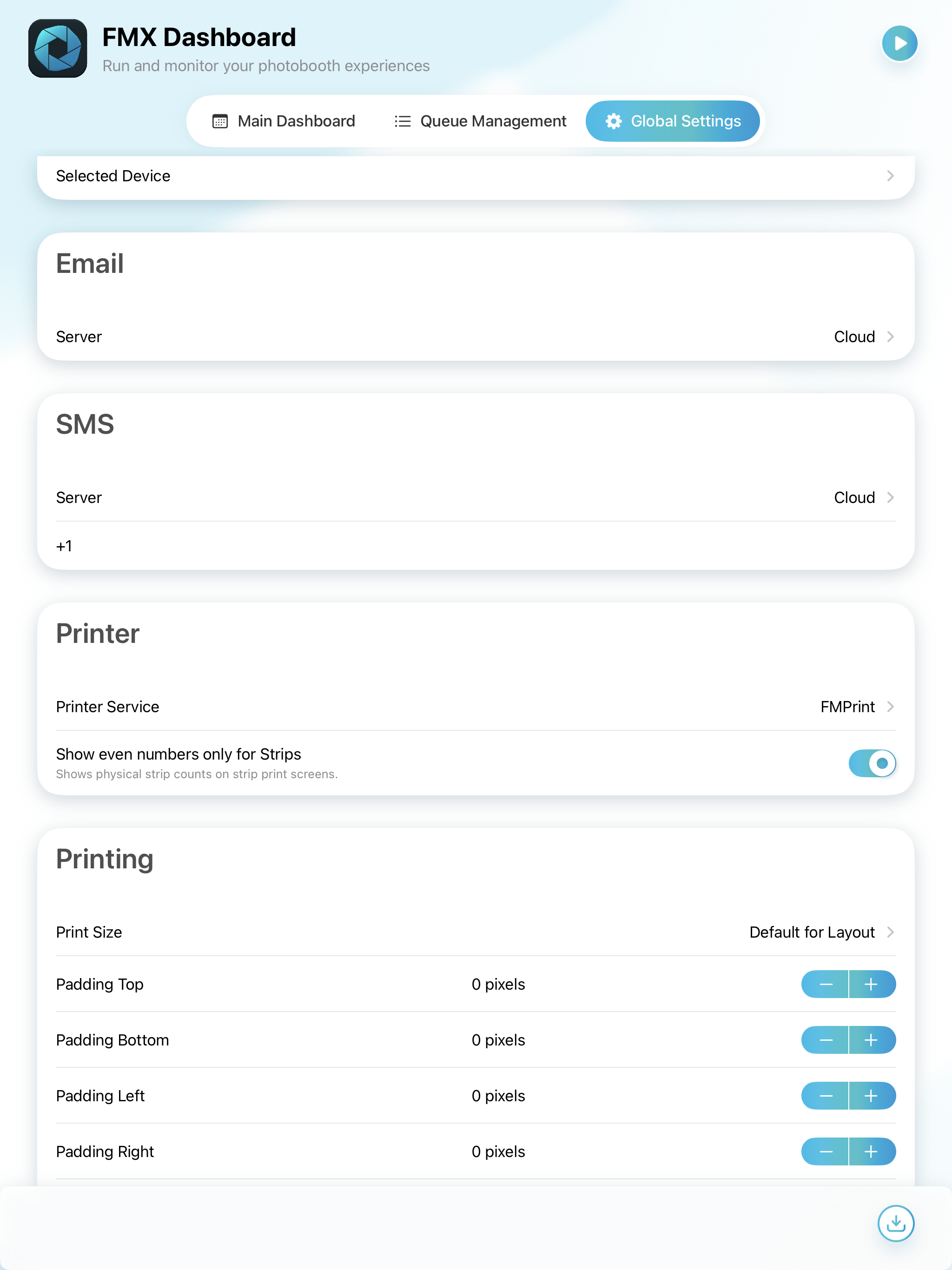
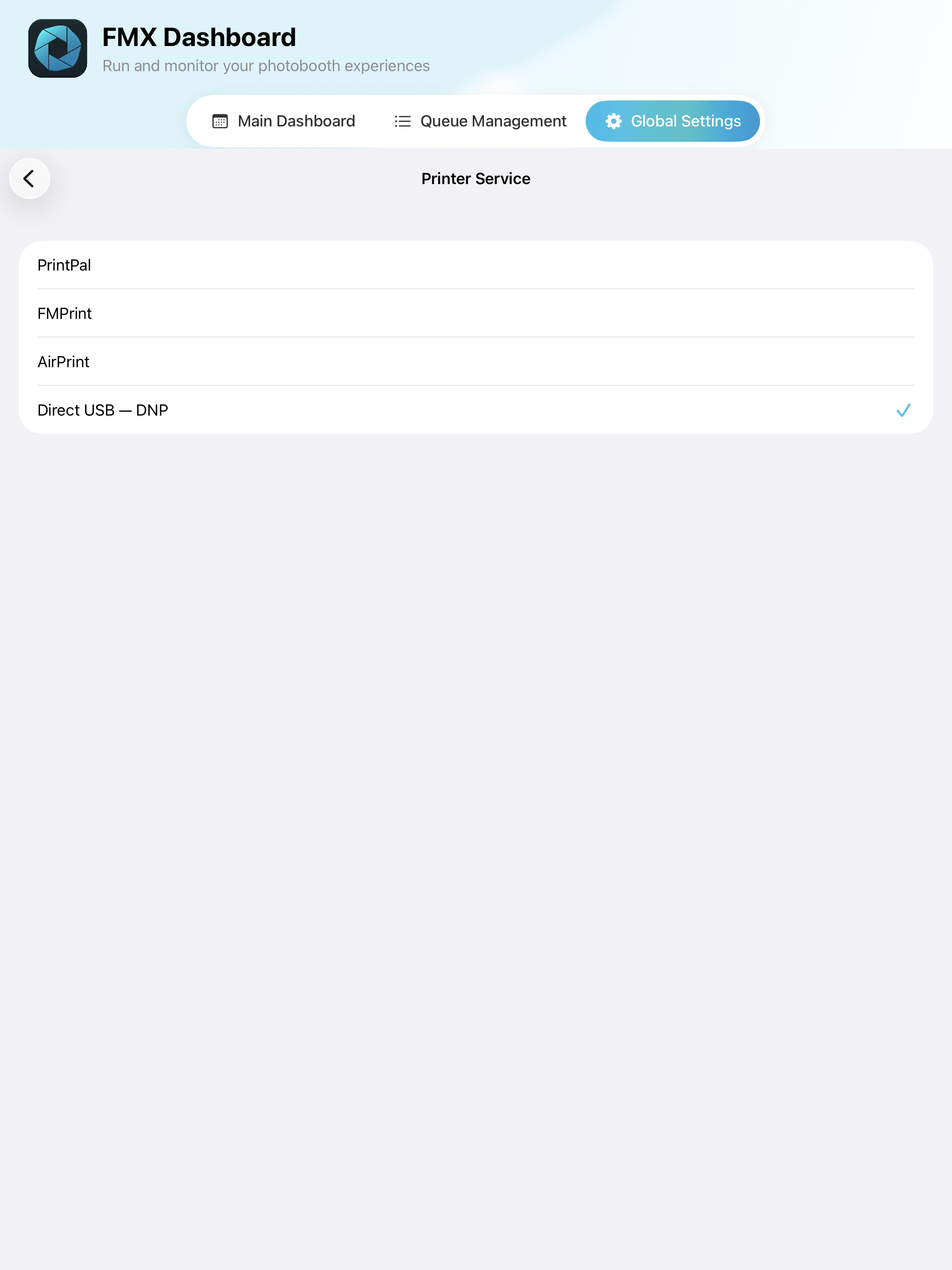
- Tap Printer Service, then select Direct USB - DNP from the list.
- You'll return to the Printer section, where Printer Service now shows Direct USB - DNP. A new DNP Printers row appears below it, showing Not connected until a printer is plugged in. You can connect several DNP printers at the same time, and FMX routes each print job to the printer holding the correct paper.
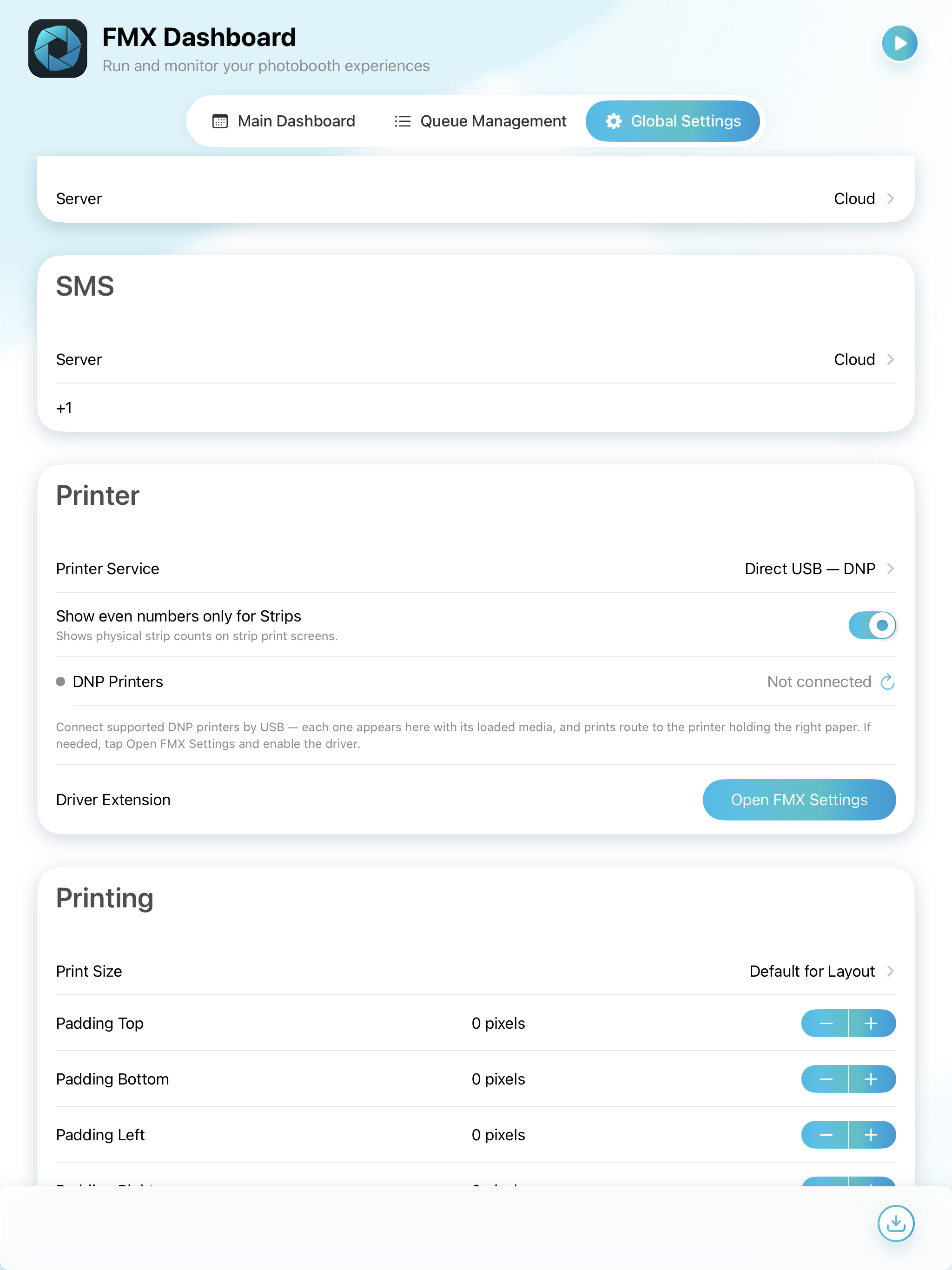
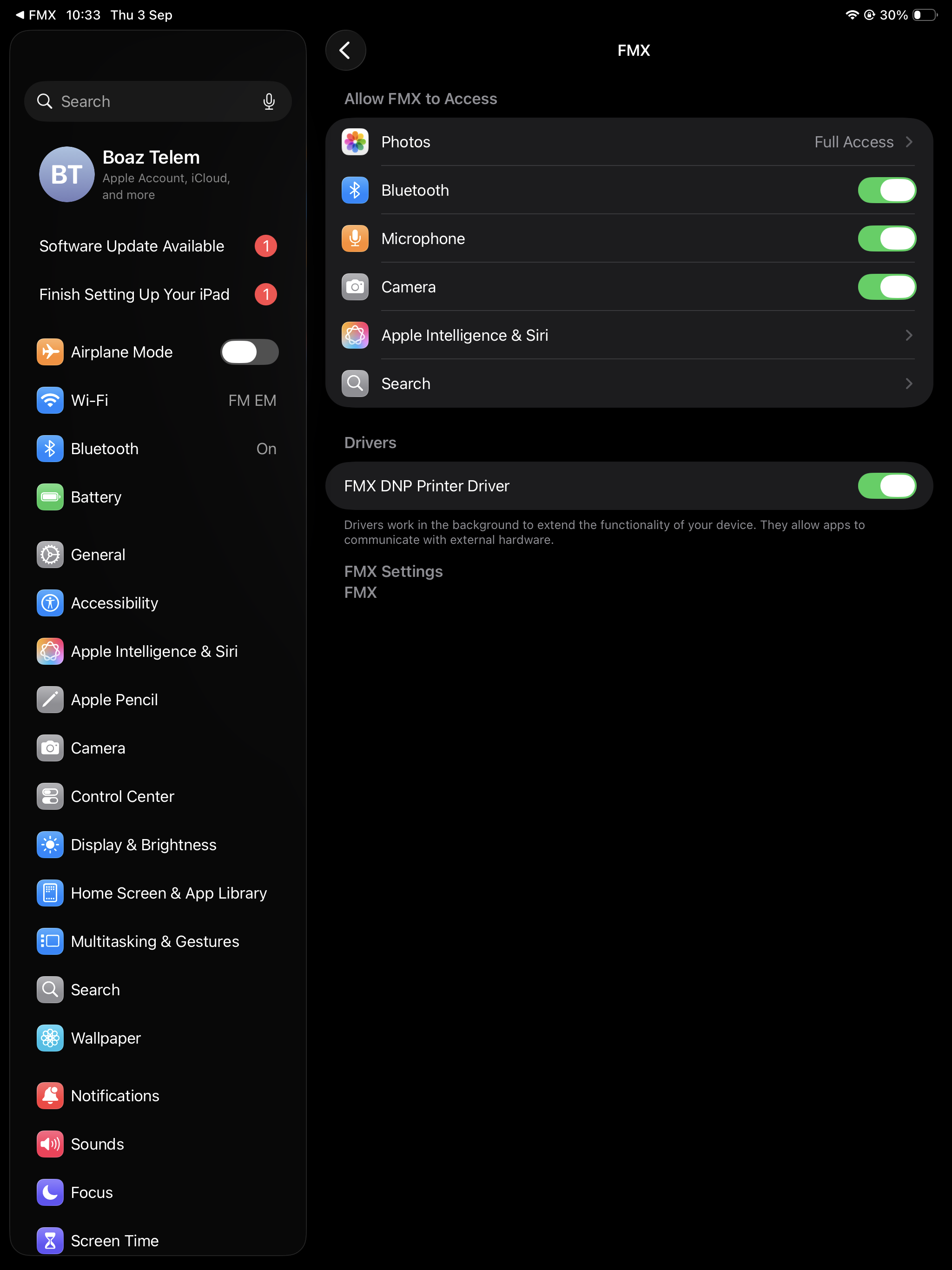
- In some cases, an Open FMX Settings button appears under Driver Extension. Tap it to open the iPad's Settings app directly to the FMX page.
- Under Drivers, turn on the FMX DNP Printer Driver toggle.
- Return to FMX, connect your DNP printer to the iPad by USB, and confirm it appears under DNP Printers with its loaded media.
And you're good to go!
Was this helpful?
Related articles
FMX for iPad: Customizing Your Experience
Everything at a photo booth event (the look of the experience, the on-screen text, the animations, the email guests receive, what shows on the external display) is something you co
FMX for iPad: System Requirements
FMX for iPadOS is a native Swift application that delivers the full photo booth experience on Apple's iPad platform. Before installing, ensure your iPad meets these requirements. S
FMX for iPad: Main Dashboard
When something goes wrong with FMX for iPadOS, diagnostic logs and systematic troubleshooting are your best tools for identifying and resolving issues. This guide covers how to col
Installing FMX on iPad
Requirements Before You Start iPad running iPadOS 16 or later (iPadOS 17+ recommended) Apple ID with access to the App Store Active Foto Master Cloud account with an iPad license A
FMX for iPad: Sharing Methods
What Sharing Settings Control In FMX for iPad, guests can receive their photos via email, SMS, or QR code. Sharing Methods QR Code: displays a scannable QR code on the FMX screen a