
FMX Camera Errors: "Camera Busy" & "Check SD Card"
Seeing an error message pop up on your screen right before an event starts can be incredibly stressful! However, most camera errors in the FMX software are actually simple hardware miscommunications that can be fixed in seconds.
If your software is throwing an error and refusing to take a photo, it is usually the physical camera trying to tell you it needs a quick adjustment.
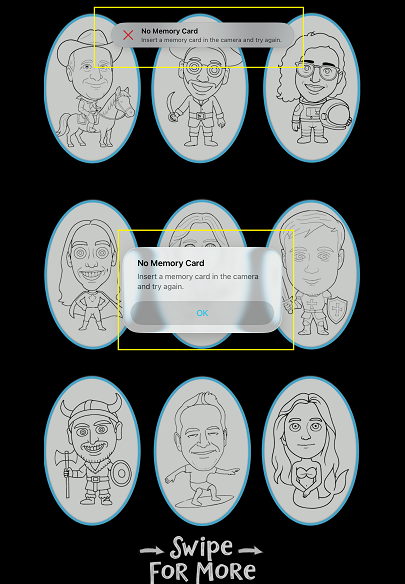
Here is how to decode and fix the two most common FMX camera errors:
Error 1: "Camera Busy: Please wait a moment and retry the photo"
-
Why it happens: When your camera is set to Auto-Focus (AF), the lens will try to hunt for a face or subject before it actually takes the picture. If the lighting is a bit dim, or the subject is moving, the camera gets "stuck" trying to focus. The FMX software sees this delay and assumes the camera is "busy."
-
The Quick Fix: 1. Go to the physical lens on your DSLR. 2. Flip the switch on the side of the lens from AF (Auto-Focus) to MF (Manual Focus). 3. Manually adjust the focus ring so your subject is sharp. 4. By leaving it in MF, the camera will instantly fire when the software tells it to, completely eliminating the "Camera Busy" error!
Error 2: "Check SD Card"
-
Why it happens: The FMX software needs a place to temporarily store the photo before pulling it into the iPad or mini-computer. If it cannot read the SD card inside the camera body, it will completely halt the workflow.
-
The Quick Fix:
-
Verify that there is actually an SD card inserted into the camera.
-
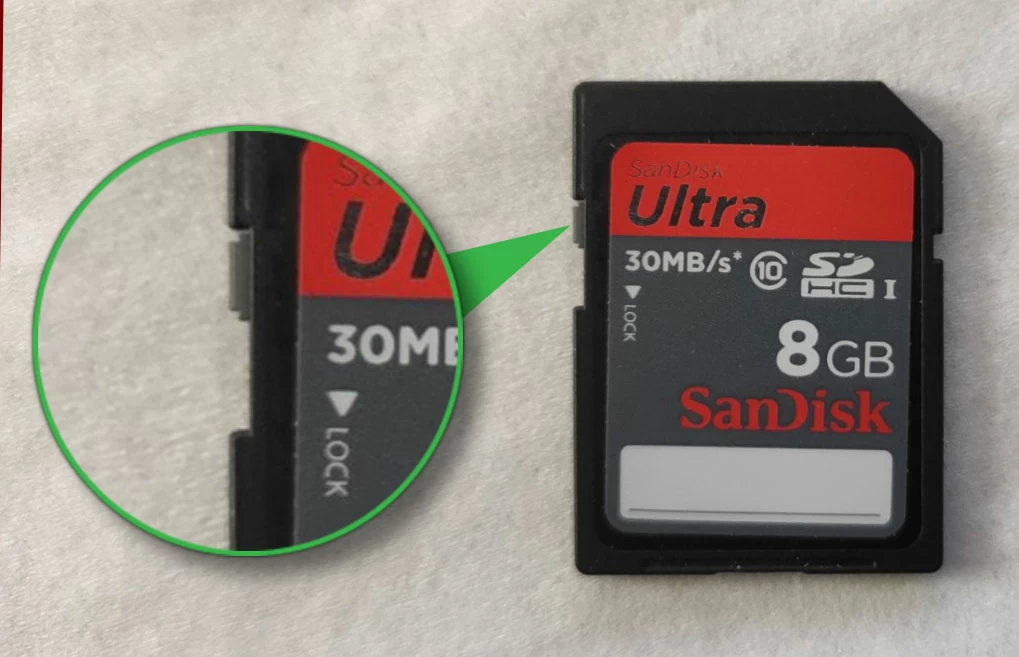
Pop the SD card out and check the tiny physical switch on the side of the card, make sure it is not toggled to the "Locked" position.
-
If the card is in and unlocked, it might be full or incorrectly formatted. Use your camera's internal menu to Format the SD Card (Note: this will delete old photos on the card, so make sure they are backed up!).
-
Was this helpful?
Related articles
FMX for iPad: Customizing Your Experience
Everything at a photo booth event (the look of the experience, the on-screen text, the animations, the email guests receive, what shows on the external display) is something you co
FMX for iPad: System Requirements
FMX for iPadOS is a native Swift application that delivers the full photo booth experience on Apple's iPad platform. Before installing, ensure your iPad meets these requirements. S
FMX for iPad: Main Dashboard
When something goes wrong with FMX for iPadOS, diagnostic logs and systematic troubleshooting are your best tools for identifying and resolving issues. This guide covers how to col
Installing FMX on iPad
Requirements Before You Start iPad running iPadOS 16 or later (iPadOS 17+ recommended) Apple ID with access to the App Store Active Foto Master Cloud account with an iPad license A
FMX for iPad: Sharing Methods
What Sharing Settings Control In FMX for iPad, guests can receive their photos via email, SMS, or QR code. Sharing Methods QR Code: displays a scannable QR code on the FMX screen a