
How to Build and Preview a Selfie Wi-Fi Guest Flow
A guest flow is the sequence of screens guests follow after they open your Selfie Wi-Fi event link. This guide covers choosing a starting flow, editing its screens, and previewing it before your event.
Note: If your template is linked to a saved flow, your edits reach every template and event that uses that flow.
Choose a Starting Flow
- Log in to Foto Master Cloud.
- Go to Presets > Selfie Wi-Fi > Templates.
- Open your template, or click New Template.
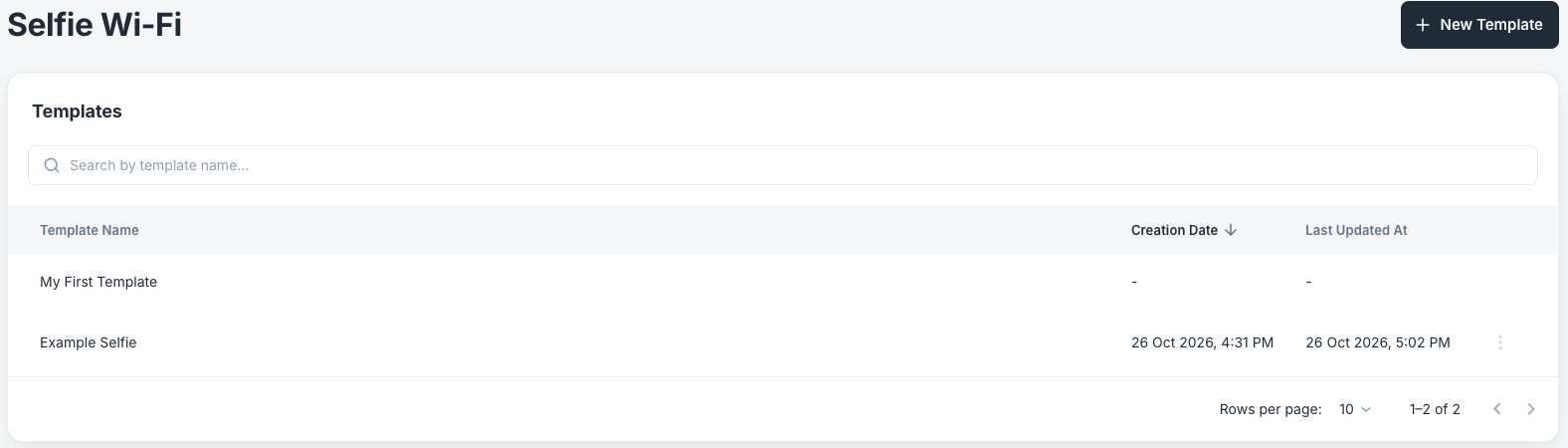
- Select the Guest flow tab.
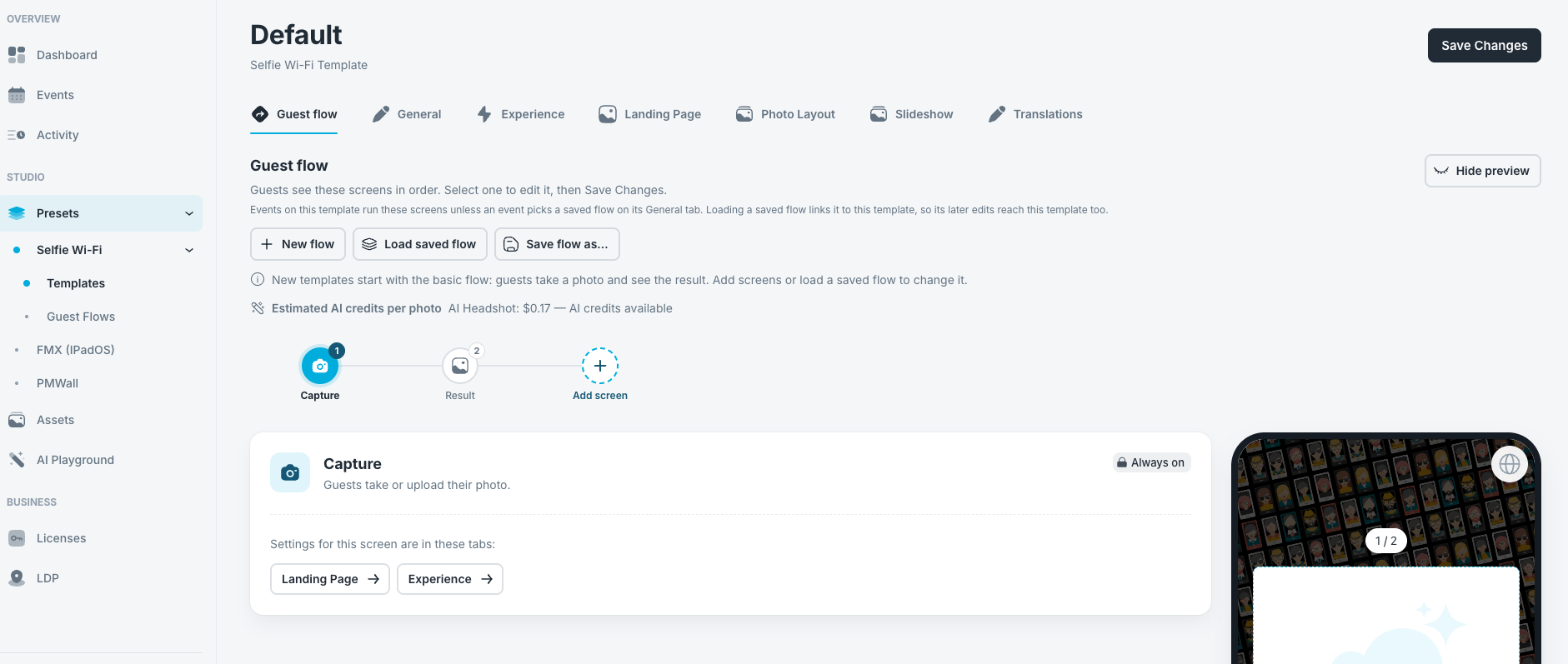
Note: New templates start with the basic flow, where guests take a photo and see the result. The editor also shows the estimated AI credits per photo for the experiences you enabled.
- Click Load saved flow.
- On the Featured tab, find the flow you want: Free photo, Lead capture, Paid photo, Leads + paid photo, or Paid photo + survey.
- Click Select.
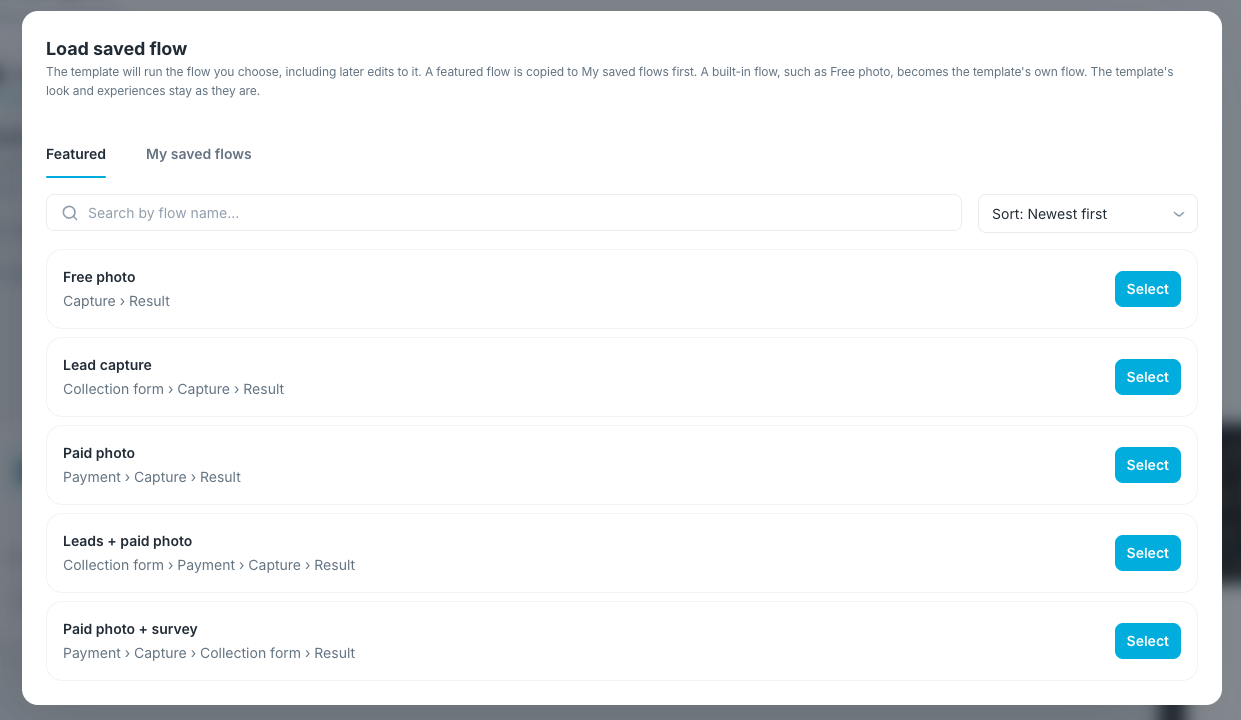
Note: A built-in flow such as Free photo becomes the template’s own flow. A featured flow is copied to My saved flows first. A flow chosen from My saved flows links the template, so later edits to that flow reach this template too.
Edit the Screens
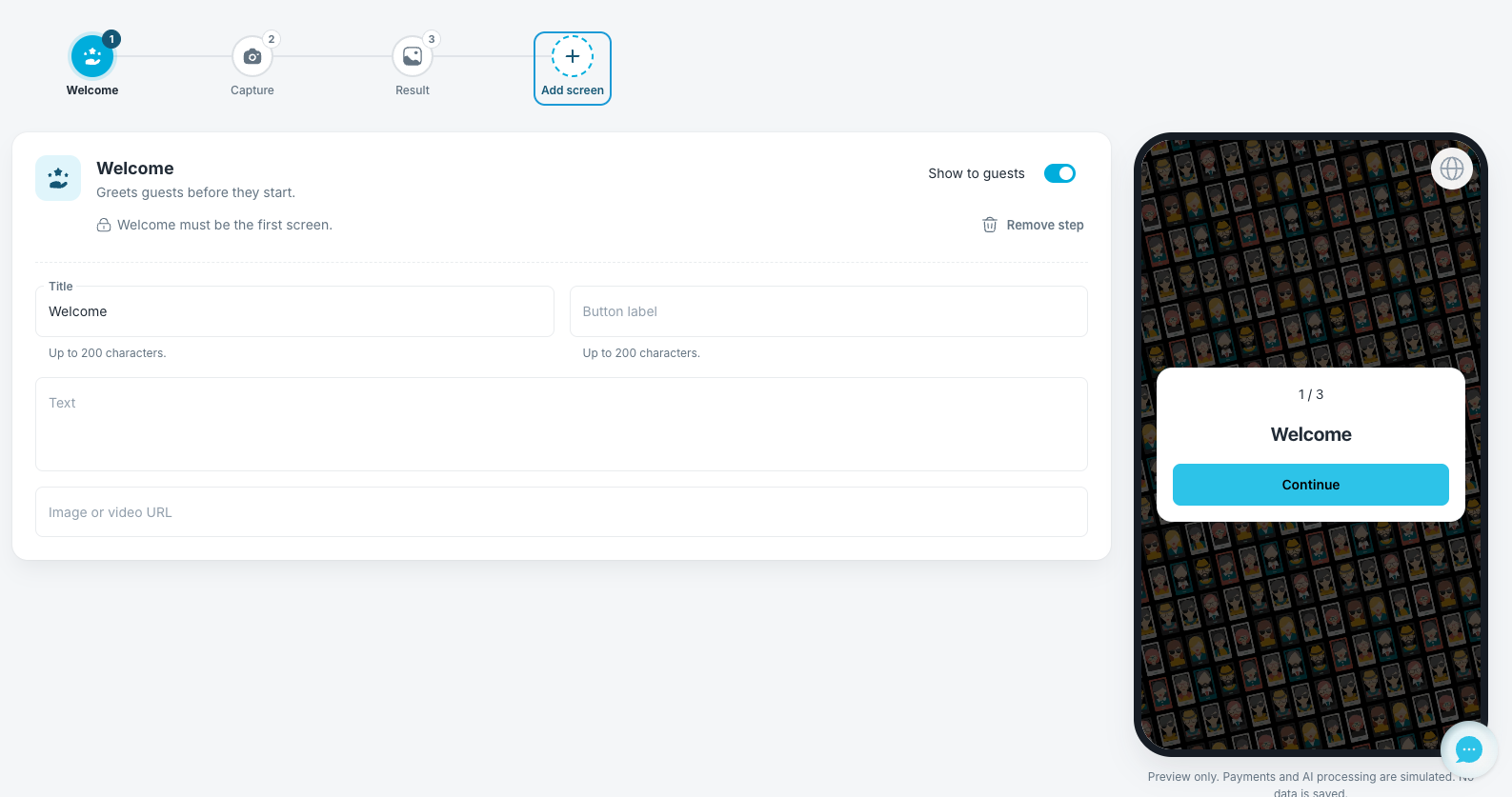
- Select a screen in the flow bar.
- Edit its Title, Button label, and Text. Some screens also take an Image or video URL.
- Click Add screen.
- Choose the screen you want to add.
- Use Earlier and Later to move a screen in the flow.
- Turn off Show to guests to hide a screen from guests.
- Click Remove step to delete a screen.
- Click Save Changes.
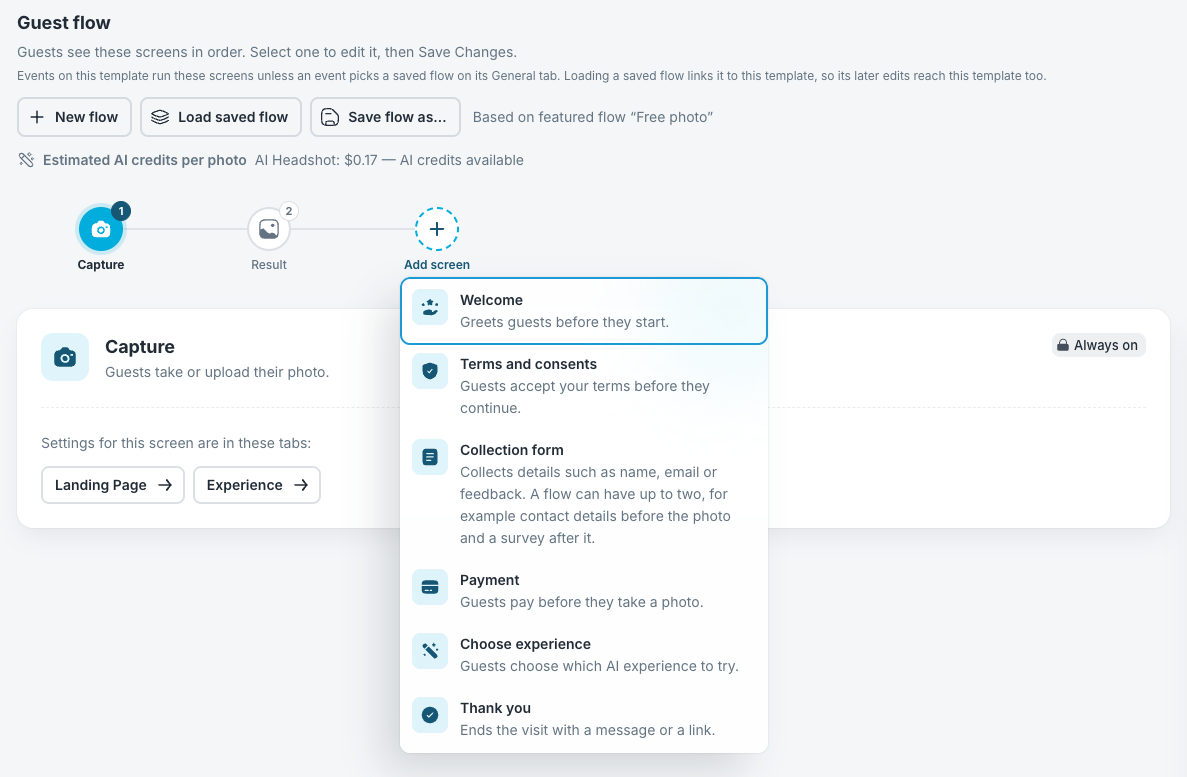
Available screens:
- Welcome: Greets guests before they start. Always the first screen.
- Terms and consents: Guests accept your terms before they continue.
- Collection form: Collects details such as name, email, or feedback. A flow can have up to two.
- Payment: Guests pay before they take a photo. Must come before Capture.
- Choose experience: Guests choose which AI experience to try. Must come before Capture.
- Thank you: Ends the visit with a message or a link.
- Capture and Result: Always on in every flow.
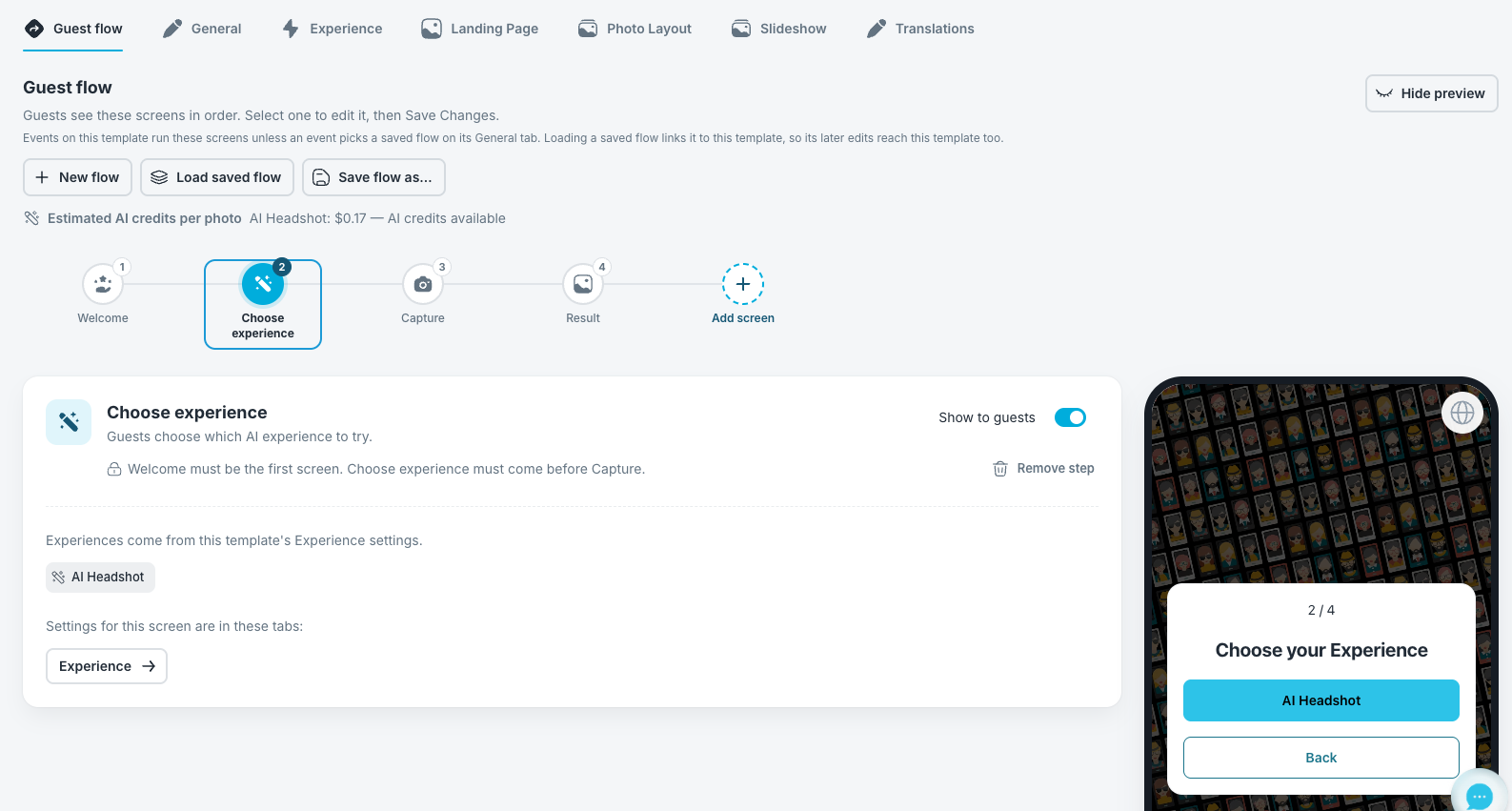
Note: Choose experience lists the experiences enabled in the template’s Experience tab.
Note: The Payment screen requires a Pro Cloud account. On other plans, the editor asks you to upgrade or disable Payment before you can save.
Save the Flow for Reuse
- Click Save flow as....
- Enter a name for the flow.
The flow is saved to My saved flows, and this template is linked to it. A saved flow includes the screens and their settings. The template’s look and experiences stay with the template.
Preview the Flow
The phone preview beside the editor updates as you work. Click Hide preview to close it.
- Click through each screen in the preview.
- Create a phone preview link to test on a real phone.
- Create a new link if the previous one has expired.
Note: The preview is for testing only. Payments and AI processing are simulated, and no data is saved. A preview link is not your live event QR code.
And you’re good to go!
Was this helpful?
Related articles
How to Use the AI StylePop Feature in Selfie Wifi
The AI StylePop feature lets you transform photos into fun, creative, and fully stylized scenes. Guests can enjoy a variety of pre-made looks or even create their own custom styles
How to Use the Selection Screen in Selfie Wifi
The Selection Screen in Selfie Wifi allows you to offer multiple AI options within a single activation. Guests can choose their own experience (whether through AI Line2Life, AI Sty
Selfie Wi-Fi Overview
Selfie Wi-Fi lets guests join your event from their own phones. They scan your event QR code, open the experience in their phone’s browser, and follow the screens you set up in Fot
Selfie Wi-Fi: Getting Started
This guide walks you through setting up Selfie Wi-Fi for your first event, from Cloud configuration to having guests snap photos on their phones. Prerequisites Foto Master Cloud ac
Selfie Wi-Fi: Moderation Guide
Moderation lets you review guest photos before they reach the guest, the gallery, the slideshow, or the printer. Use it for public facing events where you cannot control what guest