
How to Set Up Paid Photos in Selfie Wi-Fi
A Payment screen lets you sell a set number of photos for a set period of time. Paid photos require a Pro Cloud account and are not available on the Basic plan.
Note: Foto Master Support cannot guide you through signing up with Stripe or Shopify. Once you have an account with one of them, Support can help you connect it.
Before You Start
Cloud plan: An active Pro Cloud account.
Selfie Wi-Fi: An active Selfie Wi-Fi seat with the paid photo feature activated.
Payment provider: A Stripe account or Shopify store you can connect.
Note: If you see Payments require Pro. Upgrade or disable Payment before saving., your account is not on Pro. Upgrade to Pro, or turn off the Payment screen, before you save.
Add the Payment Screen
- Open the template’s Guest flow tab.
- Click Add screen and choose Payment.
- Select your Payment provider.
- If no provider is connected yet, click Connect payment provider.
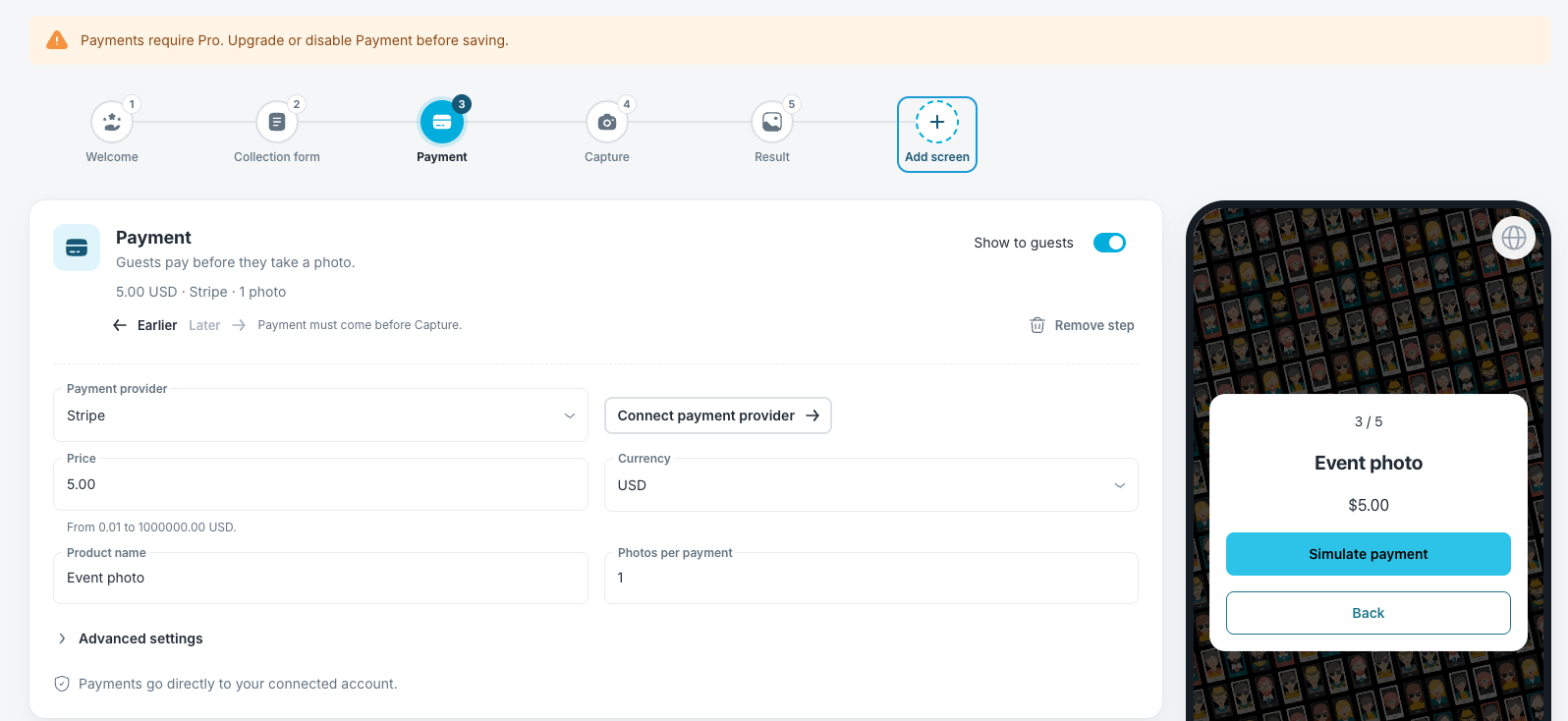
- Choose the Currency.
- Enter the Price. The allowed range appears under the field.
- Enter the Product name.
- Set Photos per payment.
- Open Advanced settings to set the validity period and any vouchers, Stripe promotion codes, or acknowledgment.
- Click Save Changes.
Note: By default, a payment covers one photo for 120 minutes. Changing the currency does not convert the price, so enter the price again in the new currency. For Shopify, also complete the store location settings.
Check Before the Event
- Review the provider readiness messages.
- Review the event photo cap.
- Review your AI credits and daily AI budget.
Note: The phone preview shows Simulate payment instead of a real checkout. A successful preview does not prove that real payments are ready.
What the Guest Pays
Payments go directly to your connected Stripe account or Shopify store.
To give a guest a free photo, use an event voucher.
Returning After Checkout
Before checkout opens, the guest sees a resume code made up of six characters. Ask guests to keep it. Stripe can return the guest to their photo. Shopify guests can return manually, scan the event QR code again, or enter the resume code.
Purchased photos are granted only after the payment is verified. If a guest has paid but cannot continue, see How to Use Vouchers and Recover Paid Photos in Selfie Wi-Fi.
Note: Process refunds in your Stripe or Shopify dashboard. Refunds are not synced back to Foto Master Cloud.
Was this helpful?
Related articles
How to Use the AI StylePop Feature in Selfie Wifi
The AI StylePop feature lets you transform photos into fun, creative, and fully stylized scenes. Guests can enjoy a variety of pre-made looks or even create their own custom styles
How to Use the Selection Screen in Selfie Wifi
The Selection Screen in Selfie Wifi allows you to offer multiple AI options within a single activation. Guests can choose their own experience (whether through AI Line2Life, AI Sty
Selfie Wi-Fi Overview
Selfie Wi-Fi lets guests join your event from their own phones. They scan your event QR code, open the experience in their phone’s browser, and follow the screens you set up in Fot
Selfie Wi-Fi: Getting Started
This guide walks you through setting up Selfie Wi-Fi for your first event, from Cloud configuration to having guests snap photos on their phones. Prerequisites Foto Master Cloud ac
Selfie Wi-Fi: Moderation Guide
Moderation lets you review guest photos before they reach the guest, the gallery, the slideshow, or the printer. Use it for public facing events where you cannot control what guest