
How to Collect Guest Details and Consent in Selfie Wi-Fi
Add a Collection form screen to your guest flow to collect guest details or feedback. A flow can have up to two, for example contact details before the photo and a survey after it.
Note: If the template is linked to a saved flow, your changes reach every template and event that uses it.
Build Your Form
- Open the template’s Guest flow tab.
- Click Add screen and choose Collection form.
- Enter a Form title.
- Click Add field or Edit form fields.
- Choose a Field type.
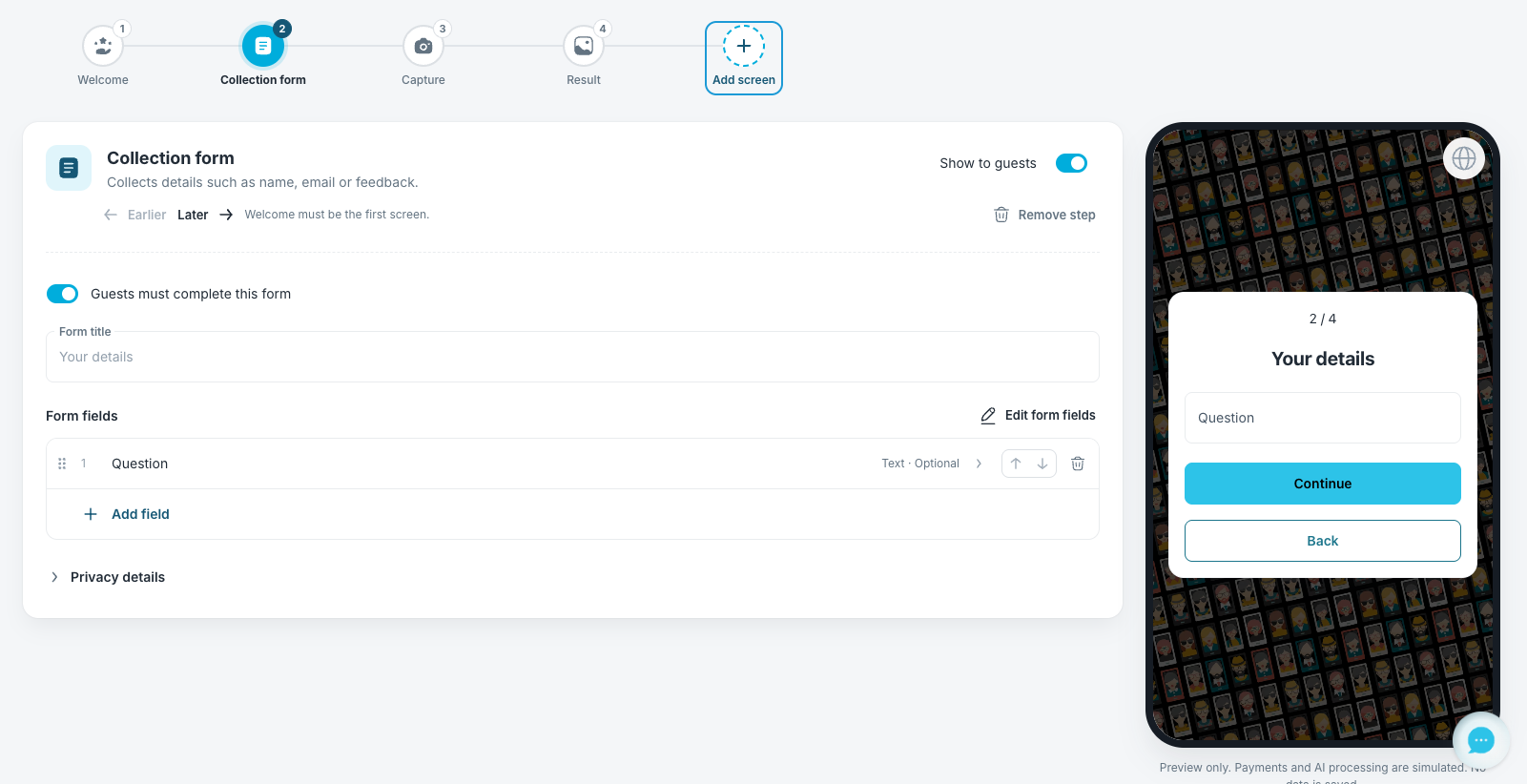
- Enter the field’s label and choose whether it is required or optional.
- Click Done.
- Reorder fields with the up and down arrows, or drag a field by its grip.
- Open Privacy details and enter your company details, the purpose, your privacy policy, and a contact for data requests.
- Turn off Guests must complete this form if guests may skip it.
- Click Save Changes.
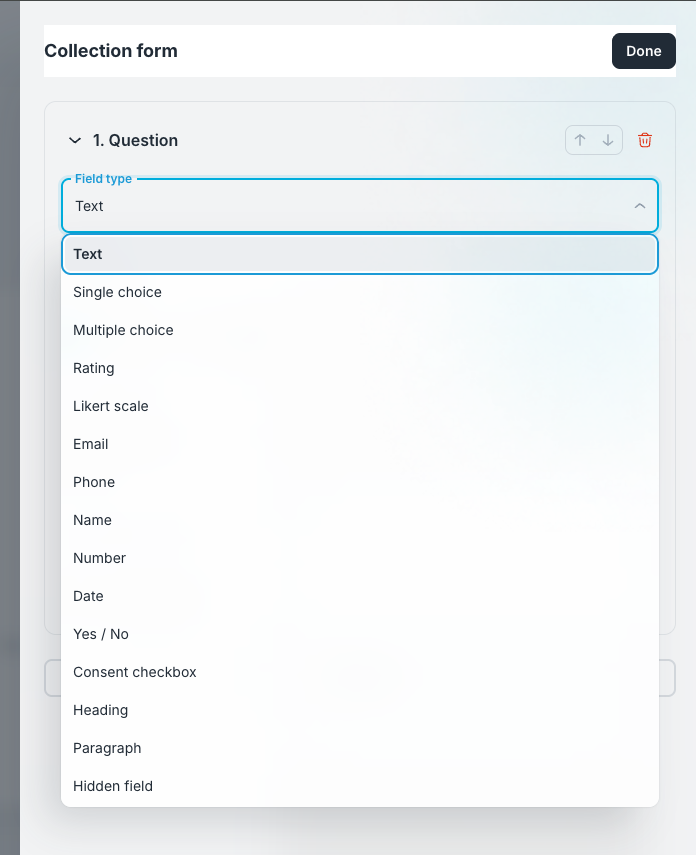
Available field types: Text, Single choice, Multiple choice, Rating, Likert scale, Email, Phone, Name, Number, Date, Yes / No, Consent checkbox, Heading, Paragraph, and Hidden field.
Note: A Rating field asks for a score on a scale. A Likert scale field asks how much the guest agrees with a statement. A Hidden field records a QR code query parameter you set up.
Add Consent Choices
Add a separate Consent checkbox for each purpose you need: marketing email, marketing SMS, promotional photo use, partner sharing, AI processing, screen display, or public gallery inclusion. Consent boxes always start unchecked. A required consent stops the guest from continuing until they check it.
If a guest declines a screen display or gallery consent, their photo stays out of that public use. The guest can still receive their own approved result.
Note: When a guest asks to receive their photo by email, they are requesting delivery of that photo. It does not subscribe them to marketing.
Find the Answers After the Event
- Open your event.
- Go to the Survey tab.
- Filter by Selfie Wi-Fi.
Contact details, hidden fields, and consent records appear separately in Guest details. They stay masked until you complete the Data Controller confirmation.
And you’re good to go!
Was this helpful?
Related articles
How to Use the AI StylePop Feature in Selfie Wifi
The AI StylePop feature lets you transform photos into fun, creative, and fully stylized scenes. Guests can enjoy a variety of pre-made looks or even create their own custom styles
How to Use the Selection Screen in Selfie Wifi
The Selection Screen in Selfie Wifi allows you to offer multiple AI options within a single activation. Guests can choose their own experience (whether through AI Line2Life, AI Sty
Selfie Wi-Fi Overview
Selfie Wi-Fi lets guests join your event from their own phones. They scan your event QR code, open the experience in their phone’s browser, and follow the screens you set up in Fot
Selfie Wi-Fi: Getting Started
This guide walks you through setting up Selfie Wi-Fi for your first event, from Cloud configuration to having guests snap photos on their phones. Prerequisites Foto Master Cloud ac
Selfie Wi-Fi: Moderation Guide
Moderation lets you review guest photos before they reach the guest, the gallery, the slideshow, or the printer. Use it for public facing events where you cannot control what guest