
How To Use NAYAX Integration
This guide covers how to work with the NAYAX integration on your Foto Master software.
Drivers Installation
A few drivers need to be pre-installed. Find all 4 Vcredist drivers attached at the bottom of this article — download and install them.
Finding the COM Port Number
For the software to synchronize with the NAYAX device, you need to select the COM Port it's connected to.
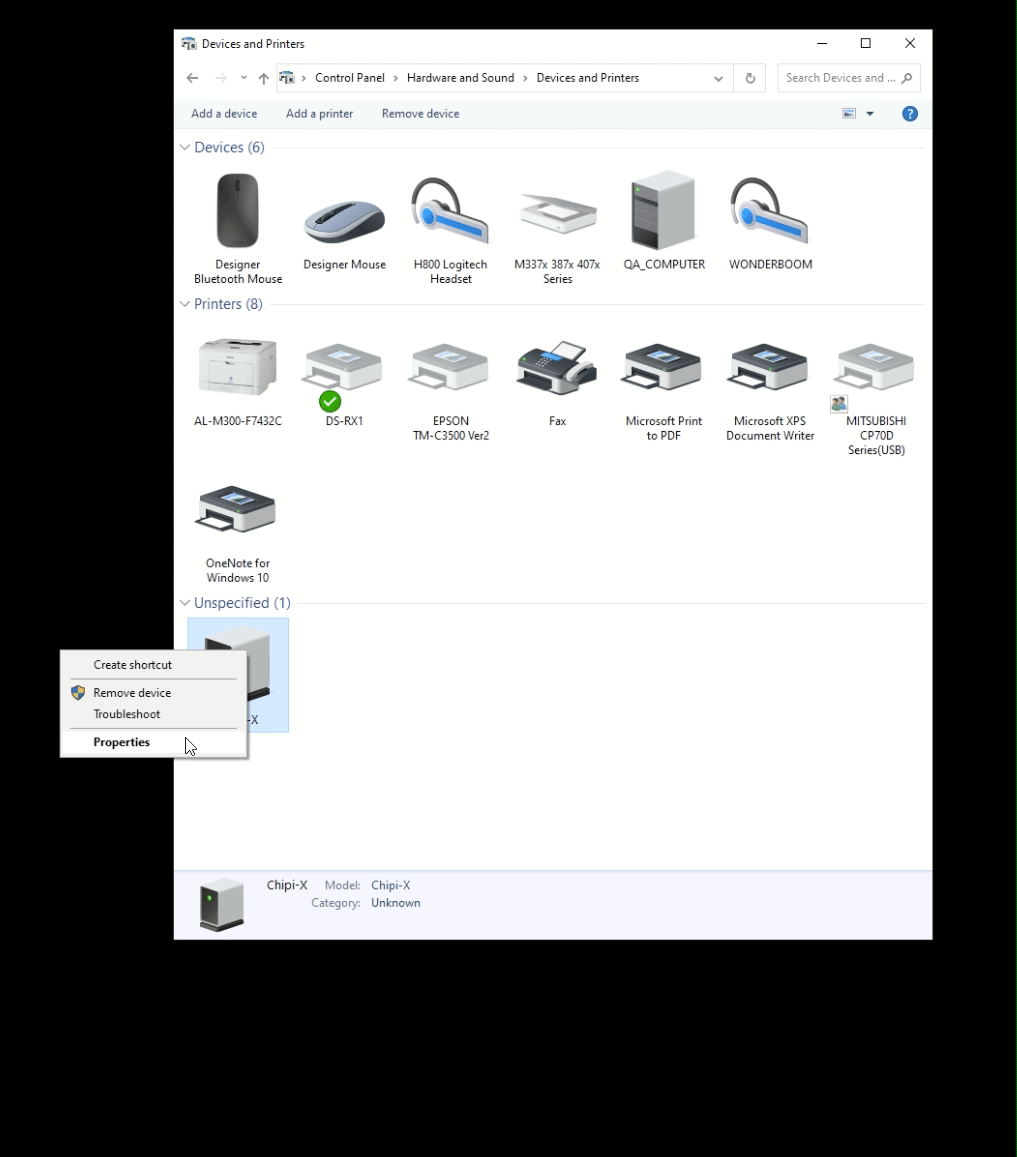
- On your desktop, go to: Control Panel → View Devices and Printers → locate the Chipi-X device.
If the Chipi-X device appears to have an error, install the CMD setup driver attached at the bottom of this article.
- Right-click on Chipi-X → Properties → Hardware — and see the COM port number:
Working With the Software
- Open the Foto Master software and select your preset.
- Go to the Settings tab → Pay Per Play → Enable NAYAX.
- Select the right COM port number and Save.
Note: the status should be Active. Contact the support team to assign your NAYAX device serial number to your Foto Master software license key.
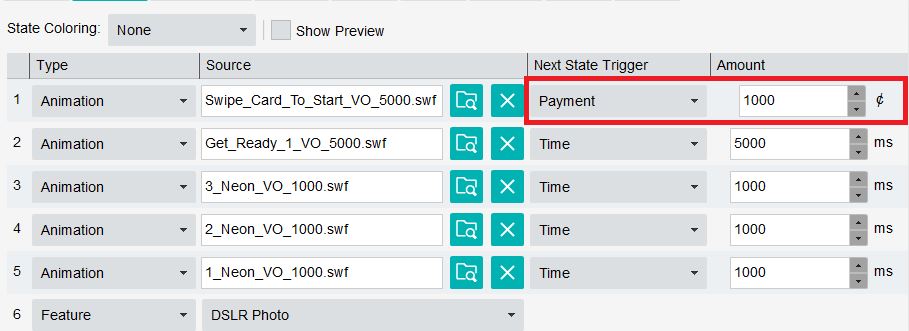
- In your preset's workflow, select the Animation state you want to present before the users place their payment, and set the state's "Next State Trigger" to Payment.
In a typical setup, you might use a "Swipe Card To Start" animation to start the preset. This means that if the user wants to start the workflow, they need to swipe their credit card on the machine.
NAYAX-related animations are available in the photo booth software folder under Animations/Nayax. Path may differ in FMX — check your installation folder.
- Set the amount you want to charge (in cents).
Was this helpful?
Related articles
Printer Comparison: DNP Models for Photo Booths
Overview DNP photo printers are widely used by photo booth operators because they are dependable, event-ready, and produce professional dye-sublimation prints. FMX supports printin
Choosing the Right Camera for Your Photo Booth
Your camera is the single most important component affecting photo quality in your booth. Foto Master supports a wide range of cameras from Canon, Nikon, Sony, and USB webcams -- b
Camera Basics for Photo Booth Operators
You do not need to be a professional photographer to run a great photo booth, but understanding a few camera fundamentals will help you deliver consistently high-quality photos acr
FMX Supported Camera List
FMX supports cameras from Canon, Nikon, and Sony via their respective manufacturer SDKs, as well as any UVC-compliant USB webcam. This article provides the full compatibility list,
Camera Basics: The Exposure Triangle
This video explains the exposure triangle — aperture, shutter speed, and ISO — and how each setting interacts to control the final look of your photo. Recommended for operators who