
Sony Camera to FMX (Windows): Connection Guide
Sony mirrorless cameras are powerhouses for professional photo booths, offering industry-leading autofocus and crisp image quality. To help you get the most out of your setup, this guide walks you through the essential steps to connect your Sony camera to the FMX app seamlessly. We’ll cover everything from menu settings and driver installation to the final connection test, ensuring your workflow is rock-solid before your first guest arrives.
1. Video Tutorial & Settings
You can start by watching this visual guide for menu settings and port locations:
-
Power: Switch the camera on.
-
Connecting the Camera: Once you plug the USB cable into your PC, many newer Sony models will display a menu on the camera screen. Select "Remote Shoot (PC Remote)" from that list.
-
Manual Menu Path (if the pop-up doesn't appear):
-
Newer Models:
Menu>Network>Cnct./PC Remote>PC Remote Function→ On. -
Older Models:
Menu>Setup>USB Connection→ PC Remote.
-
2. Physical Connection & Drivers
-
Connection: Plug your USB-C cable directly into a USB 3.0 or USB-C port on your Windows PC. If your PC requires it, use a high-quality adapter.
-
Install Sony Drivers: Ensure the latest Sony tethering drivers are installed on your Windows machine:
3. Final Result Test (FMX App)
Once the camera is connected, verify it within the FMX Dashboard:
-
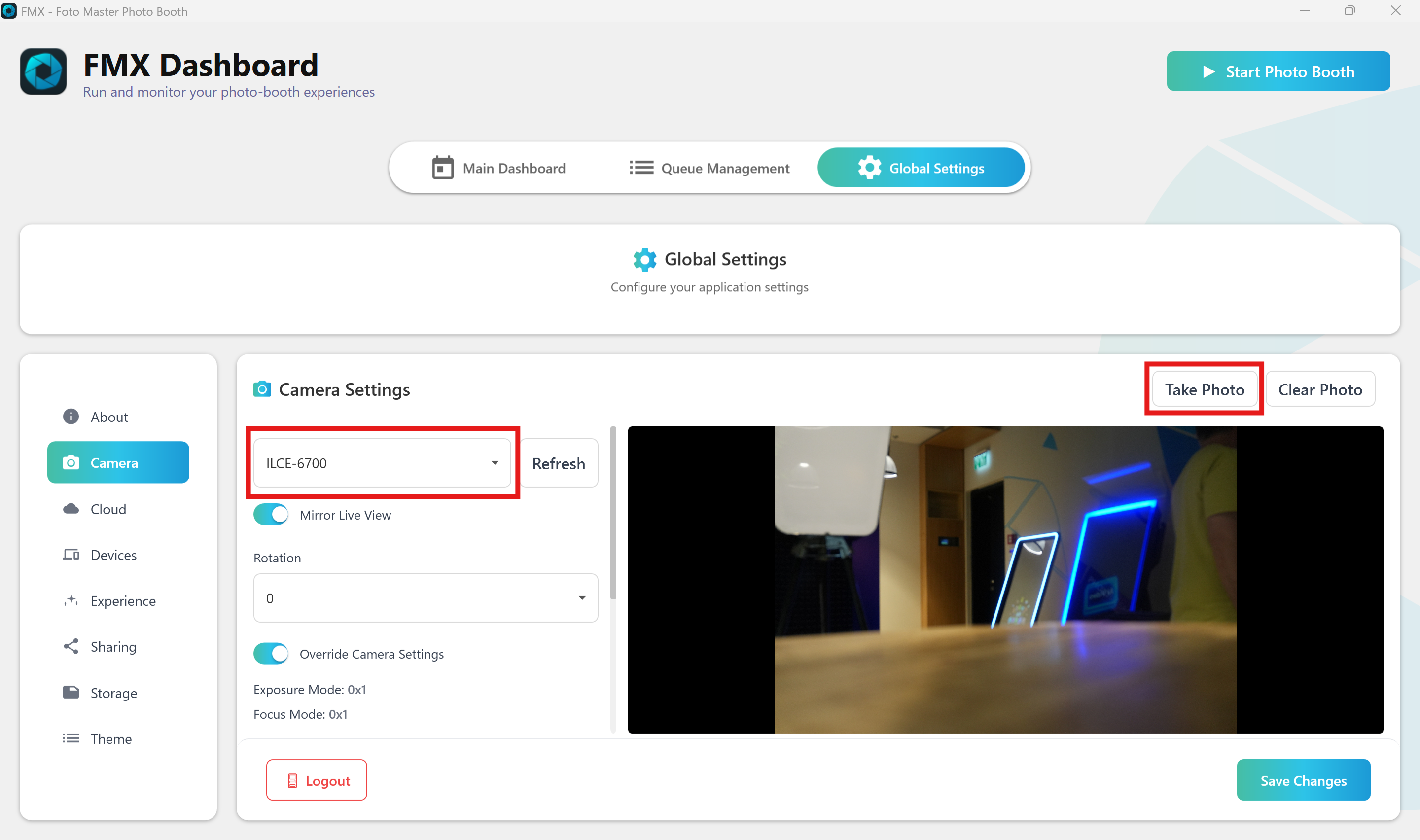
Navigate to Global Settings > Camera.
-
Select your camera model (e.g., ILCE-6700, ILCE-7M4) from the dropdown menu.
-
Click Take Photo to verify that the trigger and image transfer are working.
-
If the image appears in the preview window, your setup is complete.
Note: Before testing, make sure to close any other windows that may be using the camera (such as Sony Imaging Edge Desktop, Zoom, or Chrome), as they will prevent FMX from connecting to the device.
Was this helpful?
Related articles
Printer Comparison: DNP Models for Photo Booths
Overview DNP photo printers are widely used by photo booth operators because they are dependable, event-ready, and produce professional dye-sublimation prints. FMX supports printin
Choosing the Right Camera for Your Photo Booth
Your camera is the single most important component affecting photo quality in your booth. FMX supports Canon, Nikon, Sony, and GoPro cameras. FMX for Windows also supports USB webc
Camera Basics for Photo Booth Operators
You do not need to be a professional photographer to run a great photo booth, but understanding a few camera fundamentals will help you deliver consistently high-quality photos acr
FMX Supported Camera List
FMX supports Canon, Nikon, Sony, and GoPro cameras. FMX for Windows also supports UVC-compliant USB webcams, while FMX for iPadOS can use the iPad's built-in cameras. Support and s
Camera Basics: The Exposure Triangle
This video explains the exposure triangle (aperture, shutter speed, and ISO) and how each setting interacts to control the final look of your photo. Recommended for operators who w