
Replacing Media in DNP RX1HS - 5x7
In this video, you will see a step-by-step guide on how to replace the media in your DNP RX1HS with 5x7 media and ribbon
Can't see the Video? Check it here
Important: Adjust Your Windows Driver Settings
After physically changing the media inside your printer, you must update the paper size properties in Windows so your software can format the prints correctly:
Click the Windows Start button and open Settings (gear icon).
Navigate to Bluetooth & devices > Printers & scanners (or Devices > More devices and printer settings depending on your Windows version).
Find your DNP DS-RX1HS printer icon, right-click it, and select Printing preferences.
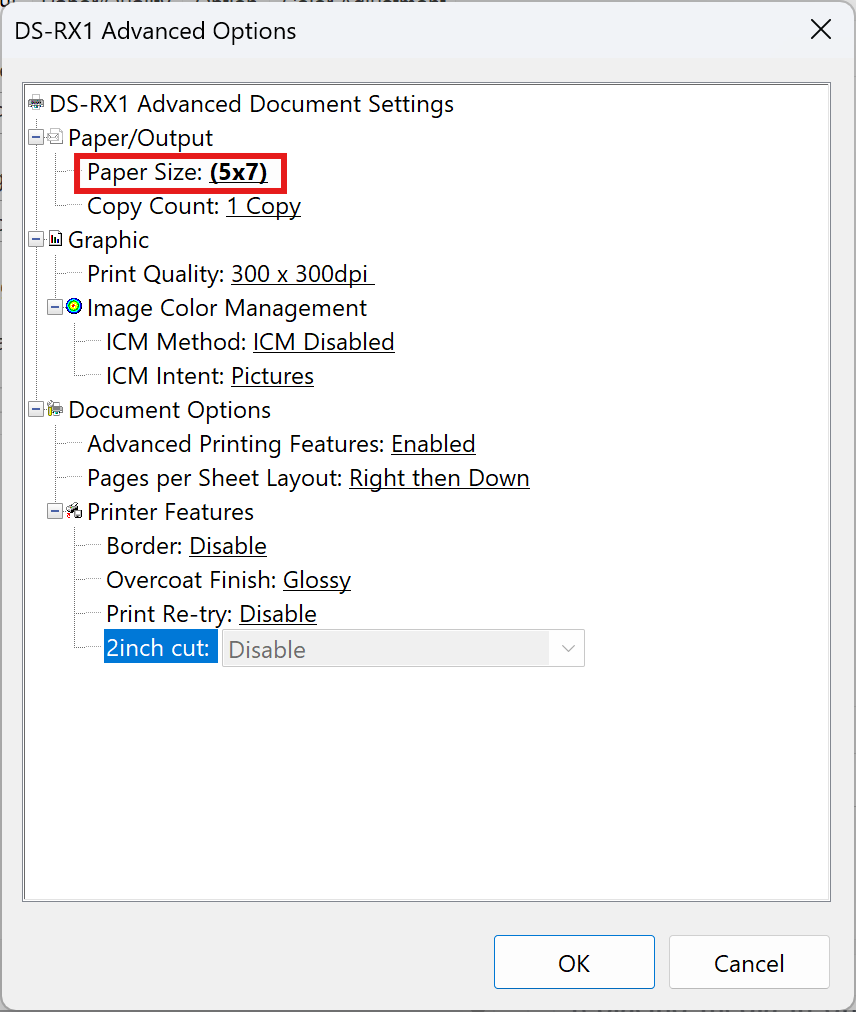
In the preferences window, go to the Layout tab and click the Advanced... button.
Locate the Paper Size property, click the dropdown menu, and change it to 5x7.
Click OK, then Apply to save your changes.
💡Don't forget: Make sure to also update your print layout to the new 5x7 aspect ratio under the Events tab in your Cloud account's Event Settings.
Was this helpful?
Related articles
Printer Comparison: DNP Models for Photo Booths
Overview DNP photo printers are widely used by photo booth operators because they are dependable, event-ready, and produce professional dye-sublimation prints. FMX supports printin
Choosing the Right Camera for Your Photo Booth
Your camera is the single most important component affecting photo quality in your booth. FMX supports Canon, Nikon, Sony, and GoPro cameras. FMX for Windows also supports USB webc
Camera Basics for Photo Booth Operators
You do not need to be a professional photographer to run a great photo booth, but understanding a few camera fundamentals will help you deliver consistently high-quality photos acr
FMX Supported Camera List
FMX supports Canon, Nikon, Sony, and GoPro cameras. FMX for Windows also supports UVC-compliant USB webcams, while FMX for iPadOS can use the iPad's built-in cameras. Support and s
Camera Basics: The Exposure Triangle
This video explains the exposure triangle (aperture, shutter speed, and ISO) and how each setting interacts to control the final look of your photo. Recommended for operators who w