
Printing from iPad With FMSlide
Suppose your PrintPal dongle encounters an issue and you need to print photos manually. In that case, you can use the FMSlide software combined with File Juggler and DNP’s Hot Folder Print Utility as an alternative workflow. Follow the steps below to correctly install, configure, and operate these tools.
This workaround requires the use of a laptop.
For info on how to use the FMSlise software, please check this article
Step 1: Install the Required Software
Before starting, ensure your DNP printer (model DS620A) is connected to your computer.
-
Install File Juggler
Download and install File Juggler; this tool will help copy files from your event folder to the printer’s hot folder automatically. -
Install DNP Hot Folder Print Utility (HFP)
-
Choose the correct version for your system: Win32 or Win64.
-
Keep the printer connected during installation.
-
This utility automatically prints images placed in specific folders (“hot folders”).
-
Step 2: Configure the Printer Operation
-
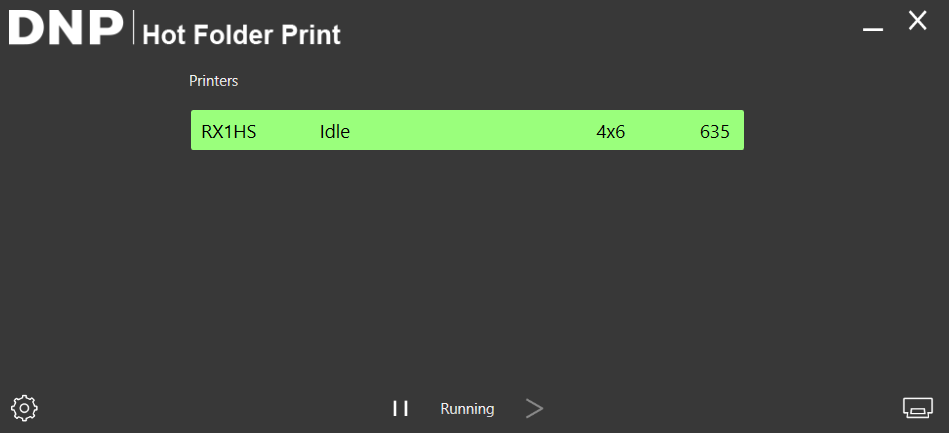
Launch Hot Folder Print**
**
Open the Hot Folder Print Utility and ensure it’s running.-
Keep it open while using the booth.
-
When replacing media, printing will pause automatically: remember to resume it afterward.
-
Step 3: Set Up File Juggler to Automate Photo Transfers
Open File Juggler
Click the "Add Rule" button and add the desired rule:
- Description - give your rule a name
- Monitor - Select the desired path of the folder you want to transfer the files from (this will be the FMSlide event folder)
- If - Select the option of "All Files"
- Then - Select the option "Copy file" and select the DNP Hot Folder path. This is where all the files from (C:\DNP\Hot Folder\Prints\4x6)
Click "Save and Close"
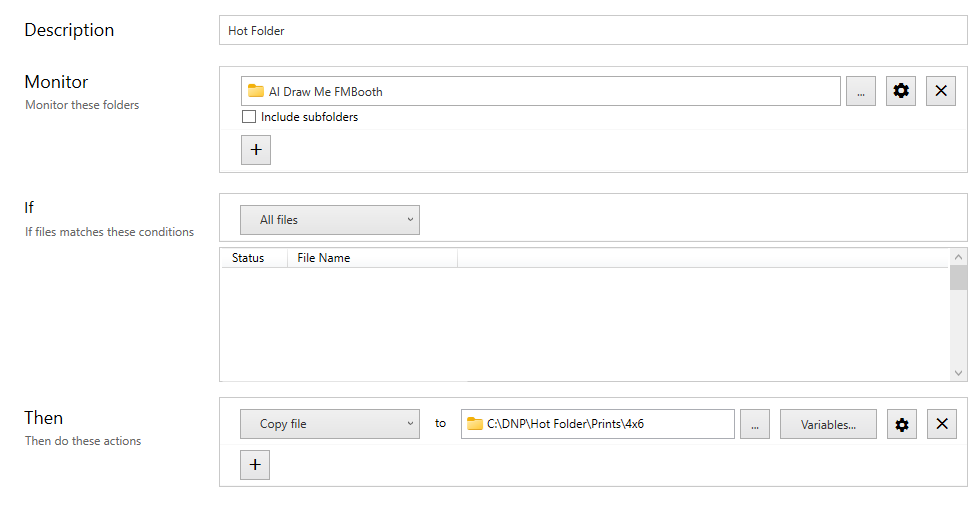
Once you are back on the Rule tab, press the Start button to start the monitoring process

Step 4: How It Works
-
Once the configuration is complete, File Juggler will automatically copy saved final photos from your FMSlide Event folder to the DNPPrints Hot Folder.
-
As soon as files are placed in this hot folder, printing starts automatically, no need to trigger print copies in your workflow.
Was this helpful?
Related articles
Printer Comparison: DNP Models for Photo Booths
Overview DNP photo printers are widely used by photo booth operators because they are dependable, event-ready, and produce professional dye-sublimation prints. FMX supports printin
Choosing the Right Camera for Your Photo Booth
Your camera is the single most important component affecting photo quality in your booth. FMX supports Canon, Nikon, Sony, and GoPro cameras. FMX for Windows also supports USB webc
Camera Basics for Photo Booth Operators
You do not need to be a professional photographer to run a great photo booth, but understanding a few camera fundamentals will help you deliver consistently high-quality photos acr
FMX Supported Camera List
FMX supports Canon, Nikon, Sony, and GoPro cameras. FMX for Windows also supports UVC-compliant USB webcams, while FMX for iPadOS can use the iPad's built-in cameras. Support and s
Camera Basics: The Exposure Triangle
This video explains the exposure triangle (aperture, shutter speed, and ISO) and how each setting interacts to control the final look of your photo. Recommended for operators who w