
Canon Camera Live View Not Showing on FMX iPad
Setting up your booth only to find a blank, black screen when you try to launch your Live View can definitely cause a moment of panic! Don't worry, if you are using a Canon camera, a missing Live View is almost always a simple settings mismatch or a slight delay in the hardware connection.
If you click "Start Live View" and nothing happens, run through this quick software and hardware checklist to get your camera feed up and running in no time.
Step 1: Verify Your Software Settings
First, we need to ensure the FMX software is actually looking for your external Canon camera, rather than the iPad's internal camera.
-
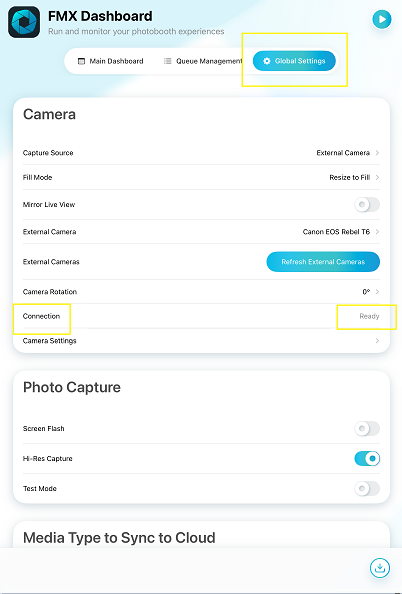
Navigate to your Global Settings.
-
Locate Capture Source and ensure it is explicitly set to External Canon Camera.
-
Check the device list below to see if the system detects your exact camera model. If you don't see it, tap Refresh External Camera to force the iPad to search for it.
-
Look at the Connection Status and verify it says "Ready."
Step 2: Restart the Preview
Once your settings are confirmed and the camera is connected, try launching the feed again:
-
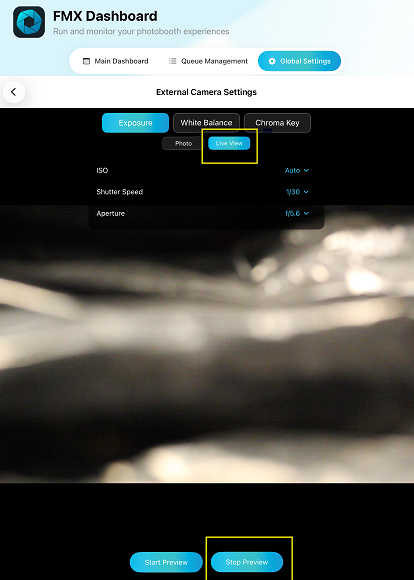
Tap on Camera Settings.
-
Select Live View.
-
Tap Start Preview.
Step 3: The "Red Light" Hardware Check
If your settings are perfect but the Live View still isn't showing up, the camera and the iPad might just be taking an extra moment to finish shaking hands!
Look closely at your physical Canon camera body for its Connection Indicator Light (usually located on the back or bottom corner near the memory card door).
-
🔴 Static Red Light: If this light is solid red, it means the camera is currently working hard to establish a connection with the iPad. Do not unplug anything! Just wait a few moments for the connection to fully establish.
-
⚫ Connection Complete: Once the camera finishes syncing, that static red light will turn off or blink away, and your Live View will instantly populate on both the physical camera screen and your FMX iPad display.
💡 Pro-Tip: Always ensure you are using a high-quality, undamaged data cable to connect your camera to your iPad hub. A good cable keeps these connection times blazing fast!
Was this helpful?
Related articles
Photos Taken But Not Printing
Quick Checks First Is the printer powered on with the ready light solid? Is paper loaded with the ribbon from the same box? Is the USB cable connected between the printer and booth
Booth Computer Running Slowly at Events
Common Causes Windows Update downloading in the background Antivirus scanning during the event Low disk space on the system drive Too many hours without a restart: memory buildup I
How to Export All Event Data
This article explains how to export photos, videos, guest contact data, survey results, and event statistics from Foto Master Cloud.Exporting Photos and Videos Log in to cloud.foto
License Activated but Events List is Empty
You logged in successfully, your Cloud Licenses tab shows your license as Activated, but when you open FMX (or your booth software) the events list is empty -- nothing to select, n
License Activation Issues
Activating your Foto Master software should take just a minute or two. If something isn't working, this page walks through the fixes step by step. Before anything else, confirm whi