
Strobe Flash Troubleshooting
This guide helps you identify and resolve strobe flash issues. There are two main problem categories: power issues and connectivity issues. To make this first diagnosis, press the flash's Test button (different in each strobe flash brand and model).
- If the flash is not working at all, this may indicate a power issue.
- If the flash is working, this indicates a connectivity or camera issue.
If your flash is firing for no apparent reason (by itself) or when another photographer in the room is taking a photo, disable the Slave Mode on the flash.
Temporary workaround: If you can't solve the issue and need a temporary solution at an event, increase your camera's ISO setting. If it's not bright enough, you can try to lower the aperture and shutter speed.
Power Issue
- Make sure your flash is connected to power.
- Try a different power outlet.
- Try to replace the flashbulb.
- Check the flash's fuse.
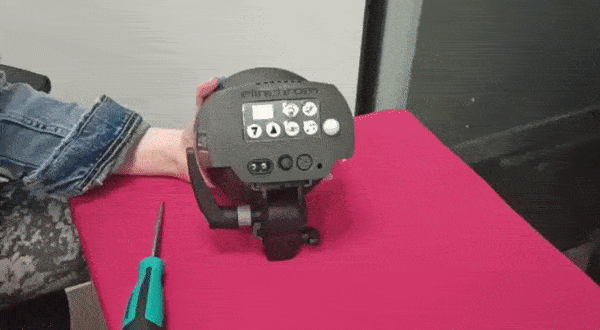
Connectivity or Camera Issue
- Make sure your camera is in M (manual) mode (on the camera's dial).
- Make sure Slave mode is disabled (usually an eye-icon button on your flash).
- Make sure the sync cord and hot shoe are connected and tight.
- Try to disconnect the sync cord and the hot shoe and reconnect.
- Try tightening up the connection between the hot shoe and the camera with a little piece of paper or toothpick.
- Try replacing the sync cord and/or the hot shoe.
- Check if there is a setting in your camera that blocks the flash. To be sure, reset your camera settings (Menu → Clear settings) and re-apply the recommended settings.
For recommended camera settings, see the Mirror Photo Booth and Retro Photo Booth guides.
Flash and Live View: Some cameras will not activate the flash when the Live View feature is in use. If you are using the Live View feature and the "Hide Live View on Stop Live View" box is enabled, uncheck it and see if the problem is solved.
Make sure your camera has a normal hot shoe mount and not a stripped-down one. A stripped-down hot shoe mount does not sync with the flash unit properly.
For further assistance, contact support.
Was this helpful?
Related articles
Photos Taken But Not Printing
Quick Checks First Is the printer powered on with the ready light solid? Is paper loaded with the ribbon from the same box? Is the USB cable connected between the printer and booth
Booth Computer Running Slowly at Events
Common Causes Windows Update downloading in the background Antivirus scanning during the event Low disk space on the system drive Too many hours without a restart: memory buildup I
How to Export All Event Data
This article explains how to export photos, videos, guest contact data, survey results, and event statistics from Foto Master Cloud.Exporting Photos and Videos Log in to cloud.foto
License Activated but Events List is Empty
You logged in successfully, your Cloud Licenses tab shows your license as Activated, but when you open FMX (or your booth software) the events list is empty -- nothing to select, n
License Activation Issues
Activating your Foto Master software should take just a minute or two. If something isn't working, this page walks through the fixes step by step. Before anything else, confirm whi