
How to Troubleshoot a Selection Screen in FMX for iPad
Selection Screens in FMX for iPad can branch to workflows, choose prompts and templates, collect payment, combine different actions with Mixed, or map several guest choices to one Photo Layout. When a screen does not behave as expected (taps not registering, selections appearing in the wrong place, Payment opening the wrong path, or Done staying inactive), review the configuration before concluding that something is wrong with the system.
This guide walks through the most important troubleshooting steps to help you quickly identify and fix the problem.
1. Verify the iOS Version
A typical cause of malfunction is running the app on an unsupported iOS version.
What to Check
FMX selection features for iPad require:
✅ iOS 18 or higher
If the device is running iOS 16 or 17, the interface may:
-
Fail to register touch input correctly
-
Render background media design incorrectly
-
Misalign selection zones
-
Crash or freeze during interaction
How to Confirm
On the iPad:
-
Open Settings
-
Tap General
-
Select About
-
Check the iOS Version
If it is below 18, update the device before continuing troubleshooting.
2. Confirm the Clickable Areas Are Positioned Correctly
If users can see the screen but cannot tap or select the correct areas, the problem is often related to how the clickable areas were placed during setup.
Possible Symptoms
-
Tapping a box selects the wrong option
-
Nothing happens when an area is pressed
-
Touch works only in unexpected parts of the screen
-
Selections appear offset from the visuals
What to Review
In FMX:
-
Re-open the Selection Screen Editor
-
Inspect each clickable area
-
Make sure every clickable area lines up visually with the buttons or images shown on the screen
-
Confirm the area was not accidentally resized or shifted
If the design was copied from another workflow, the coordinates may no longer match the iPad display.
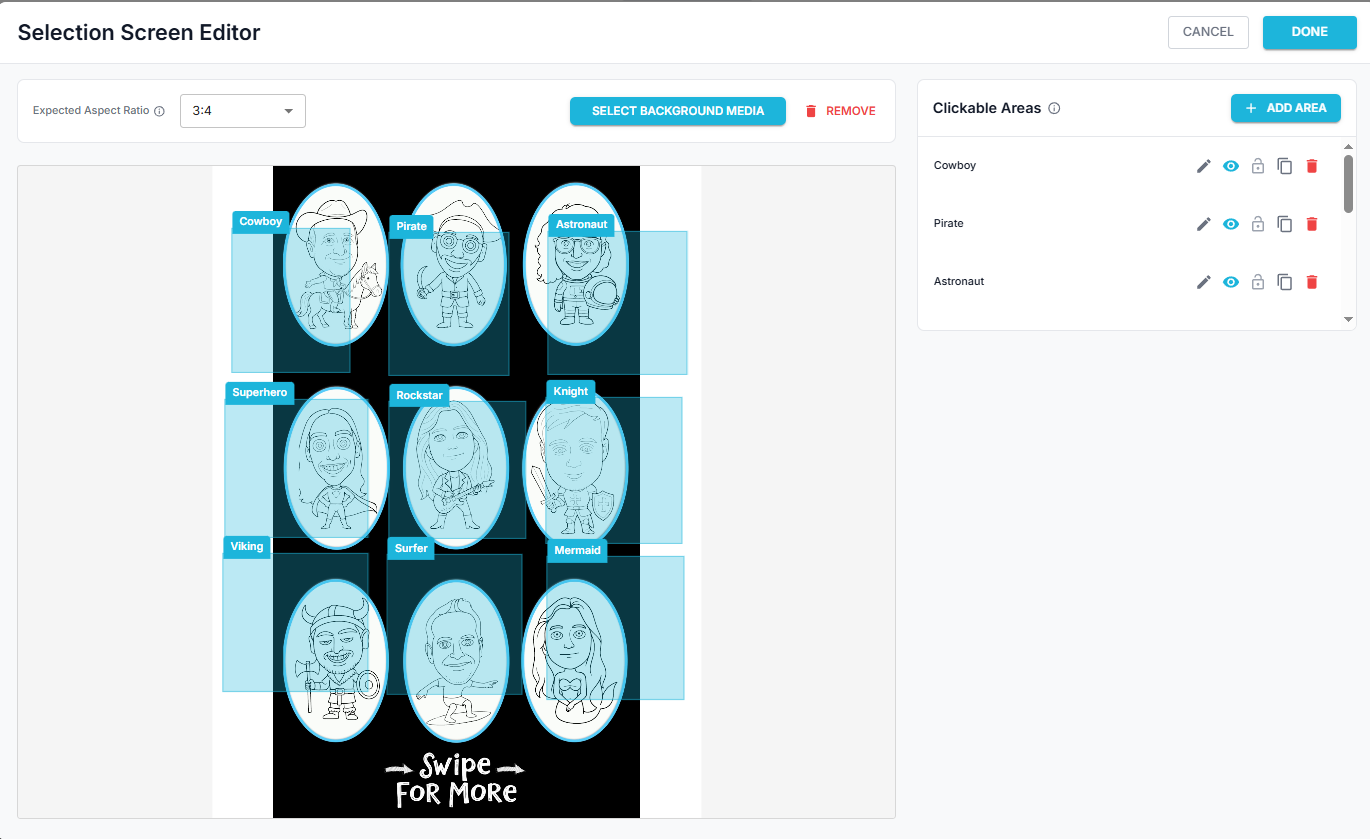
3. Check the Aspect Ratio: iPad is 3:4, not 9:16
Another frequent cause of selection issues is an incorrect screen ratio.
Our Selection Screen Editor default is 9:16, which is typical for phones or vertical displays. However, iPads use a 3:4 aspect ratio. If the Selection Screen was created for 9:16 and then deployed to an iPad, the visual layout may scale, but the touch zones may not.
Why This Matters
When the ratio is wrong:
-
Background media stretch or shrink
-
Buttons move visually
-
Touch areas stay in their original positions
-
Selections no longer line up
This creates the illusion that the screen is broken, when in reality the coordinates are simply mismatched.
What to Do
-
Edit the Selection Screen in the Workflow you are using
-
Change the Expected Aspect Ratio to 3:4
-
Save and re-sync the workflow to the FMX iPad
Always design and test multi-selection screens specifically for the device type that will be used at the event.
4. Check the Area Action and Continuation
The required continuation depends on the area's action:
- Step needs a valid Target Step.
- Payment needs the correct Price and Continue to Step.
- Prompt, Photo Layout, and Video Fusion apply their value and use the Selection Screen's normal outgoing connection.
- Workflow needs a valid selected child workflow.
- Mixed can contain all of those area types, so test each type separately.
If a Mixed Step area works but a Prompt or Layout area does nothing, the screen may be missing its normal continuation.
The eye icon is not a guest visibility setting. An area hidden in the builder remains rendered and tappable in FMX. Delete the area if it should not run.
5. Check Payment Settings
If the screen contains Payment areas:
- Nothing selected waits for the guest's first tap; this is not a fault.
- First area selected arms the first complete price on entry.
- Confirm the Price and Continue to Step on every area.
- The placed Payment QR appears only for Stripe or Shopify and only while a paid attempt is armed.
- A
$0.00area completes without a provider and does not show a QR. - Mixed Payment areas always wait for a tap, even if Initial Selection was changed elsewhere.
Complete a test transaction with the exact provider account and network that will be used at the event.
6. Check Multi Area Selection
If guests can select items but Done does not activate:
- Confirm Selection Type is Photo Layout and Multi Area Selection is enabled.
- Select exactly the number shown under Areas to select.
- Map every row in Combinations to a Photo Layout.
- Keep all intended choices shown in the editor while building mappings. The eye icon does not disable them at runtime.
- Remember that an additional area is ignored while the required selection is already full; deselect one choice first.
- Add a visible Done graphic through Area Media or the screen background.
Changing Areas to select clears mappings that no longer match the new count. Reopen Combinations after changing it.
7. Best Practices to Avoid Issues at Events
To prevent failures during live events:
-
✅ Test the workflow
-
✅ Confirm the iOS version before deployment
-
✅ Avoid reusing phone-ratio layouts on tablets
-
✅ Double-check selection zones after any design change
-
✅ Perform a full sync after updating your workflow
-
✅ Run multiple tap tests in every corner of the screen
-
✅ Test every Mixed action type, every Payment price, and every multi-area combination used
Spending a few minutes validating these details ahead of time can save hours of troubleshooting on-site.
Final Checklist
Before an event, confirm:
-
✔ iPad is running iOS 18 or higher
-
✔ Multi-selection areas align with visuals
-
✔ Selection Screen Editor uses a 3:4 aspect ratio
-
✔ Layout was tested directly on the device
-
✔ Latest workflow version is synced on your FMX iPad
-
✔ Unwanted areas are deleted, not only hidden with the eye icon
-
✔ Every Payment area has the correct price and destination
-
✔ Every multi-area combination has a mapped Photo Layout
For complete setup instructions, see Selection Screen: Types, Mixed Menus, Payments, and Multi-Area Layouts.
Was this helpful?
Related articles
Photos Taken But Not Printing
Quick Checks First Is the printer powered on with the ready light solid? Is paper loaded with the ribbon from the same box? Is the USB cable connected between the printer and booth
Booth Computer Running Slowly at Events
Common Causes Windows Update downloading in the background Antivirus scanning during the event Low disk space on the system drive Too many hours without a restart: memory buildup I
How to Export All Event Data
This article explains how to export photos, videos, guest contact data, survey results, and event statistics from Foto Master Cloud.Exporting Photos and Videos Log in to cloud.foto
License Activated but Events List is Empty
You logged in successfully, your Cloud Licenses tab shows your license as Activated, but when you open FMX (or your booth software) the events list is empty -- nothing to select, n
License Activation Issues
Activating your Foto Master software should take just a minute or two. If something isn't working, this page walks through the fixes step by step. Before anything else, confirm whi