
How to Create Miniature Me on FMX
Overview
This guide explains how to use the Miniature Me feature in FMX to create custom miniature cutouts. The process involves capturing a photo, applying AI modifications and background removal, outlining the image in your layout, and then printing and cutting your design with a Silhouette cutting machine.
Required Equipment and Software
To complete the Miniature Me process, you will need the following:
FMX (Beta Software)
Silhouette Cameo 5, Cameo 4, or equivalent cutting machine of your choice
0.4mm magnetic sheet (optional, for magnet mounting)
2mm blade for your cutting machine
Windows-based computer
Silhouette Studio software (Link: https://www.silhouetteamerica.com/silhouette-studio)
FMX Setup
The Miniature Me feature requires the AI BG Removal node in your workflow to achieve the white background. You can choose to include the AI Modify node for additional enhancements, or build a simpler workflow without it. Follow the appropriate section below based on your preference.
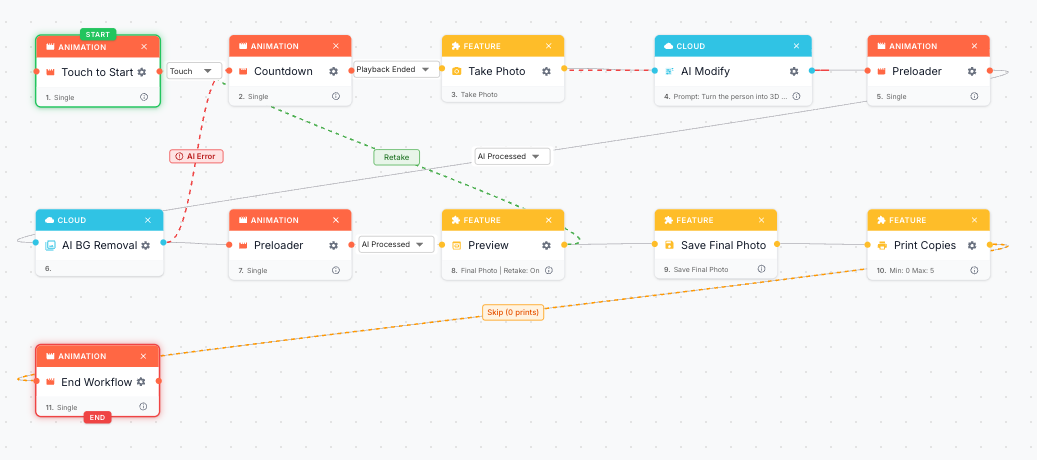
Workflow With AI Modify
- Create a new workflow or use the preset - under Load Presets → Search for Miniature Me AI
- Ensure your workflow includes both the AI Modify node and the AI BG Removal node
- Place an Animation node between the AI Modify and AI BG Removal nodes, and set it to AI Process
- Place another Animation node after the AI BG Removal node and set it to AI Process
- In Layout, scale your image to 1200 by 1800 pixels and select Filter > Outline. You can choose your own scale, however it is imperative that Outline is selected from Filter, otherwise the process will not work
- Once the photo is taken, save the image as .PNG format. You can then print it out manually, or alternatively use our FMSlide feature to have the photos appear automatically on the computer that is connected to your Silhouette cutting machine or other similar devices.
Workflow Without AI Modify
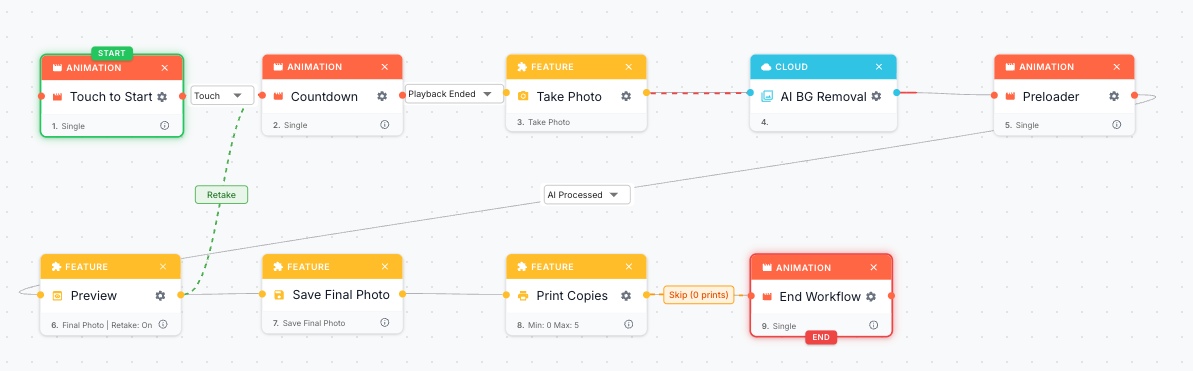
- Create a new workflow or use the preset - under Load Presets → Search for Miniature Me
- Ensure your workflow includes the AI BG Removal node, which is required to achieve the white background for the Miniature Me feature
- Place an Animation node after the AI BG Removal node and set it to AI Process
- In Layout, scale your image to 1200 by 1800 pixels and select Filter > Outline. You can choose your own scale, however it is imperative that Outline is selected from Filter, otherwise the process will not work
- Once the photo is taken, save the image as .PNG format. You can then print it out manually, or alternatively use our FMSlide feature to have the photos appear automatically on the computer that is connected to your Silhouette cutting machine or other similar devices
Silhouette Studio Configuration
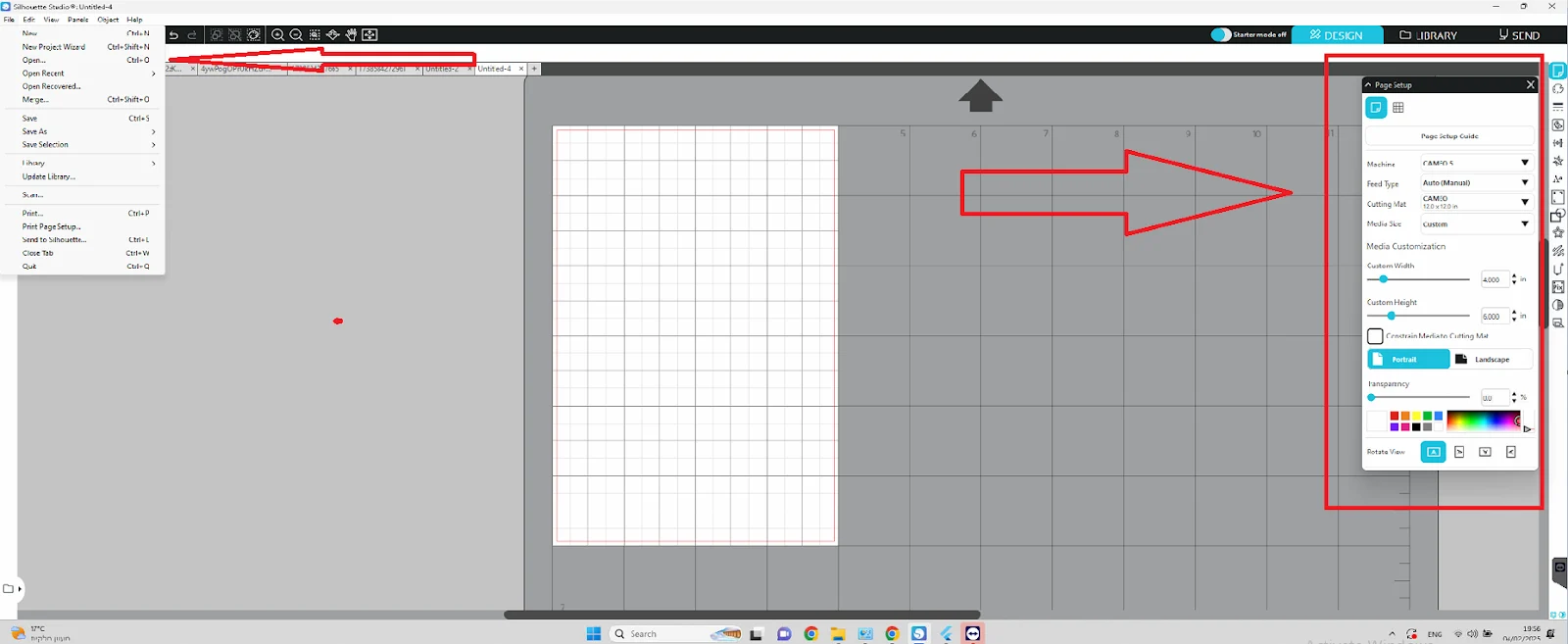
Once your photo is ready, you will need to upload it to the Silhouette Studio software. Please ensure you have updated to the newest version of Silhouette Studio before proceeding.
- Open Silhouette Studio and import your photo (File > Open)
- Verify page settings: Media Size 4x6, Portrait orientation
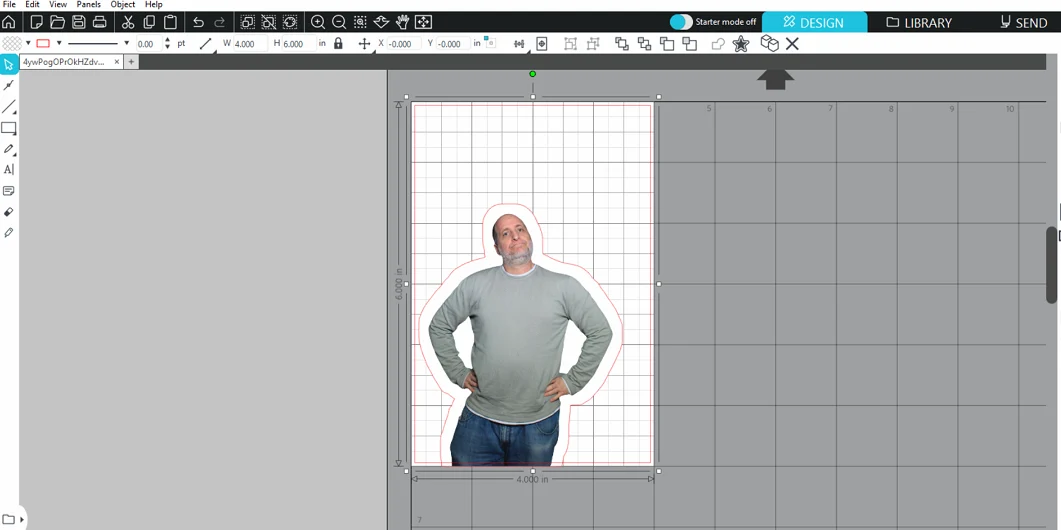
- Resize the image to 4x6 dimensions

- Center the image using the center button
Cutting Settings
For optimal results with your Silhouette cutting machine, use the following settings:
Force: 15
Passes: 2
Speed: 10
Cutting Process
Follow these steps to cut your miniature design:
- Place the printed photo on the Silhouette mat
- Feed the mat into the cutter using the Up arrow
- Confirm 'Ready' status appears in software
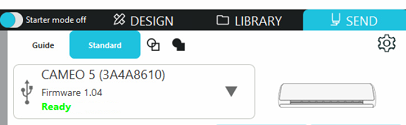
- Press 'Send' to initiate cutting
- Remove the finished mat using the Down button
Was this helpful?
Related articles
Managing Your Event List
Managing Your Event List If you created an event with settings you would like to reuse, you can duplicate it instead of starting from scratch. This is useful when you want to keep
Guest Data and Privacy
What Guest Data Does Foto Master Collect? When you run a Foto Master event, guest data may be collected depending on the sharing and survey options you enable. The types of data co
Licensing: Legacy Lifetime vs. Current Subscription
Foto Master has used both lifetime and subscription licensing models. This article explains what each model covers, how Foto Master Cloud is billed, and the specific upgrade rules
Managing Your Cloud Plan: Upgrades, Downgrades, Grace Period, and Cancellation
Manage Foto Master Cloud plans from Cloud > Billing and software licenses or 24/7 Support from Cloud > Licenses. This article explains the different effects of upgrading, dow
Adding Credits to Your Cloud Account
You can purchase additional AI Credits manually or enable optional auto-recharge in Foto Master Cloud. Available packages, rates, minimums, recharge settings, and the amount charge