
How to Customize the Seating Chart Preset
Foto Master offers a ready-made Seating Chart preset that you can load straight from Select-Sync-Play.
Out of the box it runs with placeholder animations (generic tables and guest names) so you can see exactly how the experience plays before you brand it.
Personalizing it is a two-part job: design the seating pages in a Canva template, then drop your exported animations into the workflow. No design software beyond Canva is needed, and you can hand the design work to your client.
How it works
- Edit the Canva template with the event's real tables and guest names.
- Export each page as an MP4 animation.
- Load the Seating Chart preset into your Foto Master Cloud event.
- Replace the placeholder animations in the workflow with your exported MP4s.
That's it. Each seating page is just one animation step in the workflow: so you can add as many pages as the event needs, or remove the ones you don't.
Step 1: Edit the Canva Template
Open the Foto Master Seating Chart template in Canva:
👉 https://canva.link/ftba51enpa2nw48
Each page in the template represents one screen guests will see, a table number and its list of guest names. Replace the placeholder text with the real seating plan.
You have two easy options here:
- Send it to your client. Share the Canva link directly and let them fill in their own tables and guest names. The design and layout are already done, they only edit the text.
- Collect the list yourself. Ask the client for a list of tables plus the guests at each, then type the names into the template.
You can restyle the template too (colors, fonts, background, monogram) to match the event's branding. Keep one page per table (or per screen) so each one exports as a clean, standalone animation (or PNG).
Step 2: Export the Pages as MP4 Animations
Once the template is filled in, export every page as a video:
- In Canva, click Share → Download.
- Set the file type to MP4 Video.
- Make sure all pages are selected so each table exports as its own clip.
- Download the files.
You'll end up with one MP4 per page. Name them clearly (for example Table-01.mp4, Table-02.mp4) so they're easy to match to the workflow steps in the next step.
Step 3: Load the Seating Chart Preset
In Foto Master Cloud, load the preset into your event:
-
Click Load Preset on the FMX device row.
-
Choose the Seating Chart preset from the library.
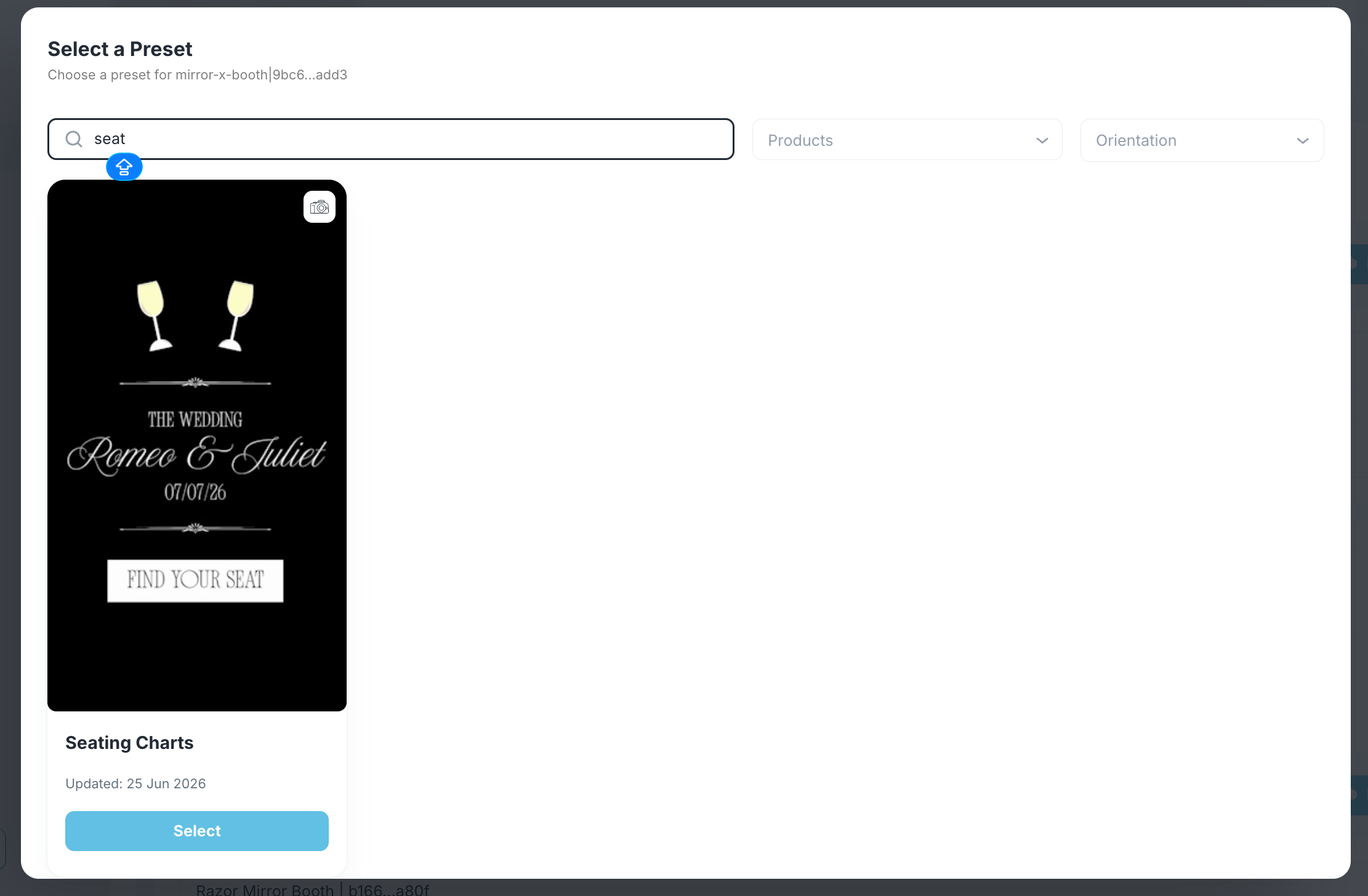
The preset comes pre-built with the placeholder seating animations already wired into the workflow: so the structure is ready and all you have to do is swap the visuals.
Step 4: Replace the Animations in the Workflow
Now drop your exported MP4s in place of the placeholders:
-
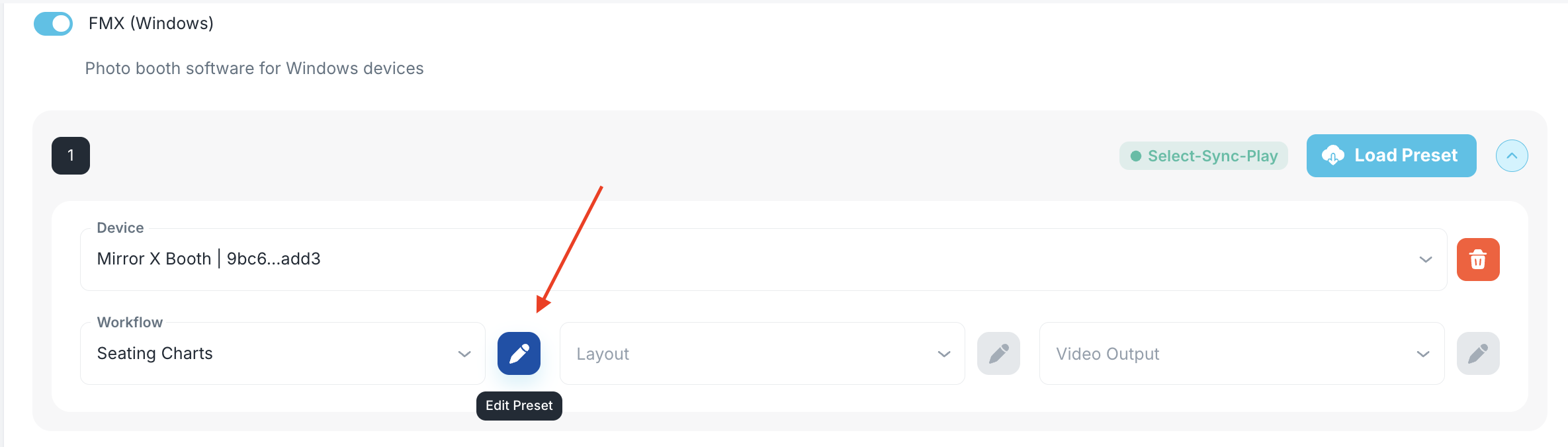
In Select-Sync-Play, click the pencil icon next to Workflow to open the Workflow Builder.
-
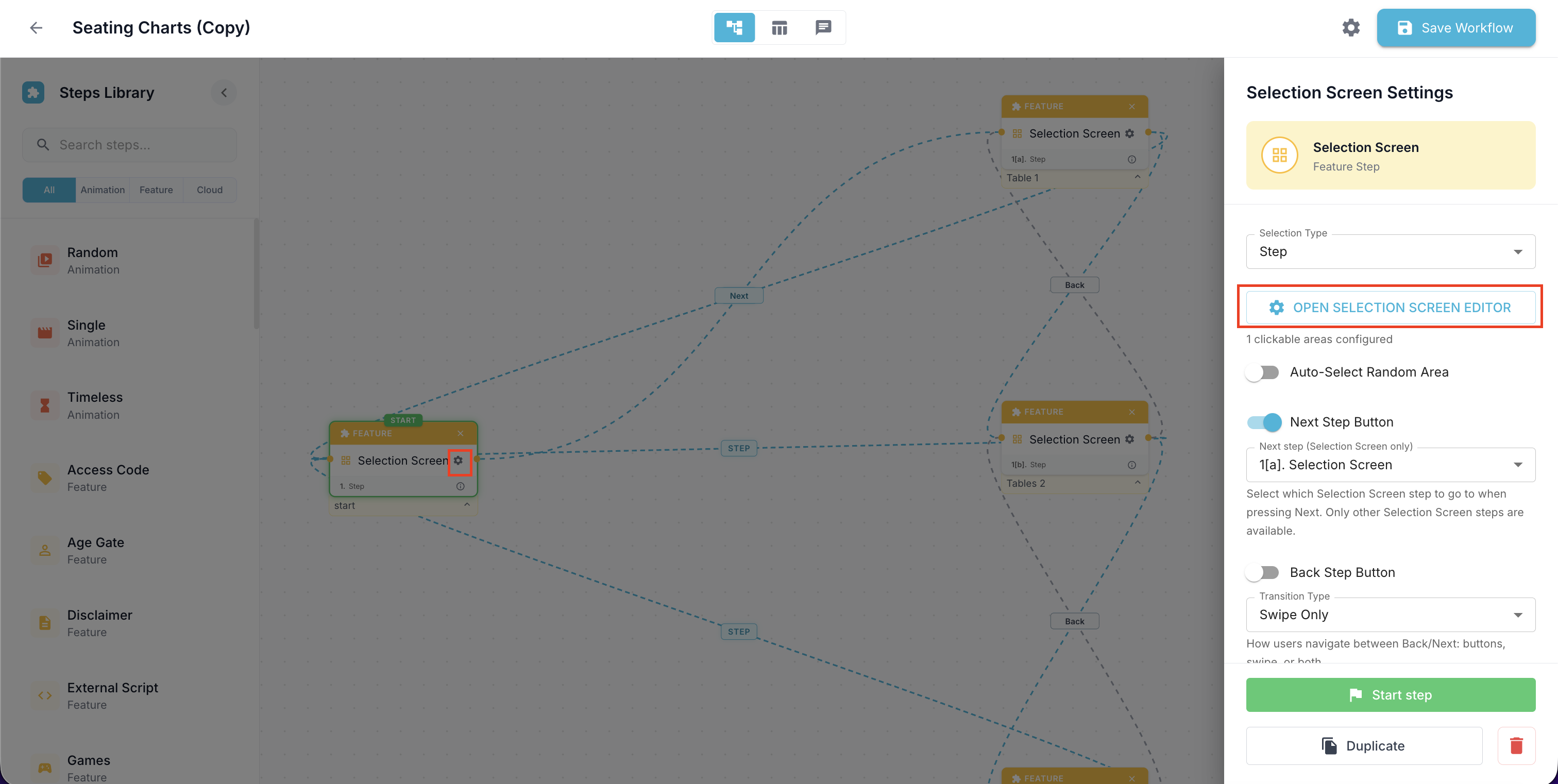
Click on the first step's settings, and then click Open Selection Screen Editor.
-
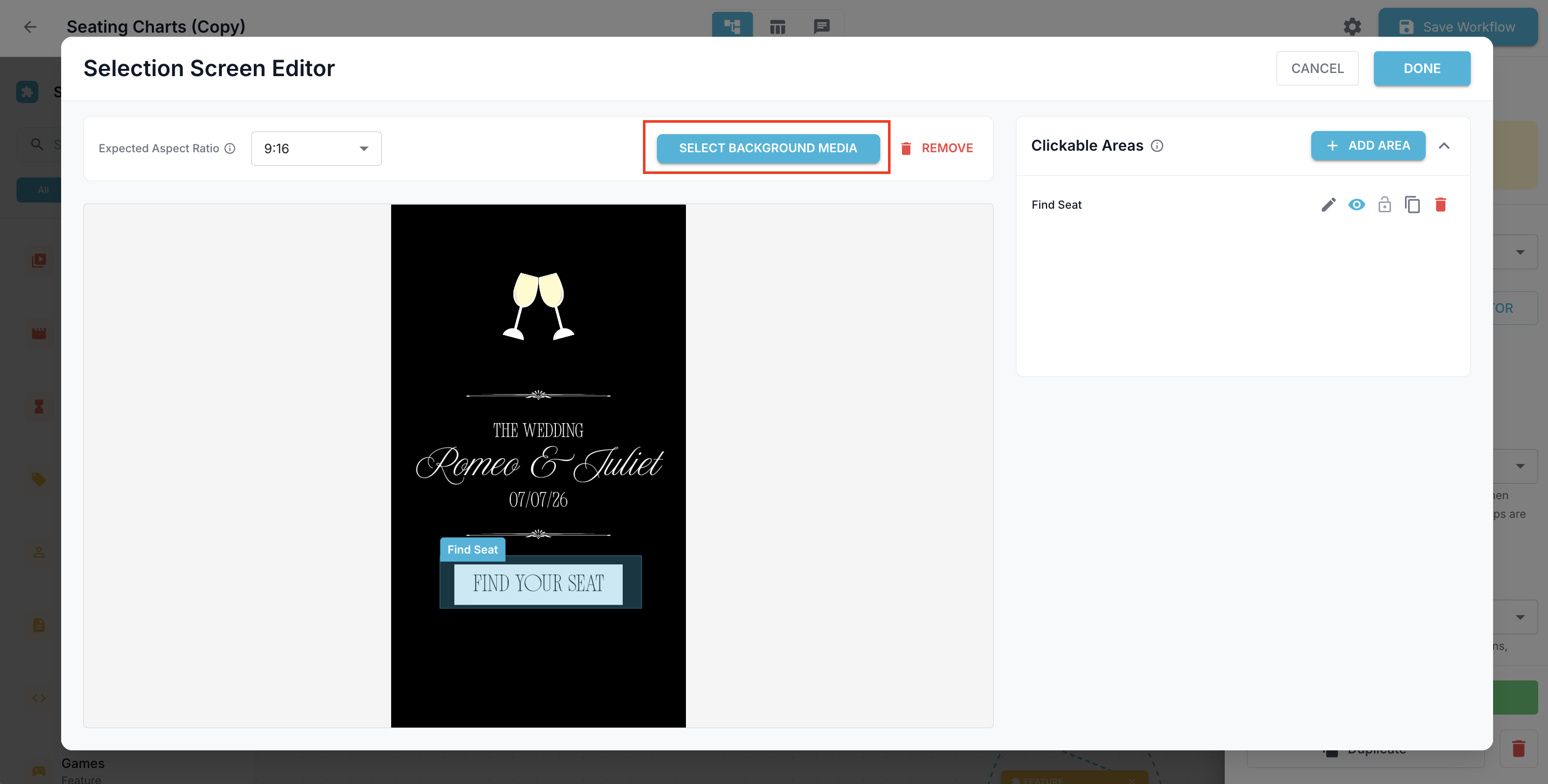
In the Selection Screen Editor, click Select Background Media.
-
Replace the placeholder animation with your exported MP4 (for example
Table-01.mp4). -
Repeat for each seating step, matching one exported page to each step.
-
Click Save.
-
Back in FMX, click Sync Event to pull the updated workflow and all animations down to the booth.
💡 Tip: Because each table is its own step, the workflow is fully flexible. Add steps for extra tables, or remove steps you don't need: just keep one animation per step and the experience scales to any guest list.
That's It!
Once you've synced, the booth runs your branded seating chart end to end. To reuse the same look for the next event, save your customized version as your own preset so you only need to swap the animations each time: see Presets: Overview for how customized templates are stored under your account.
Read Next
Was this helpful?
Related articles
Event Settings
Every event in Foto Master Cloud has its own settings that control the online gallery, Pro Slideshow, email and SMS delivery, surveys, white-label branding, and which Foto Master s
Managing Your Event List
Managing Your Event List If you created an event with settings you would like to reuse, you can duplicate it instead of starting from scratch. This is useful when you want to keep
Guest Data and Privacy
What Guest Data Does Foto Master Collect? When you run a Foto Master event, guest data may be collected depending on the sharing and survey options you enable. The types of data co
Privacy and Data Handling FAQ for IT, Legal, and Procurement Teams
This page is for the IT, legal, privacy, and procurement teams of organizations evaluating Foto Master products and services before purchase. It is not legal advice. Foto Master pr
Pro Slideshow in Foto Master Cloud: Overview and Quick Start
Pro Slideshow turns the approved photos, GIFs, videos, and drawings from a Foto Master Cloud event into a live browser-based presentation. It is designed for TVs, projectors, LED w