
How to Renew Your Cloud Plan After a Declined or Expired Card
If your 12-month cloud renewal payment fails, your subscription is marked as past due until the payment goes through. This guide shows you how to pay the past-due amount, what to do if the payment is declined again, and how to add a new credit card or PayPal account to your FotoMaster Cloud account.
Note: To avoid cancellation of your plan, complete the payment as soon as possible after you see the past-due message.
Pay a Past-Due Renewal
- Log in to your FotoMaster Cloud account.
- Go to Profile and select the Billing tab.
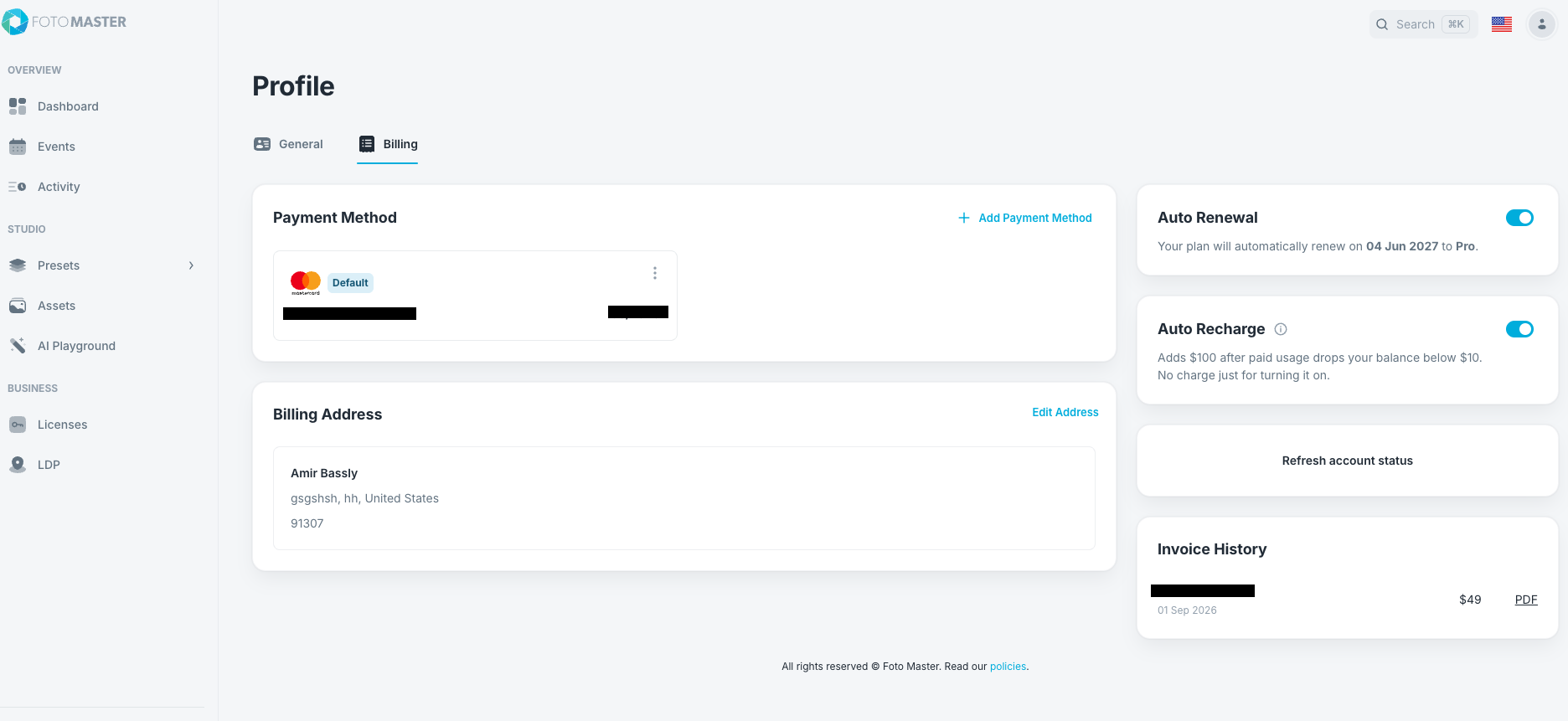
- In the Auto Renewal card, you will see the red message “Payment is past due. Please update your payment method to avoid cancellation.” Click Pay Now.
- The Review subscription payment window opens. Review the past-due amount, your subscription ID and billing period, and the card currently assigned to your subscription.
- To charge the card shown, click Pay USD followed by the amount. The charge is attempted immediately.
- To use a different card, click Update payment method instead, then follow the steps in Add a New Payment Method below.
If Your Payment Is Declined Again
If the payment does not go through, the window shows the message “Your payment was declined. Add funds, contact your bank, or select another card. Once resolved, use Pay Now to try again.” What to do next depends on the reason for the decline.
Blocked Card or Insufficient Funds:
- Contact your bank to remove the block, or add funds to the account.
- Once the bank confirms the issue is resolved, return to the Billing tab and click Pay Now, then Pay USD followed by the amount. There is no waiting period, and the charge is attempted right away.
Note: Each card can be retried up to 3 times within 24 hours. If all 3 attempts fail, that card is locked for 24 hours and the window shows when it can be tried again. Contact your bank before retrying, rather than clicking Pay Now repeatedly.
Invalid, Lost, Stolen, or Permanently Declined Card:
- Some declines are permanent, for example when a card number is invalid or a card has been reported lost or stolen. A card declined for one of these reasons cannot be used again on your account, even after you contact your bank.
- Add or select a different card using the steps below, then complete the payment with Pay Now.
Add a New Payment Method
- On the Billing tab, click + Add Payment Method in the Payment Method section.
- Select either Credit Card or PayPal.
- Enter your new card information and save it. If you selected PayPal.
- Return to the Auto Renewal card, click Pay Now, and confirm that your new card is shown before clicking Pay USD followed by the amount.
Remove the Old Card
- In the Payment Method section, find the expired or declined card.
- Click the three-dot menu on the card and select.
- Confirm that your new payment method is the only card listed.
And you’re good to go!
Was this helpful?
Related articles
Event Settings
Every event in Foto Master Cloud has its own settings that control the online gallery, Pro Slideshow, email and SMS delivery, surveys, white-label branding, and which Foto Master s
Managing Your Event List
Managing Your Event List If you created an event with settings you would like to reuse, you can duplicate it instead of starting from scratch. This is useful when you want to keep
Guest Data and Privacy
What Guest Data Does Foto Master Collect? When you run a Foto Master event, guest data may be collected depending on the sharing and survey options you enable. The types of data co
Privacy and Data Handling FAQ for IT, Legal, and Procurement Teams
This page is for the IT, legal, privacy, and procurement teams of organizations evaluating Foto Master products and services before purchase. It is not legal advice. Foto Master pr
Pro Slideshow in Foto Master Cloud: Overview and Quick Start
Pro Slideshow turns the approved photos, GIFs, videos, and drawings from a Foto Master Cloud event into a live browser-based presentation. It is designed for TVs, projectors, LED w