
Configuring Pro Slideshow Content, Layout, and Appearance
This guide explains every setting in the Style presets, Content, Experience, and Appearance sections of Pro Slideshow. For the basic publishing workflow, begin with Pro Slideshow in Foto Master Cloud: Overview and Quick Start.
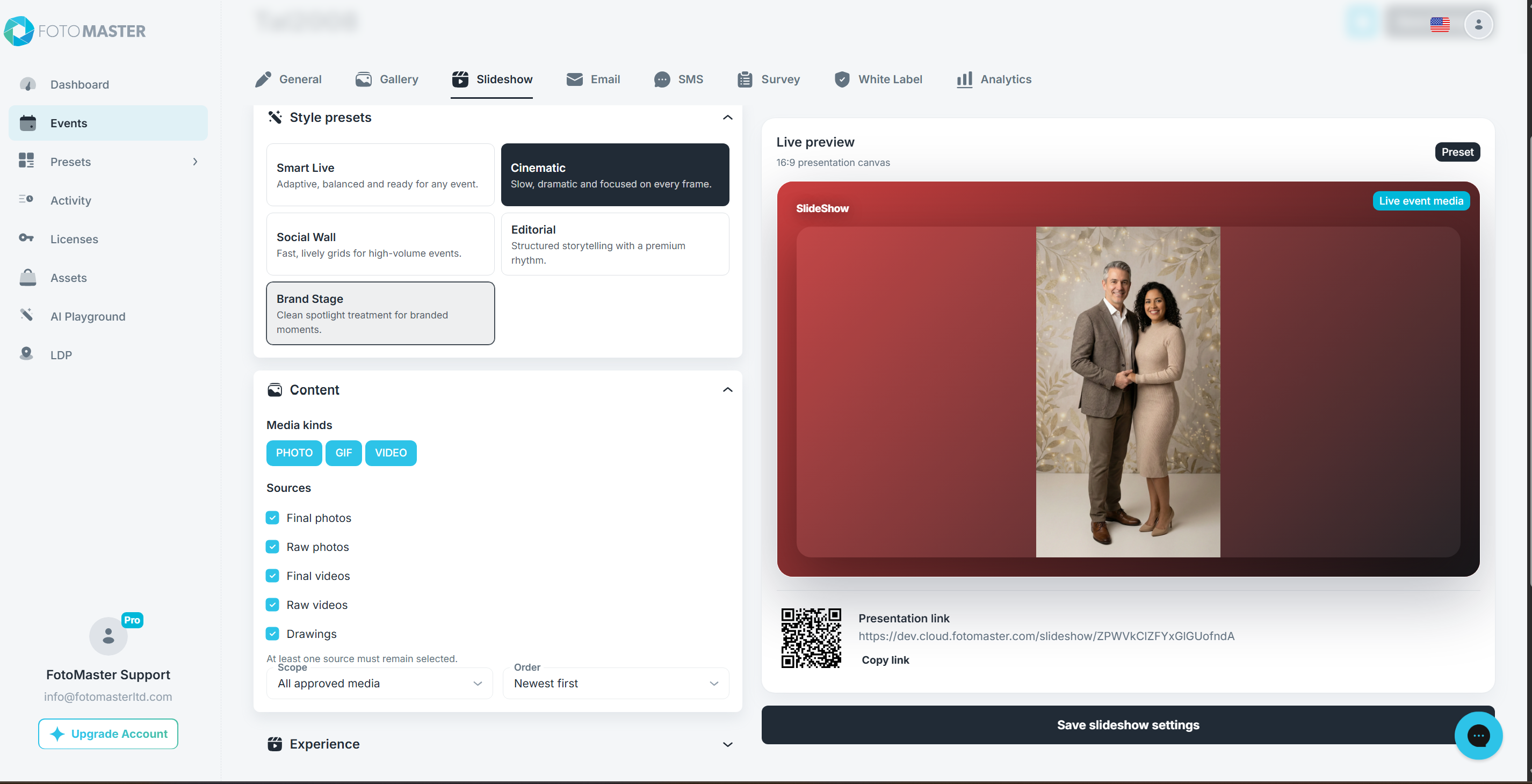
Style Presets
Style presets apply a coordinated layout, transition, timing, movement, and media-fit treatment. They are a starting point; every applied setting can be changed afterward.
| Preset | Best for | Starting treatment |
|---|---|---|
| Smart Live | General events and mixed media | Smart Adaptive layout, Auto Mix transitions, 6-second photo/GIF timing, Subtle movement, and Fill frame |
| Cinematic | Slow, focused presentations | Spotlight layout, Depth Stack transition, 8-second photo/GIF timing, Subtle movement, and Show entire media |
| Social Wall | High-volume, energetic events | Dynamic Grid, Zoom transition, 4-second photo/GIF timing, Dynamic movement, and Fill frame |
| Editorial | A main story with supporting moments | Hero + Rail, Slide transition, 7-second photo/GIF timing, Subtle movement, and Fill frame |
| Brand Stage | Branded spotlight moments | Spotlight layout, Crossfade, 7-second photo/GIF timing, movement Off, and Show entire media |
Changing an individual Experience setting after applying a preset changes the label above the Live preview from Preset to Custom. It does not create a reusable account-level preset.
Content
Media Kinds
Use the PHOTO, GIF, and VIDEO buttons to decide which formats may enter the slideshow. A highlighted button is included; a dark button is excluded.
You can combine formats, such as PHOTO and VIDEO, or select only one format. If none of the selected kinds has eligible content, the preview shows sample media and the published player waits for matching media.
Sources
Sources identify how the event media was produced:
- Final photos -- Finished photo outputs.
- Raw photos -- Original photo captures.
- Final videos -- Finished video-based outputs, including GIF outputs created from final video processing.
- Raw videos -- Original video captures and GIF outputs associated with raw video processing.
- Drawings -- Drawing media uploaded by supported Foto Master experiences.
At least one source must remain selected. The editor disables the final selected source so the slideshow cannot be saved with an empty source filter.
GIF source rule: GIF is a media kind, but GIF outputs belong to the video source family. When displaying GIFs, select Final videos, Raw videos, or both according to where those GIFs were produced. Selecting only photo sources does not make video-derived GIFs eligible.
Eligible Media
Pro Slideshow displays event media that matches the chosen kind and source and is ready for use. Deleted, rejected, moderation-unapproved, pending, failed, or incomplete uploads are excluded.
If an item does not appear, first confirm its approval and upload status in the event Gallery, then check both its media kind and source.
Scope
- All approved media includes every eligible item currently available to the event.
- Latest media includes only the newest eligible items. Choose Latest 50, Latest 100, Latest 200, or set a Custom limit from 1 to 500.
- Arrivals since player start begins with no previous event media and adds eligible items that arrive after the published player session starts. This is useful when the display should show only moments from the current live session.
Order
- Smart Director lets the slideshow prioritize and arrange media for a varied presentation.
- Newest first starts with the most recently created eligible media.
- Oldest first follows chronological order from the beginning of the eligible set.
- Shuffle randomizes the playlist.
The order setting determines the media queue. It does not change the ordering of the event's online gallery.
Experience
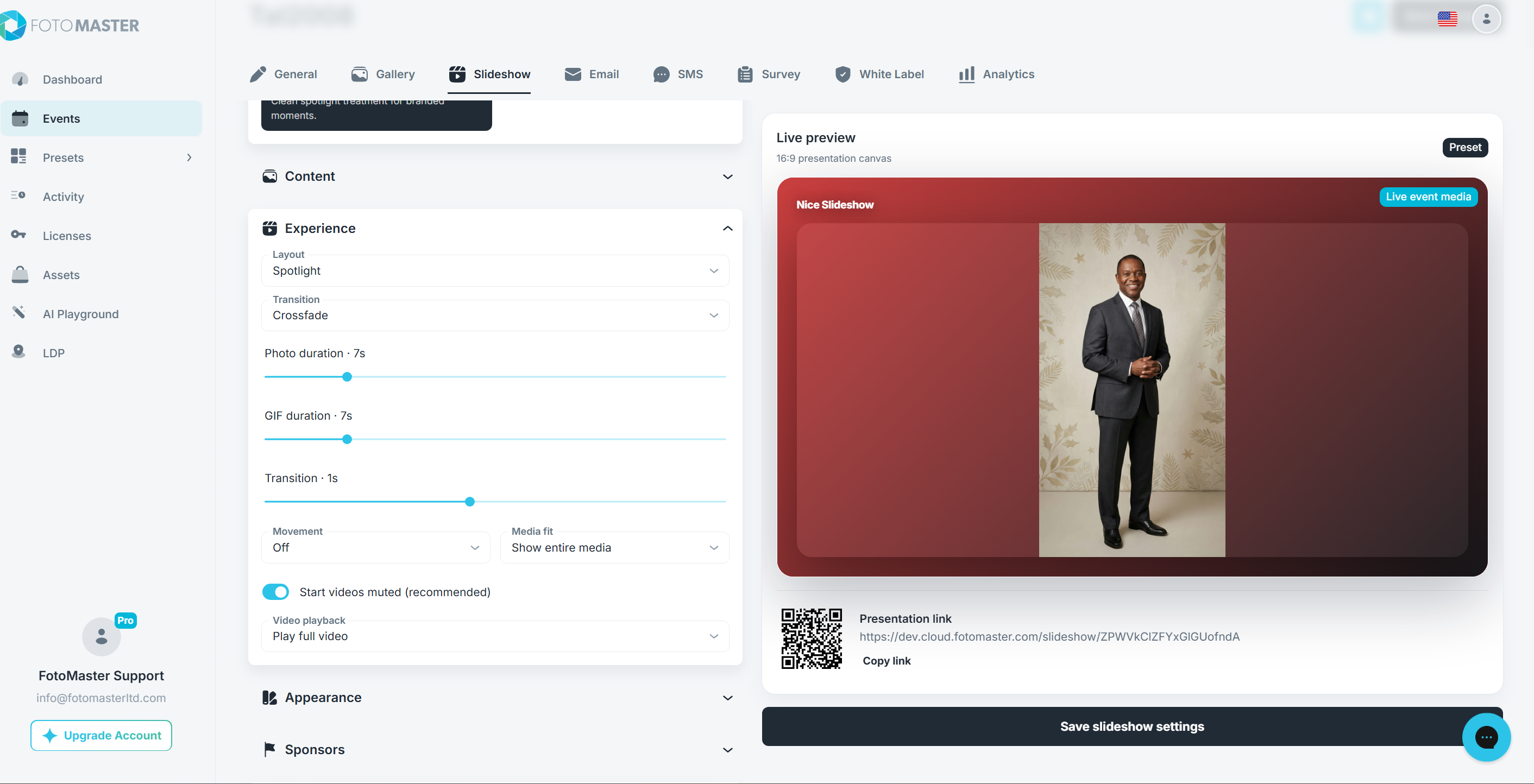
| Layout | Visible treatment |
|---|---|
| Smart Adaptive | Chooses a suitable presentation from the current item count and media orientation. One item uses Spotlight, two use Split, and larger balanced sets may use Dynamic Grid; other sets use Hero + Rail. |
| Spotlight | Shows one primary item at a time. |
| Split | Shows two items side by side. |
| Hero + Rail | Shows one large primary item with up to three supporting items. |
| Dynamic Grid | Shows up to six equal-priority grid tiles. |
| Living Collage | Shows up to five overlapping or varied-size tiles for a more organic composition. |
The layout controls how many consecutive playlist items are visible together. As the presentation advances, the next group enters the stage.
Transition
- Auto Mix varies the transition automatically.
- Cut changes immediately with no animated blend.
- Crossfade fades between the outgoing and incoming media.
- Slide moves the next media into place.
- Zoom scales media during the change.
- Blur Dissolve blends through a blurred state.
- Mask Wipe reveals the incoming media through an animated mask.
- Depth Stack creates a layered foreground/background change.
Use the Transition duration slider to set the effect from 0.2 to 2 seconds. Short values feel fast; longer values feel more cinematic.
Photo and GIF Timing
- Photo duration controls each primary photo from 2 to 30 seconds.
- GIF duration controls how long an animated GIF remains primary from 2 to 30 seconds.
These durations are independent. Video timing is controlled by Video playback.
Movement
- Off keeps the media stationary except for the selected transition.
- Subtle adds restrained motion suitable for most events.
- Dynamic adds more noticeable movement for energetic displays.
Reduced-motion browser or operating-system preferences may limit some animation automatically.
Media Fit
- Fill frame fills the tile and may crop the outer edges of media whose aspect ratio differs from the tile.
- Show entire media keeps the complete image or video visible and may leave empty space around it.
Use Show entire media for designs, sponsor artwork, or photos where edge cropping is unacceptable. Use Fill frame for a full-bleed wall.
Video Audio and Playback
Turn on Start videos muted (recommended) when the display should begin silently. Browsers may also require videos to start muted before autoplay is allowed.
Under Video playback:
- Play full video keeps the primary video on screen until it ends.
- Cap playback time advances after the selected Video cap, from 5 to 60 seconds, even when the source video is longer.
In a multi-panel layout, every visible video plays simultaneously. The primary video follows the slideshow's mute setting and is the only video whose completion advances the slideshow. Supporting videos are muted, loop while visible, and never advance the layout by themselves.
Appearance
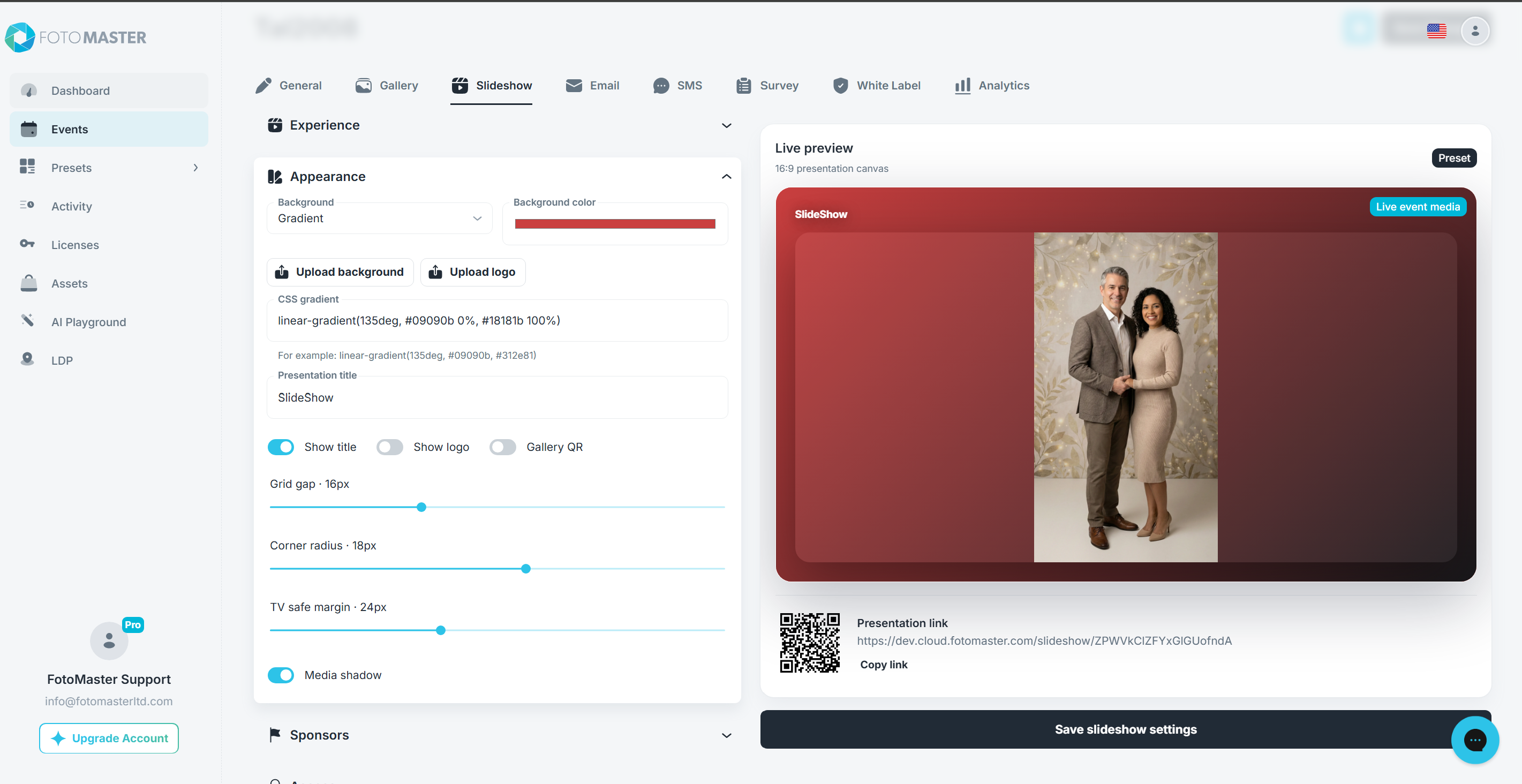
- Solid uses the selected Background color.
- Gradient uses the CSS gradient value and incorporates changes from the color picker into the preview.
- Image uses the file added with Upload background.
- Blurred current media fills the stage background with a blurred treatment derived from the current primary item.
The color picker updates the Live preview while you choose a color. Click elsewhere or close the picker to commit the final value to the settings form.
For a custom gradient, enter a valid CSS gradient, for example:
linear-gradient(135deg, #09090b, #312e81)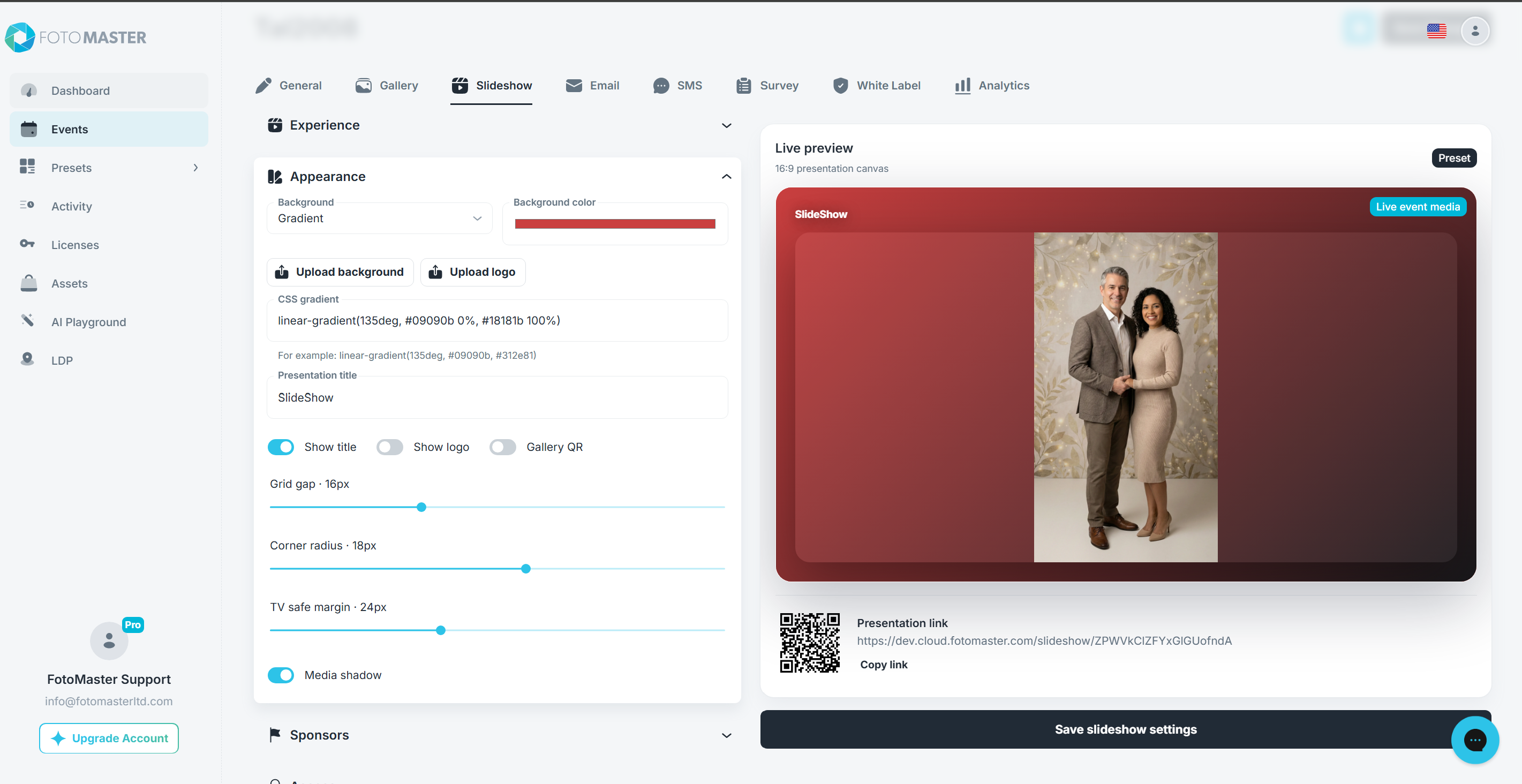
- Upload background adds an image for the Image background type.
- Upload logo adds an event logo for the slideshow stage.
- Presentation title sets the title text.
- Show title displays the presentation title.
- Show logo displays the uploaded logo.
- Gallery QR displays a QR code that opens the event's online gallery. This is different from the Presentation link QR below the editor preview.
If Show logo is enabled without a usable logo, no logo is displayed. If the event Gallery is unavailable, test the Gallery QR before the event to confirm it leads to the intended page.
Spacing and Shape
- Grid gap sets the space between tiles from 0 to 48 pixels.
- Corner radius rounds tile corners from 0 to 32 pixels.
- TV safe margin keeps content away from display edges from 0 to 64 pixels.
- Media shadow adds depth around tiles.
Increase the TV safe margin when using a display that crops content near its edges. For a seamless video wall, reduce the gap and corner radius.
Using the Live Preview
The Live preview shows eligible event media whenever it can load it. It also previews current layouts, transitions, video playback, sponsor moments, title, logo, background, and Gallery QR settings.
The preview status identifies its content source:
- Live event media means eligible media was loaded from the event.
- Sample preview - no eligible media yet means the current filters did not return event media, so samples demonstrate the layout.
- Select at least one source means the local form has no source selection and cannot be saved in that state.
The published presentation is still the final test. Open it on the same type of browser and display that will be used at the event, especially when testing video autoplay, fullscreen, audio, and TV safe margins.
Read Next
- Pro Slideshow in Foto Master Cloud: Overview and Quick Start
- Using Pro Slideshow Sponsors, Access, and Live Controls
Was this helpful?
Related articles
Pro Slideshow in Foto Master Cloud: Overview and Quick Start
Pro Slideshow turns the approved photos, GIFs, videos, and drawings from a Foto Master Cloud event into a live browser-based presentation. It is designed for TVs, projectors, LED w
Using Pro Slideshow Sponsors, Access, and Live Controls
This guide covers the operational parts of Pro Slideshow: sponsor moments, viewer access, live-player controls, keyboard shortcuts, and common playback problems. For the initial se
Event Settings
Every event in Foto Master Cloud has its own settings that control the online gallery, Pro Slideshow, email and SMS delivery, surveys, white-label branding, and which Foto Master s