
Using Pro Slideshow Sponsors, Access, and Live Controls
For the initial setup and publishing workflow, see Pro Slideshow in Foto Master Cloud: Overview and Quick Start.
Sponsor Moments
Sponsor moments place uploaded sponsor artwork or video into the presentation at a recurring interval. They can be used for event partners, calls to action, venue messages, or branded intermissions.
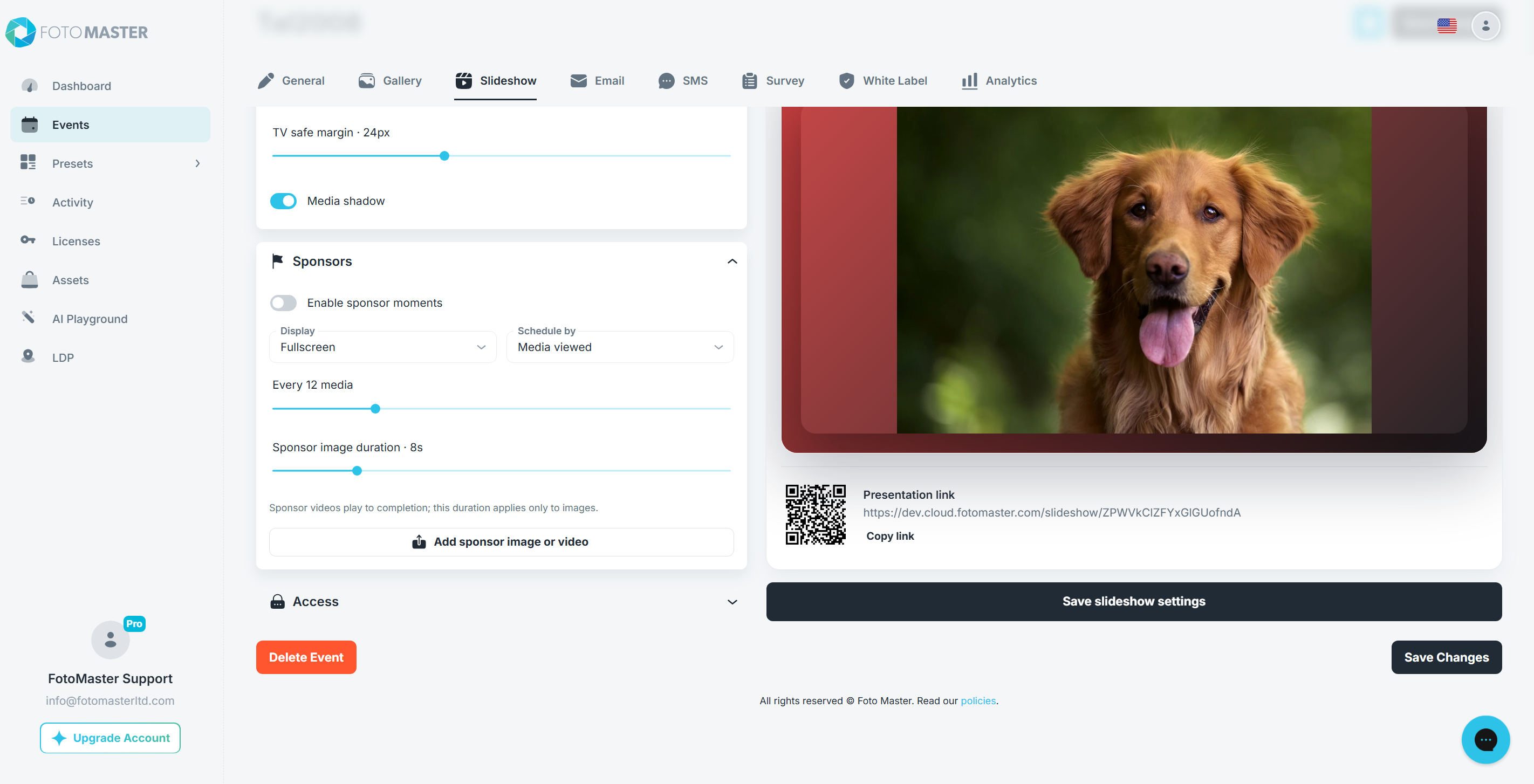
- Open the event's Slideshow tab.
- Expand Sponsors.
- Turn on Enable sponsor moments.
- Choose the Display mode:
- Fullscreen temporarily replaces the slideshow stage with the sponsor.
- Inline places the sponsor within the current slideshow composition.
- Choose Schedule by:
- Media viewed shows a sponsor after a chosen number of primary media items.
- Minutes shows a sponsor after a chosen time interval.
- Set the cadence:
- From 1 to 50 media items when scheduling by Media viewed.
- From 1 to 30 minutes when scheduling by Minutes.
- Click Save slideshow settings.
A cadence of Every 1 media is useful for testing, but it is normally too frequent for a live event.
Add Sponsor Media
- Click Add sponsor image or video.
- Select the sponsor file.
- Wait for the upload to finish and confirm that the item appears in the Sponsors list.
- Optionally enter an Optional HTTPS target for the sponsor.
- Save the slideshow settings.
Only https:// target addresses are accepted. Pro Slideshow supports up to 50 sponsor items; use a smaller, intentional rotation when viewers need to recognize each sponsor.
To delete an item from the sponsor rotation, click Remove next to that item and save the settings.
Sponsor Duration
- Sponsor image duration controls still sponsor images from 3 to 30 seconds.
- Sponsor videos ignore the image-duration value and play to their natural completion.
- When either sponsor type finishes, the slideshow advances to the next media item instead of repeating the item that appeared before the sponsor.
- The live-player speed setting scales sponsor image timing. Sponsor videos also follow the selected playback speed.
Preview and Test Sponsors
Sponsor images and videos appear in the editor's Live preview when sponsor moments are enabled. The preview uses the same sponsor schedule while its normal preview rotation continues.
Before an event, also open the published presentation and verify:
- Fullscreen and Inline placement.
- The configured cadence.
- Complete sponsor-video playback.
- Image readability at the display's physical size.
- The transition from sponsor media to the next new playlist item.
Viewer Access
Expand Access and choose Who can watch.
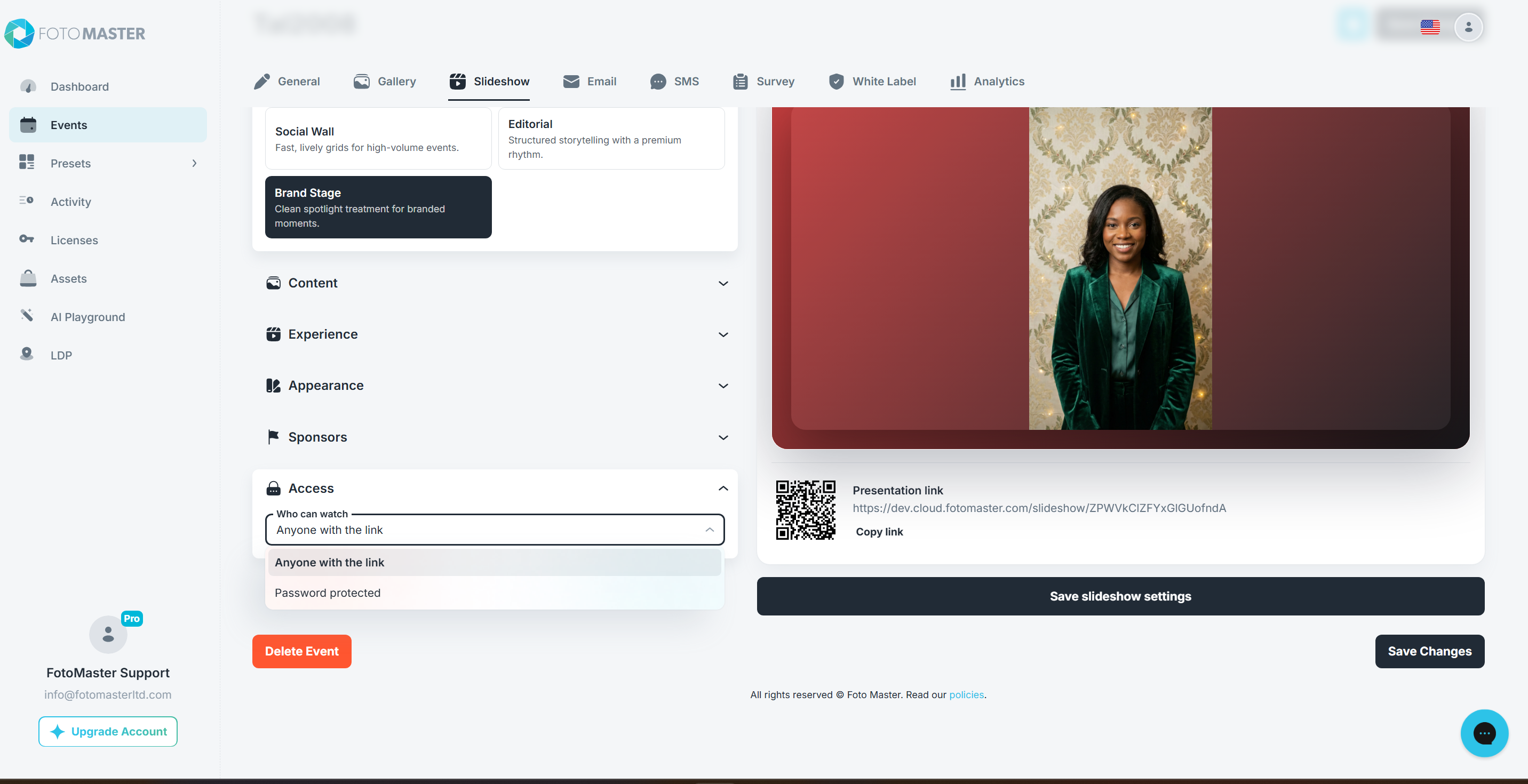
Anyone With the Link
Select Anyone with the link when the presentation may be opened by anyone who receives or scans its URL. The slideshow is not listed publicly, but the link itself is sufficient to watch it while it is published.
Password Protected
- Select Password protected.
- Enter a password from 4 to 128 characters in Set password.
- Click Save slideshow settings.
- Publish or reopen the slideshow.
Viewers see a dedicated password prompt before media or slideshow settings are returned.

If a password is already configured:
- Enter a new value in Replace password and save to change it.
- Click Remove password and make public, then save, to return to link-only access.
An incorrect password leaves the viewer on the same screen and displays Incorrect password. Please try again. below the field. Repeated attempts may be rate-limited temporarily.
Test Protected Access
Use a private or incognito browser window so an existing authorization cookie does not bypass the prompt:
- Confirm that the presentation first displays This slideshow is private.
- Enter an intentionally incorrect password and verify the inline error.
- Enter the correct password and confirm the slideshow opens.
- Close the private window and repeat the test from the event display computer.
Never place the password in the slideshow title, sponsor artwork, or another element visible before the event.
Live Player Controls
Move the pointer or click the presentation to reveal the control bar. The controls hide again after a short period so the display remains clean.
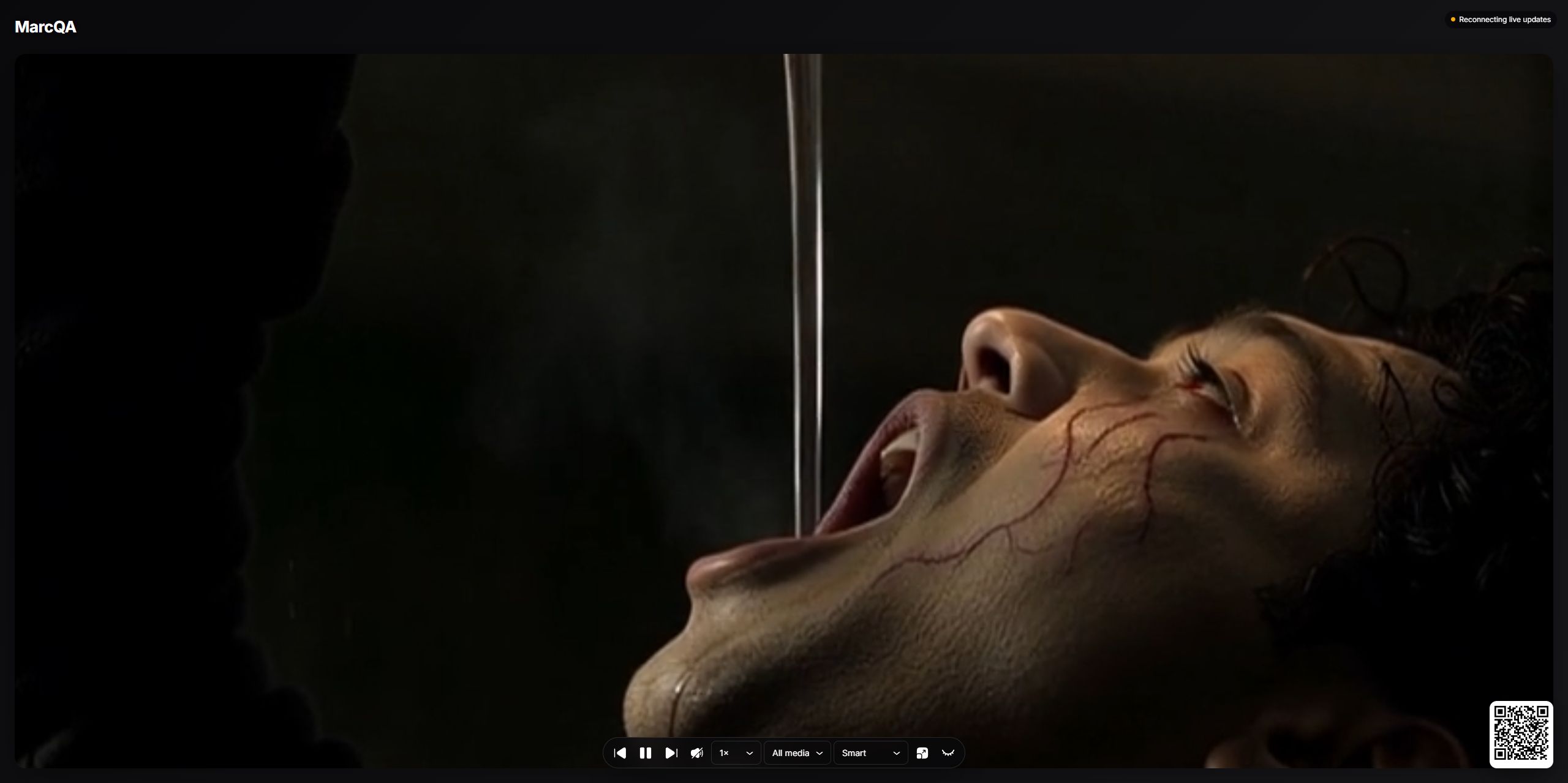
| Control | What it does |
|---|---|
| Previous | Moves to the previous primary media item or group. |
| Play / Pause | Pauses or resumes photo timers, animated media, videos, transitions, and sponsor timing. |
| Next | Moves to the next primary media item or group. |
| Mute / Unmute | Changes audio for the primary video. Secondary videos remain muted. |
| 0.5×, 1×, 1.5×, 2× | Changes video playback speed and scales slideshow, transition, and sponsor timing for the current player session. |
| All media, Photos, GIFs, Videos | Temporarily filters the open player's playlist by media kind. |
| Smart, Spotlight, Split, Hero + Rail, Grid, Collage | Temporarily overrides the saved layout for the open player. |
| Fullscreen | Requests browser fullscreen mode. Browser security may require a click before fullscreen is allowed. |
| Hide controls | Hides the control bar immediately. Move the pointer or click to show it again. |
The media-kind filter, layout override, mute state, playback speed, and pause state apply only to the current browser session. They do not change the event's saved Slideshow settings.
If a player filter has no matching items, the player displays its waiting state until you choose another filter or matching media arrives.
Keyboard Shortcuts
Keyboard shortcuts are ignored while you are typing in a text field or select control.
| Key | Action |
|---|---|
Space | Play or pause |
Right Arrow | Next media item or group |
Left Arrow | Previous media item or group |
F | Enter or leave fullscreen |
M | Mute or unmute the primary video |
H | Show or hide the control bar |
Connection and Playback Messages
- Waiting for moments… means no media currently matches the saved settings or the temporary player filter.
- Reconnecting live updates means the player is trying to restore its live update connection. Current media can continue playing.
- Offline · showing cached moments means the browser is offline and is using media it already loaded.
- This slideshow is private means a valid password is required.
- This slideshow is currently unavailable means the presentation is unpublished, the event or link is unavailable, or the player cannot retrieve an accessible manifest.
Troubleshooting
The Presentation Link Is Unavailable
- Return to the event's Slideshow tab.
- Confirm that Web Slideshow says Live, not Draft.
- Click Open rather than retyping the URL.
- If the slideshow was disabled, click Publish.
- If using White Label, test both the primary White Label URL and the available Cloud link.
No Eligible Media Appears
Check the settings in this order:
- Confirm the event Gallery contains uploaded, approved media.
- Confirm the selected Media kinds match the files.
- Confirm the selected Sources match how the files were created.
- For GIFs, select Final videos, Raw videos, or both.
- Check whether Scope is set to Arrivals since player start or a small Latest media limit.
- In the live player, return the temporary media filter to All media.
For the complete filtering reference, see Configuring Pro Slideshow Content, Layout, and Appearance.
One Media Item Does Not Load
The player retries or removes an isolated failed item so playback can continue. If the same item repeatedly fails:
- Open it from the event Gallery.
- Confirm its upload and processing completed successfully.
- Re-upload or regenerate the item if the source file is incomplete or corrupted.
- Confirm the browser can load the event's media endpoints through the venue network.
A failed video poster should not display a permanent broken-image icon; the video element uses its available fallback and the player continues recovery.
Videos Do Not Start Automatically
- Enable Start videos muted (recommended). Most browsers permit muted autoplay more reliably than autoplay with sound.
- Click the player once before trying to unmute or enter fullscreen.
- Check operating-system and browser autoplay restrictions.
- Confirm the display is not in a battery-saving or sleep state.
Live Updates Stop
- Wait for Reconnecting live updates to clear.
- Confirm the display still has internet access.
- If the player says Offline · showing cached moments, restore the network; cached media can continue while offline, but new arrivals require connectivity.
- Reload only after connectivity returns if the status does not recover automatically.
Read Next
- Pro Slideshow in Foto Master Cloud: Overview and Quick Start
- Configuring Pro Slideshow Content, Layout, and Appearance
- Password Protecting Your Gallery - Pro Cloud Account
Was this helpful?
Related articles
Pro Slideshow in Foto Master Cloud: Overview and Quick Start
Pro Slideshow turns the approved photos, GIFs, videos, and drawings from a Foto Master Cloud event into a live browser-based presentation. It is designed for TVs, projectors, LED w
Configuring Pro Slideshow Content, Layout, and Appearance
This guide explains every setting in the Style presets, Content, Experience, and Appearance sections of Pro Slideshow. For the basic publishing workflow, begin with Pro Slideshow i
Password Protecting Your Gallery - Pro Cloud Account
For private events where you want to restrict gallery access to invited guests only, Foto Master Cloud allows you to set a password on your online gallery. This article explains ho