
Pro Slideshow in Foto Master Cloud: Overview and Quick Start
Pro Slideshow turns the approved photos, GIFs, videos, and drawings from a Foto Master Cloud event into a live browser-based presentation. It is designed for TVs, projectors, LED walls, and other event displays, with responsive layouts, motion, sponsor moments, branding, access controls, and automatic updates as new media arrives.
Requirements
To use Pro Slideshow, you need:
- A Pro, Scale, or Enterprise Foto Master Cloud plan. Other plans show a Pro feature preview and an Upgrade Account option.
- A Cloud event that has already been saved. If you are creating a new event, save it first and then return to the Slideshow tab.
- Approved event media if you want the preview and published presentation to show live content.
- A reliable internet connection on the display computer. The player can continue showing cached media during a temporary connection interruption, but it needs connectivity to receive new arrivals.
Pro Slideshow, FMSlide, and FMX Are Different Features
Choose the tool that matches how you want to present media:
- Pro Slideshow is configured in a Cloud event's Slideshow tab and opens from a web presentation link. No slideshow application needs to be installed on the display computer.
- FMSlide is a separate desktop application that monitors local folders and Cloud events. See FMSlide Overview.
- FMX slideshow features are workflow states that run inside an FMX booth experience. They do not configure the Cloud presentation link described in this guide.
Open the Slideshow Editor
- Log in to Foto Master Cloud.
- Open Events and select the event you want to present.
- Select the Slideshow tab.
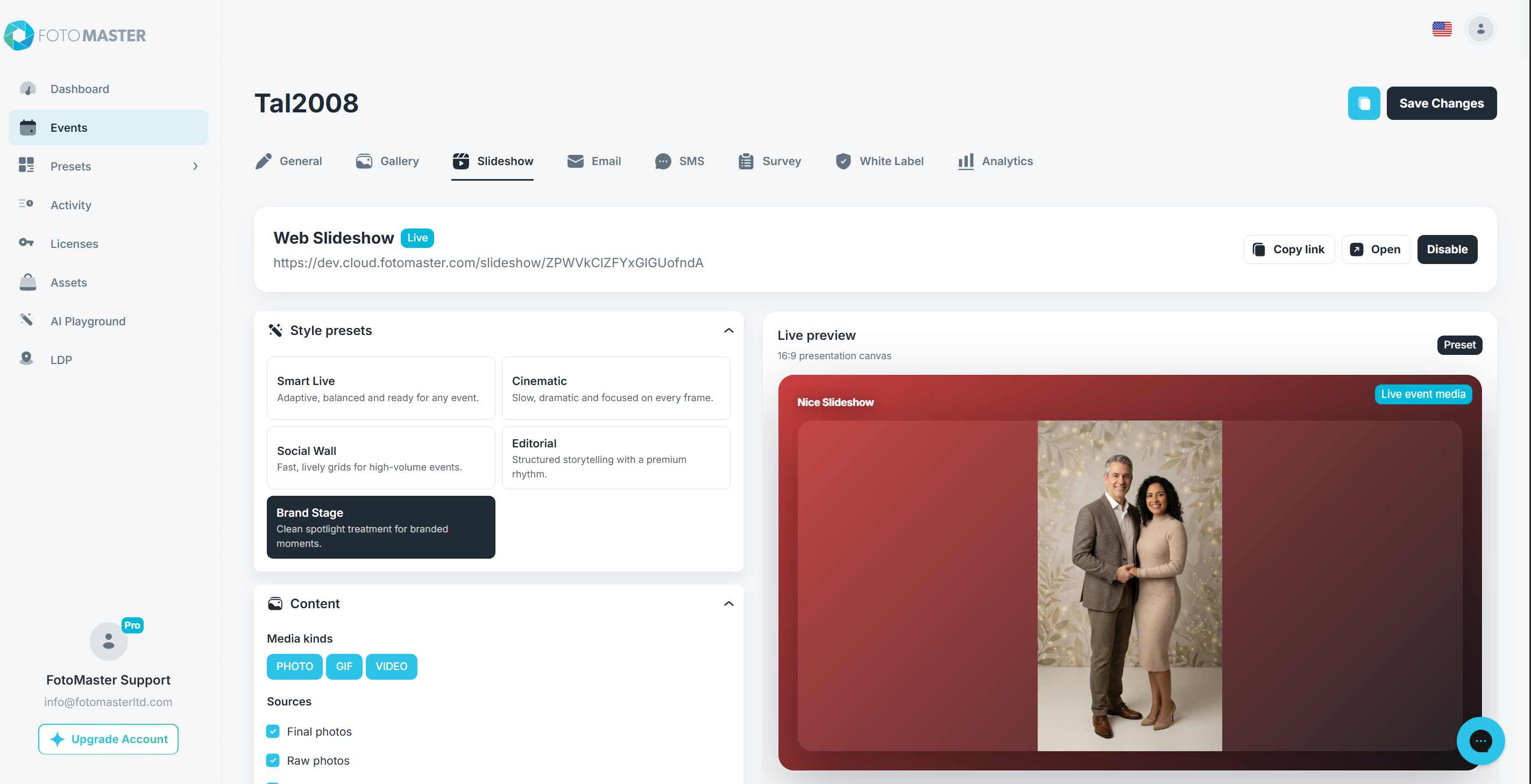
- Confirm that the top card says Web Slideshow.
The status next to Web Slideshow tells you whether the presentation is available:
- Draft -- The settings are saved, but viewers cannot open the presentation yet.
- Live -- The presentation link is published and available to viewers who satisfy its access setting.
Quick Start
1. Choose a Style Preset
Start with one of the five presets:
- Smart Live for an adaptive general-purpose presentation.
- Cinematic for slower, focused playback.
- Social Wall for a fast multi-panel grid.
- Editorial for a hero item with supporting media.
- Brand Stage for clean, branded spotlight moments.
Selecting a preset changes the layout, transition, timing, movement, and media-fit settings together. If you later adjust those settings individually, the editor labels the result Custom.
2. Choose the Content
Under Content:
- Select one or more Media kinds: PHOTO, GIF, or VIDEO.
- Select the event Sources to include.
- Choose the content Scope and Order.
At least one source must remain selected. For the full filtering rules, including how GIFs map to video sources, see Configuring Pro Slideshow Content, Layout, and Appearance.
3. Customize the Experience and Appearance
Use Experience to control layout, transitions, timing, movement, media fit, and video playback. Use Appearance to set the background, title, logo, gallery QR code, spacing, corner radius, safe margins, and media shadow.
The Live preview updates as you edit so you can check the result on a 16:9 canvas before publishing.
4. Configure Sponsors and Access
Use Sponsors to add scheduled sponsor images or videos. Use Access to allow Anyone with the link or require a password.
See Using Pro Slideshow Sponsors, Access, and Live Controls for the complete setup and operating instructions.
5. Save and Publish
- Click Save slideshow settings after making changes.
- Review the Live preview.
- Click Publish in the Web Slideshow card.
- Confirm that the status changes to Live.
When the slideshow is already live, the same button says Disable. Disabling the slideshow keeps its settings but makes the presentation unavailable until it is published again.
Open or Share the Presentation
The editor provides three ways to use the presentation address:
- Copy link copies the primary presentation URL.
- Open launches the published slideshow in a new browser tab.
- The Presentation link QR code opens the same presentation URL when scanned.
If White Label is configured for the account, the White Label address is the primary link. The standard Foto Master Cloud link remains available from the informational message in the editor. For branded-domain setup, see White Label Setup.
Presentation QR versus Gallery QR: The QR shown below the Live preview opens the slideshow presentation. The optional Gallery QR inside Appearance is displayed on the slideshow itself and opens the event's online gallery.
What Happens During a Live Event
- New eligible media enters the playlist automatically; viewers do not need to reload the presentation.
- Multi-panel layouts can play all visible videos at the same time. Only the primary video follows the slideshow's audio setting and advances the presentation when it ends.
- If there is no eligible content, the player displays Waiting for moments… and begins automatically when matching approved media becomes available.
- During a temporary connection loss, the player displays Offline · showing cached moments. While reconnecting, it displays Reconnecting live updates.
- A media item that cannot load is retried or skipped so one failed item does not stop the presentation.
Pre-Event Test Checklist
Before connecting the display to guests, confirm the following:
- The Web Slideshow status is Live.
- The presentation link opens on the display computer.
- Password protection works in a private or incognito window, if enabled.
- At least one selected media kind and source contains approved media.
- Photos, GIFs, and videos use the intended timing and media fit.
- All visible videos play in multi-panel layouts.
- The title, logo, background, and optional Gallery QR are readable from the expected viewing distance.
- Sponsor images and videos appear at the configured cadence.
- The browser can enter fullscreen and the display computer is configured not to sleep during the event.
- The display has a stable network connection and its audio level is correct.
Read Next
- Configuring Pro Slideshow Content, Layout, and Appearance
- Using Pro Slideshow Sponsors, Access, and Live Controls
- Event Settings
Was this helpful?
Related articles
Configuring Pro Slideshow Content, Layout, and Appearance
This guide explains every setting in the Style presets, Content, Experience, and Appearance sections of Pro Slideshow. For the basic publishing workflow, begin with Pro Slideshow i
Using Pro Slideshow Sponsors, Access, and Live Controls
This guide covers the operational parts of Pro Slideshow: sponsor moments, viewer access, live-player controls, keyboard shortcuts, and common playback problems. For the initial se
Event Settings
Every event in Foto Master Cloud has its own settings that control the online gallery, Pro Slideshow, email and SMS delivery, surveys, white-label branding, and which Foto Master s
FMSlide Overview
FMSlide is Foto Master's dedicated slideshow and display management application — FREE for all Foto Master customers with an active cloud plan. FMSlide monitors event media folders