
AI Credit Usage Tracking
Keeping a close eye on your AI credit consumption helps you budget effectively, price your services accurately, and avoid surprises during busy periods. Foto Master Cloud provides detailed credit usage tracking so you always know exactly where your credits are going.
Monitoring Credit Consumption
To get a full picture of your usage, the system differentiates between your total account balance and event-specific costs:
- Global Overview - Account level activity (Dashboard): Your main Dashboard serves as the command center for your account.
- Event Specifics: Per-event usage under each event’s Analytics tab.
Global Overview - Account level activity (Dashboard)
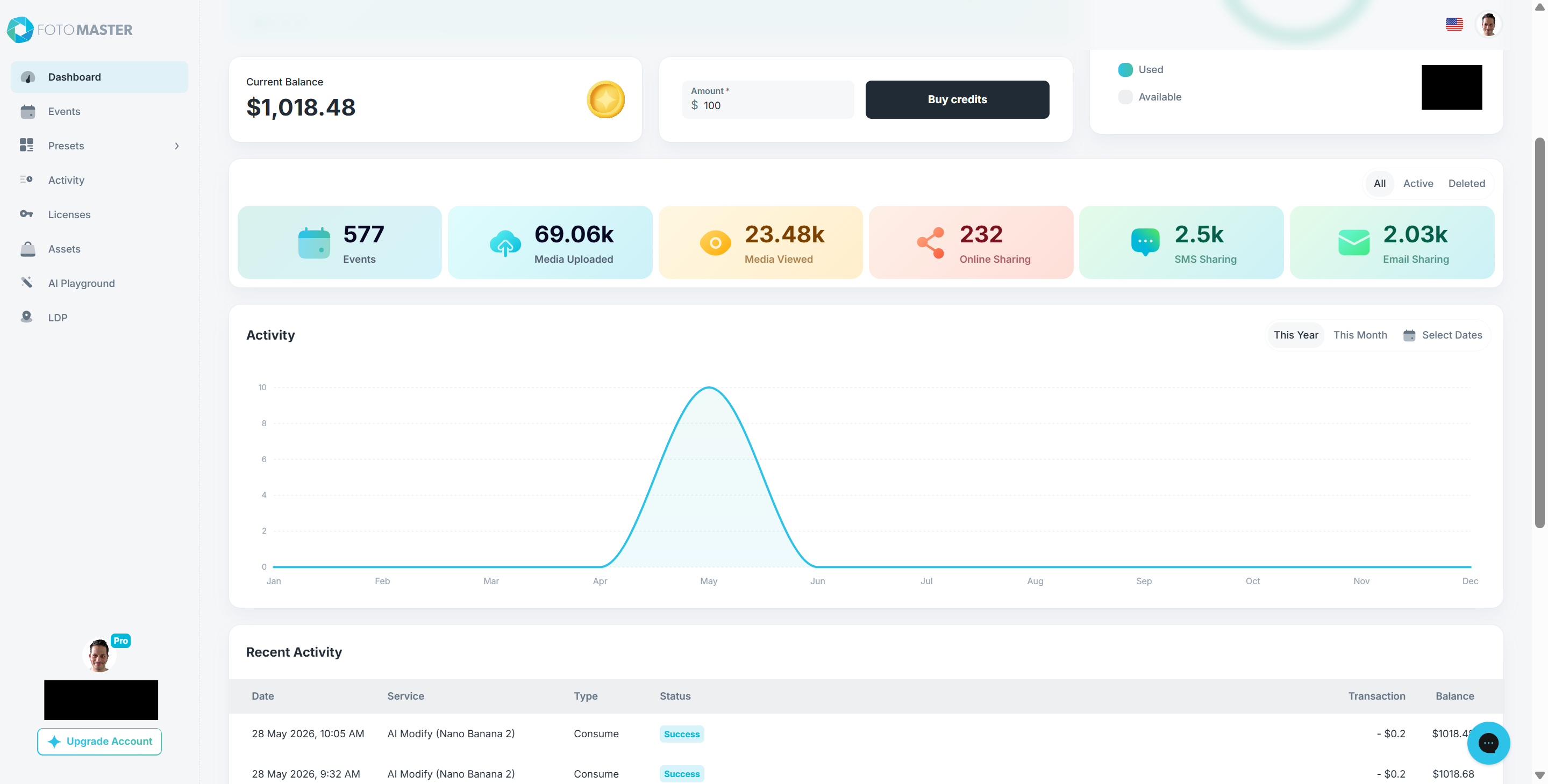
Your main Dashboard serves as the command center for your account. It displays your Current Balance (total available credits) and a Recent Activity ledger showing a global history of every transaction across all events, including the specific engine used (e.g., AI Combine Grok Imagine) and the exact cost.
1. Managing Balance and Purchasing Credits
Check Your Current Balance: Navigate to the top-left section of the dashboard panel. Your remaining funds are displayed down to the cent next to the gold coin icon.
Buy Credits Immediately: Locate the Amount * text field directly to the right of your current balance. Type the exact numerical dollar amount you wish to add into this field and click the dark Buy credits button to process the payment and instantly reload your account.
2. Reading the Activity Timeline Graph
The middle of the Dashboard features an interactive timeline graph mapping your AI processing trends over time.
Filter the Visual Data: Click on one of the three explicit toggle buttons located in the top-right corner of the graph layout: This Year, This Month, or Select Dates to adjust the view.
Inspect Data Points: Hover your cursor over any specific month's baseline peak on the graph line to pop open a small information box displaying the precise total number of activities run during that calendar block.
3. Analyzing the Recent Activity Ledger
Scroll to the bottom of the dashboard to view the Recent Activity grid, which lists every transaction sequentially. Every single entry contains six distinct columns detailing the operation:
Date: The calendar date and hour time stamp of the asset creation.
Service: The specific engine pipeline deployed (e.g.,
AI Modify (Nano Banana 2)orAI Image To Video (Kling)).Type: The transaction classification (displays
Consumefor credit deductions).Status: Displays a green
Successnotification when the cloud processing completes successfully.Transaction: The exact dollar amount deducted for that specific output.
Balance: Your total remaining credit balance immediately following that deduction.
Tracking AI Usage Per Event
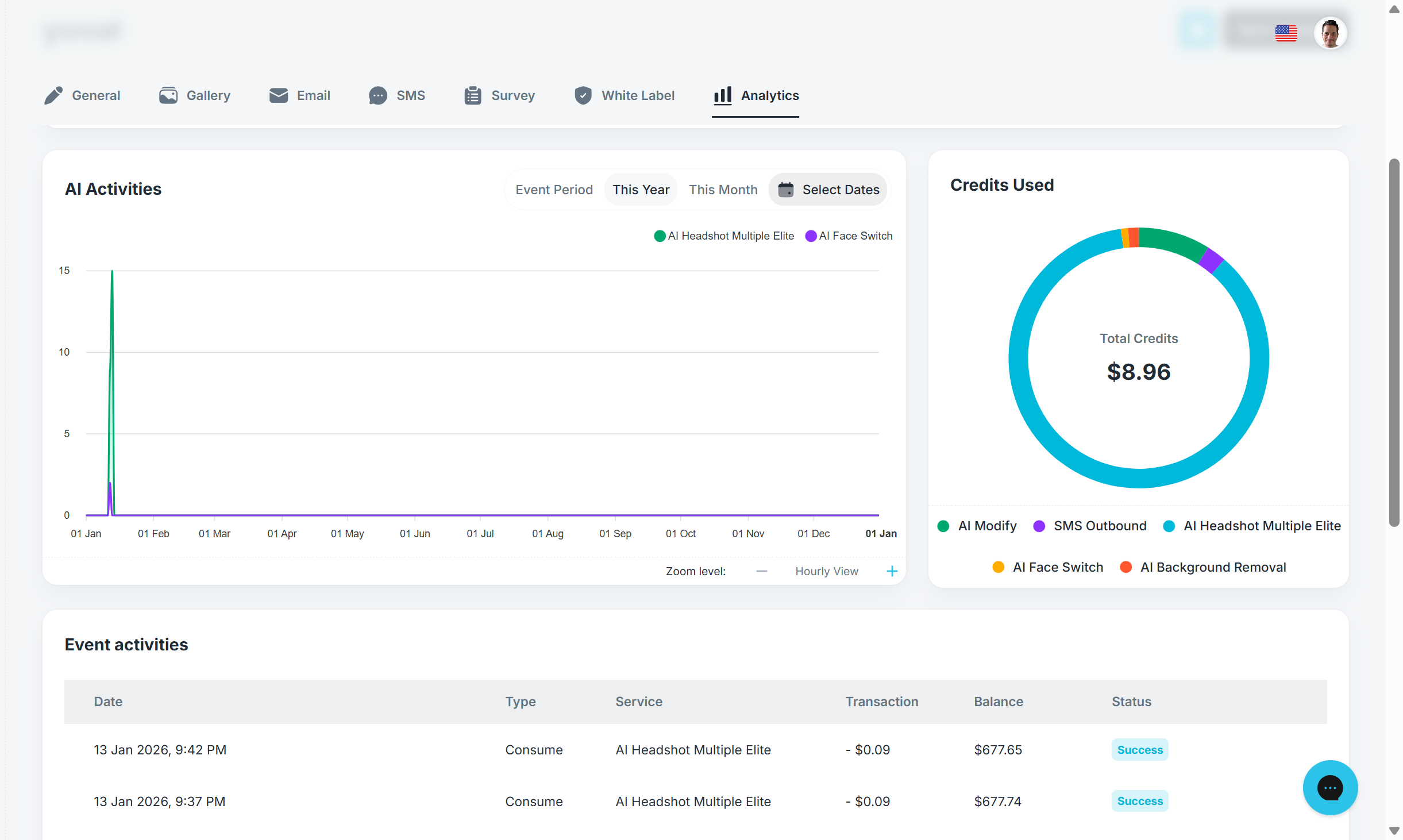
The Analytics tab displays:
Credits Used: A donut chart showing the cumulative credits consumed by this specific event, broken down by the specific AI engine used (e.g., AI Image To Video Kling).
AI Activities: A detailed chart visualizing the frequency of AI tasks. You can filter this view by Event Period, This Year, This Month, or Select Dates.
Event Activities: A real-time ledger at the bottom of the page showing every "Consume" action. It lists the date, the specific AI engine used, the credit cost, and your remaining account balance after each task.
Usage by AI Engine Type
Your credit consumption is broken down by the specific AI engines and models utilized. Different engines have different credit costs based on their complexity:
AI Image To Video (e.g., Kling, Sora, Seedance): Credits consumed for high-fidelity video generation.
AI Modify (e.g., Nano Banana 2, GPT-Image 2, Grok Imagine): Credits used for advanced artistic modifications and style transfers.
AI Draw Me: Credits spent on specific AI-powered sketching or drawing effects.
Standard AI Processing: Credits spent on basic features like background removal or face switch.
Tip: Use the Activity tab in the main sidebar for a searchable, master log of all credit charges across every event in your account history.
Viewing Pricing Per AI Service
To check the current credit pricing for each AI service:
- Go to https://cloud.fotomaster.com/en#pricing.
- Click Full Plan Breakdown.
- Review the AI service pricing table.
Tip: If you have already logged in to Foto Master Cloud, you may need to log out first in order to view the public pricing page. This page shows the credit cost per AI service, which can help you estimate event costs and choose the best plan for your usage.
Tracking All Credit Activity
For a detailed account-level view:
- Log in to cloud.fotomaster.com.
- Click Activity from the left-side menu.
The Activity page shows individual credit transactions across your account, including:
- Service --The feature or service that consumed credits, such as AI Modify, AI Draw Me, SMS, or Editorial AI.
- Type -- Whether the transaction consumed or added credits.
- Status -- The result of the transaction, such as Success.
- Transaction -- The credit amount used or added.
- Balance -- Your remaining balance after that transaction.
This view is especially helpful when you want to see exactly where credits are being used, transaction by transaction.
Filtering Credit Activity
The Activity page includes filters that allow you to narrow down your usage records by:
- Service -- Filter by a specific service or AI feature.
- Date range -- Review activity during a specific time period.
- Status --Filter by successful or failed transactions.
These filters make it easier to investigate specific events, time periods, or services.
Was this helpful?
Related articles
Managing Your Event List
Managing Your Event List If you created an event with settings you would like to reuse, you can duplicate it instead of starting from scratch. This is useful when you want to keep
Guest Data and Privacy
What Guest Data Does Foto Master Collect? When you run a Foto Master event, guest data may be collected depending on the sharing and survey options you enable. The types of data co
Licensing: Legacy Lifetime vs. Current Subscription
Foto Master has used both lifetime and subscription licensing models. This article explains what each model covers, how Foto Master Cloud is billed, and the specific upgrade rules
Managing Your Cloud Plan: Upgrades, Downgrades, Grace Period, and Cancellation
Manage Foto Master Cloud plans from Cloud > Billing and software licenses or 24/7 Support from Cloud > Licenses. This article explains the different effects of upgrading, dow
Adding Credits to Your Cloud Account
You can purchase additional AI Credits manually or enable optional auto-recharge in Foto Master Cloud. Available packages, rates, minimums, recharge settings, and the amount charge