
Export or Import Workflows Using JSON Files
This guide explains how to export and import workflows using JSON files in the Foto Master Cloud Workflow Builder. Use it to back up a workflow, share it with your team or with support, or move a workflow between FMX for Windows and FMX for iPad.
What Is a JSON Workflow File?
A JSON file is a portable snapshot of your workflow: its steps, animations, edges, triggers, and settings. JSON files are plain text, so they are safe to store, email, or attach to a support ticket. Once imported, the receiving account can load the workflow and continue editing or using it.
Exporting a Workflow
- Log in to Foto Master Cloud and go to Presets.
- Select your FMX version (Windows or iPad).
- Open the Workflow Builder for the workflow you want to export.
- Click the gear icon ⚙️ in the top-right corner and select JSON Options.
- Make sure the Export tab is selected.
- Uncheck "Use minimal format."
Unchecking minimal format exports the full workflow, including editor data such as step positions and layout. The full format is the safest choice when you want an exact, complete copy of your workflow: for backups, for sharing a finished setup, or for moving a workflow between FMX for Windows and FMX for iPad.
Then choose how to export:
Copy Copies the JSON to your clipboard so you can paste it into a chat, email, or support ticket.
Download Downloads the workflow as a JSON file named workflow.json. (If minimal format is left checked, the file is named workflow-minimal.json instead.)
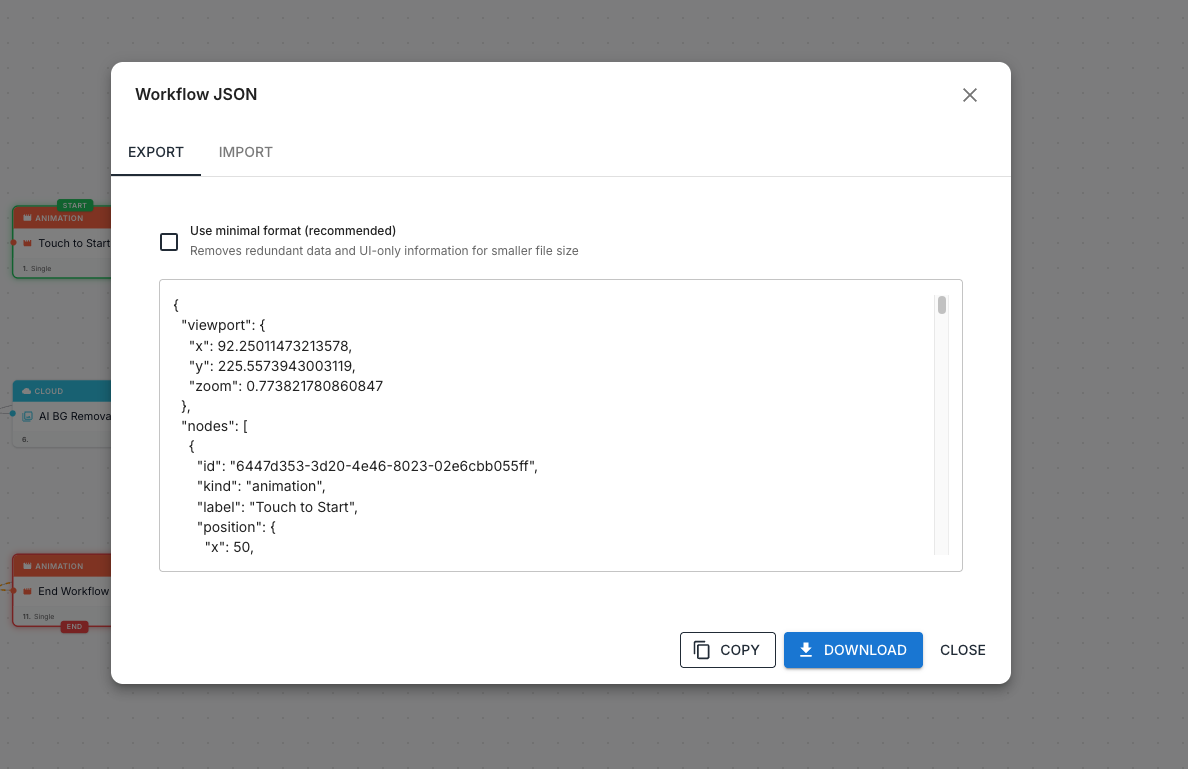
Importing a Workflow from a JSON File
- Open the Workflow Builder.
- Click the gear icon ⚙️ in the top-right corner and select JSON Options.
- Switch to the Import tab.
- Upload your JSON file using the file picker, or drag it into the upload area.
- Click Import.
The workflow currently open on the canvas is replaced with the imported workflow.
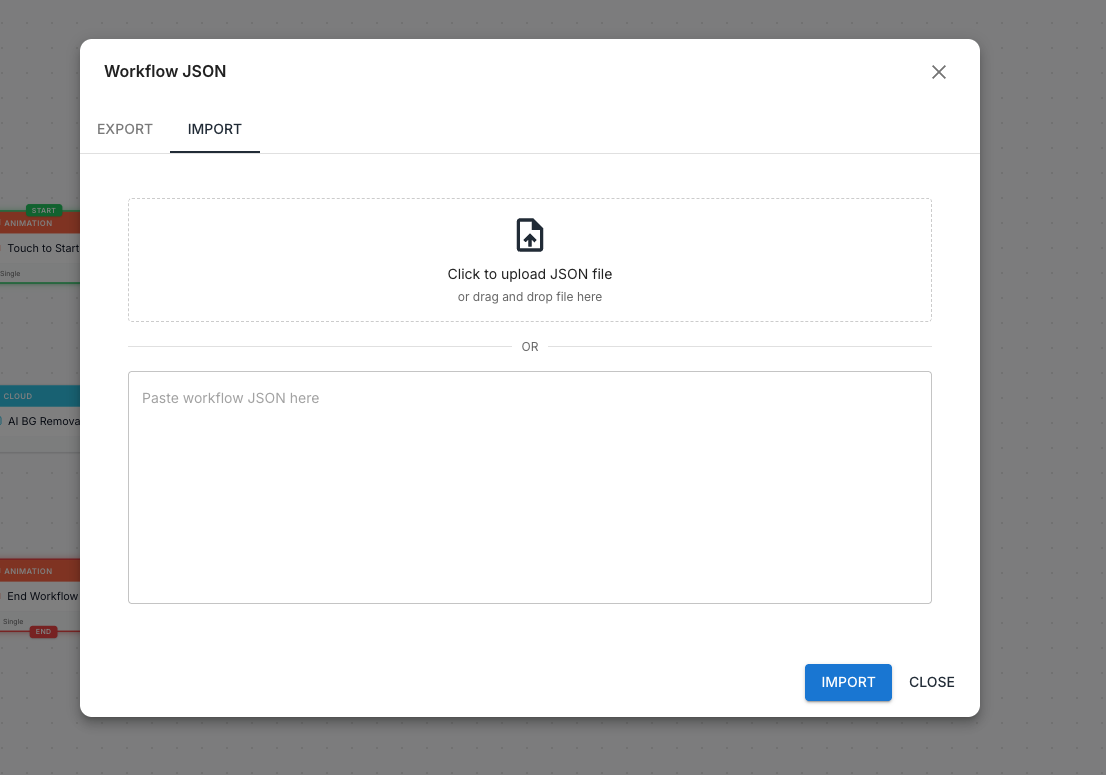
Importing a Workflow from Copied JSON Text
- Open the Workflow Builder.
- Click the gear icon ⚙️ in the top-right corner and select JSON Options.
- Switch to the Import tab.
- Paste the JSON text into the input field.
- Click Import.
Tip: Both full and minimal exports can be re-imported; the importer detects the format automatically. If the JSON is malformed, an error appears below the field and nothing on the canvas changes.
Warning: Importing replaces the workflow currently open in the editor. Export your current work first if you want to keep it.
Moving Workflows Between FMX for Windows and FMX for iPad
FMX for Windows and FMX for iPad share the same workflow system, so you can export a workflow from one and import it into the other using the same JSON Options tool. Export with minimal format unchecked so all of your settings carry over.
The two platforms are not identical, though; each supports some steps the other does not:
Steps available only on FMX for iPad
- LED Light: powers the Pylon LED light
- LED Strip V180 and V180: control the V-Motion 180 arm and its RGBW LED strip
- Draw Me Offline: sends a drawing command to the Draw Me Bot software
Steps available only on FMX for Windows
- LED Ring: controls the LED ring light
- External Script: runs an external script
- Scan: reads a barcode or QR code
- Screen Capture and Screen Recording
- AI Palm Reading
If your workflow is built only from steps that both platforms support, you can export and import it freely; everything transfers as-is. If your workflow includes a step the other platform does not support (for example, an iPad LED Light step imported into FMX for Windows, or a Windows LED Ring step imported into FMX for iPad), that step will not run on the destination platform. Remove or replace those steps after importing so the workflow runs cleanly.
Tip: The Workflow Builder marks each step with the platforms it supports and hides steps that do not apply to the version you are editing. Check the step list for the target platform before relying on a transferred workflow at a live event.
Was this helpful?
Related articles
Managing Your Event List
Managing Your Event List If you created an event with settings you would like to reuse, you can duplicate it instead of starting from scratch. This is useful when you want to keep
Guest Data and Privacy
What Guest Data Does Foto Master Collect? When you run a Foto Master event, guest data may be collected depending on the sharing and survey options you enable. The types of data co
Licensing: Legacy Lifetime vs. Current Subscription
Foto Master has used both lifetime and subscription licensing models. This article explains what each model covers, how Foto Master Cloud is billed, and the specific upgrade rules
Managing Your Cloud Plan: Upgrades, Downgrades, Grace Period, and Cancellation
Manage Foto Master Cloud plans from Cloud > Billing and software licenses or 24/7 Support from Cloud > Licenses. This article explains the different effects of upgrading, dow
Adding Credits to Your Cloud Account
You can purchase additional AI Credits manually or enable optional auto-recharge in Foto Master Cloud. Available packages, rates, minimums, recharge settings, and the amount charge