
The PMWall Event Simulator
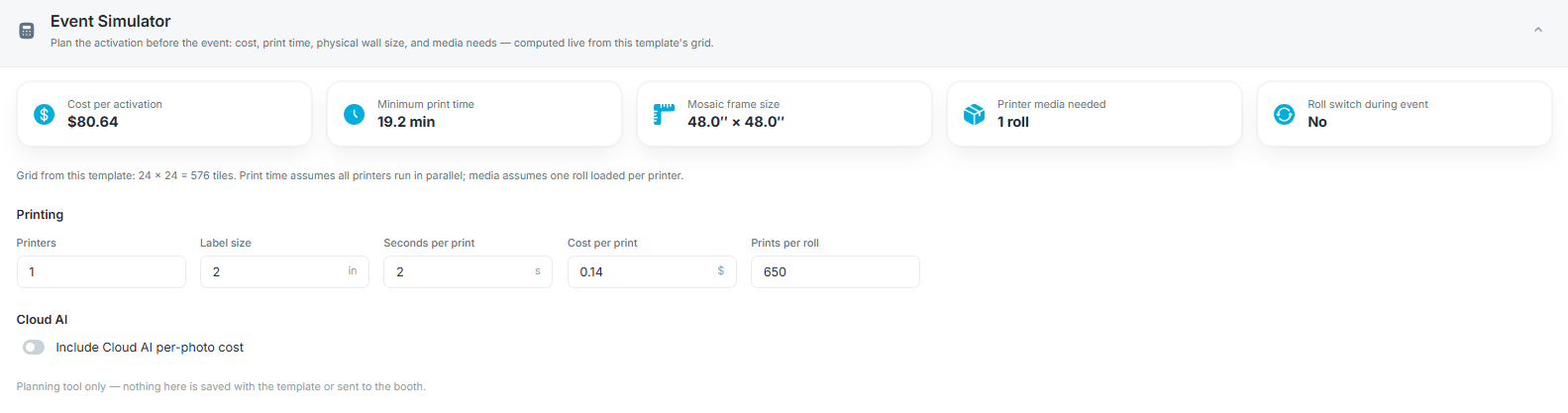
The Simulator tab in the PMWall template answers the questions that decide whether an activation is viable: what it costs, how long it takes to print, how large the finished wall is, and how much printer media to bring.
It computes everything live from the template's grid, so you can size a job before quoting it.
This is a planning tool. Nothing on this tab is saved with the template or sent to the event computer.
What It Tells You
- Cost per activation -- Consumable cost for the whole wall, from the tile count and your cost per print.
- Minimum print time -- The fastest the wall can physically be printed, given your printers and seconds per print. This is a floor, not an estimate: it assumes photos are always available to print.
- Mosaic frame size -- The physical dimensions of the finished wall, from the grid and label size.
- Printer media needed -- How many rolls the tile count requires.
- Roll switch during event -- Whether a roll change will be needed mid-event. This one is highlighted when it says yes, because it is an operational problem, not just a number.
Inputs
Under Printing:
- Printers -- How many printers you will run, up to nine.
- Label size -- Tile size in inches. Defaults from the board tile width, typically 2 inches.
- Seconds per print -- Default 2.
- Cost per print -- Default 0.14.
- Prints per roll -- Default 650.
Set these to your real hardware and consumable prices. The defaults are a sensible starting point, not your actual costs.
Using It to Size a Job
- Set the grid on the Main Image & Grid tab.
- Open Simulator and enter your printer count and consumable costs.
- Compare Minimum print time against the event duration.
- Check Roll switch during event.
- Adjust the grid, or add a printer, until both are comfortable.
If Minimum print time approaches the event length, the wall cannot finish. Either reduce the grid, add a printer, or extend the activation window. It is far cheaper to discover this while quoting than on site.
If Roll switch during event says yes, plan for it: brief the operator, have the spare roll unwrapped and within reach, and expect a pause in output while it is changed.
Tip: Match Seconds per print to what your printer actually achieves with your media, not its rated speed. Then use the same real-world figure for Labels Per Minute in PMWall's printer settings, so the app's Critical mode warning is based on the same reality.
Sizing the Grid Against Guest Count
The simulator covers printing. The other half of planning is participation.
Columns multiplied by rows is the number of cells, and roughly the number of guest photos needed to fill the wall. A 50x50 grid needs about 2,500 photos. Compare that against realistic expectations for the guest count and event length before committing to a grid.
An oversized grid produces a wall that never fills. If that is a real risk, keep the grid modest, or set When the wall is full to Keep everyone visible so late arrivals still participate.
Read Next
- Configuring PMWall Templates in Foto Master Cloud
- Printing PMWall Mosaic Tiles and Labels
- Creating a PMWall Print Board File for Your Print House
Was this helpful?
Related articles
Configuring PMWall Templates in Foto Master Cloud
A PMWall template holds everything about a mosaic activation: the main image, the grid, and every behaviour setting PMWall uses during the event. Because the template lives in Foto
Printing PMWall Mosaic Tiles and Labels
When a Photo Mosaic Wall activation includes a physical board, PMWall prints each tile as it is placed so staff can build the board during the event. Each printed tile carries a C/
Creating a PMWall Print Board File for Your Print House
Use the PMWall Print Board generator when your event needs a physical board with printed tile cells. The board PDF is created from the same grid settings used by the PMWall templat