
Main Dashboard
The main dashboard is the primary control screen in FMX. It is the first thing operators see after launching the application and serves as the hub for event selection, booth launch, cloud synchronization, and live event monitoring
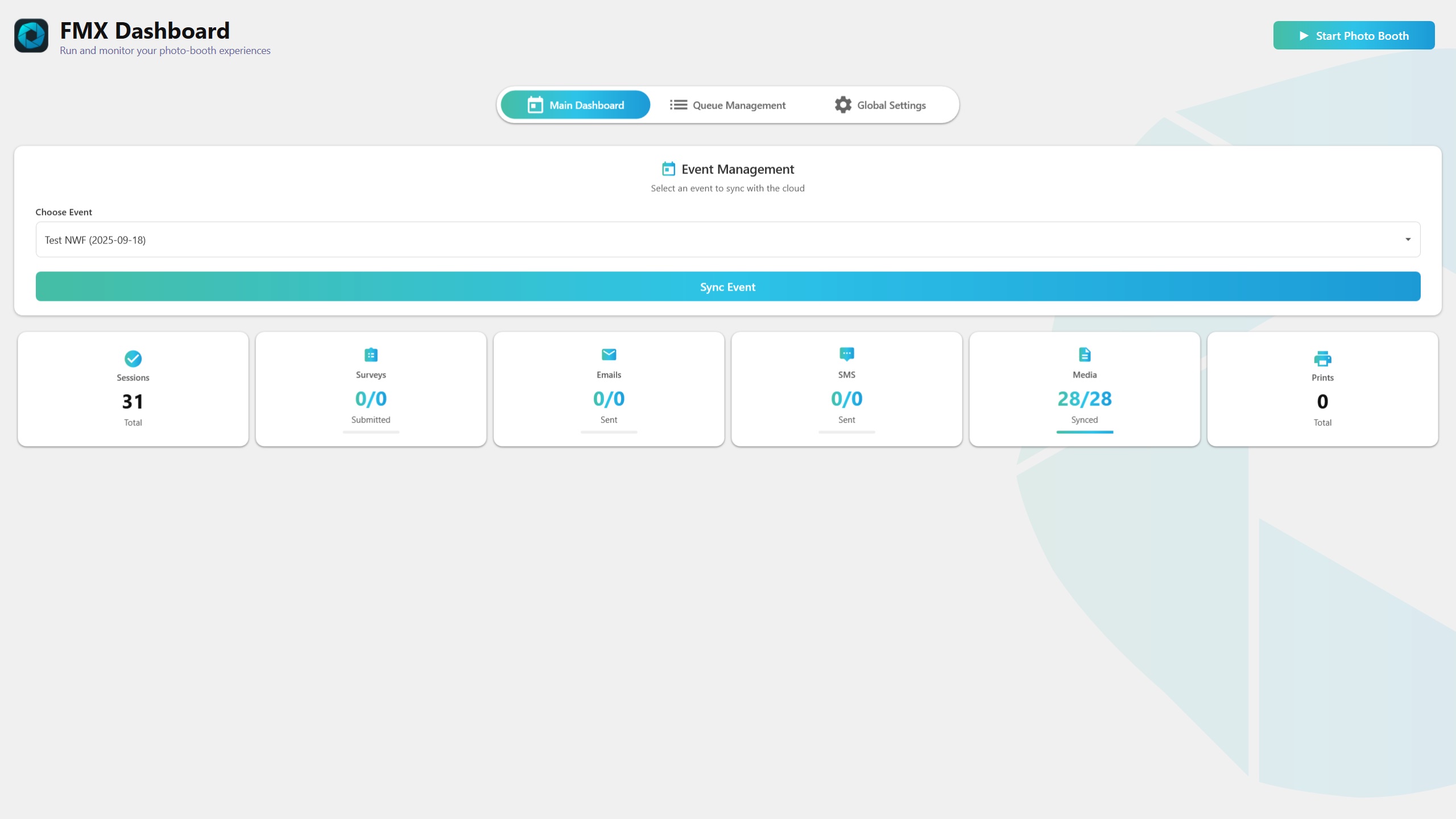
Event Selection
The Event Selection dropdown at the top of the dashboard lists all events configured on your Foto Master Cloud account. Selecting an event immediately loads its configuration - there is no separate "load" step. FMX auto-saves the selection so the same event is loaded on the next launch.
Tip: If you just created a new event in Foto Master Cloud and it does not appear in the dropdown, click Sync Event to refresh the event list from the cloud.
Start Photo Booth
The Start Photo Booth button launches Experience View and begins accepting guest sessions. Before launching, FMX runs preflight checks to verify:
- The camera is connected and responding
- Printer is available (if printing is configured)
- Event configuration is loaded and valid
- Sufficient disk space for media storage
If any check fails, FMX displays a warning and gives the operator the option to proceed anyway or resolve the issue first.
Sync Event
The Sync Event button downloads the complete event configuration from Foto Master Cloud to the local machine. This includes:
- workflow.json -- The workflow step definitions and sequence
- layout.json -- Layout templates for the final photo and overlays
- video.json -- Video template settings (if the event uses video capture)
- Assets -- All images, animations, sounds, and overlay files
Path Rewriting
During sync, FMX rewrites all asset paths in the downloaded JSON files from cloud URLs to local absolute paths. This allows the booth to operate fully offline after syncing. The original cloud paths are discarded.
Layout Backup
FMX creates a layout.init.json backup file during each sync. This preserves the original cloud layout in case local modifications need to be reverted.
Live Statistics
The dashboard displays real-time statistics for the current event as a row of cards:
| Statistic | Description |
|---|---|
| Sessions | Total number of completed guest sessions |
| Surveys | Number of survey responses collected |
| Emails | Number of emails sent to guests |
| SMS | Number of text messages sent to guests |
| Media Synced | Number of final photos uploaded to the cloud |
| Prints | Number of physical prints completed |
Statistics update in real time as sessions complete and actions are processed.
Keyboard Navigation
- Ctrl+O -- Toggle between the dashboard and the settings panel. This shortcut works from either view, providing quick access to configuration without leaving the dashboard context.
Was this helpful?
Related articles
FMX for Windows: Customizing Your Experience
Everything at a photo booth event (the overlays, the countdown, the on-screen text, the email guests receive, the gallery they get a link to) is something you control. This guide m
FMX for Windows: System Requirements
Before installing FMX on your Windows computer, make sure your system meets the requirements below. Meeting the recommended specifications will ensure smooth performance during eve
Installing FMX on Windows
When to Use First-time installation of FMX on a Windows PC Reinstalling FMX on the same machine Upgrading FMX to a newer version using the latest installer Requirements Windows 10
Login to FMX
When to Use Immediately after installing FMX When switching operators or moving the license to a different PC Requirements A Foto Master Cloud Account (email and password) At least
Building a FMX Preset From Scratch: Video Tutorial
This video covers the basics of building a workflow and layout in FMX: a good starting point before exploring the individual workflow step articles.