
Scan: Overview
The Scan step captures an image of a guest's hand from a physical scanner as part of your FMX experience. Guests place their hand on the scanner, and FMX saves a digital scan of that hand into the event folder.
Scan is designed specifically for AI Palm Reading experiences, used with FortunaWindows setups that have a compatible scanner connected to the booth computer.
What Is the Scan Step?
From the operator's perspective, Scan:
- Triggers a hand scan on a connected Windows scanner
- Saves the scanned hand image into the event's Scan folder
- Runs silently in the background (no extra UI to configure)
- Does not show its own screen: you control all on-screen instructions with other steps
From the guest's perspective:
- They see an instruction screen you created (for example: "Place your hand on the scanner and keep it still")
- The operator (or the workflow) triggers the Scan step
- The scan happens while they wait a few seconds with their hand on the glass
- The experience then continues: typically to an AI Palm Reading result, and then to a photo, sharing, or summary screen
When Should You Use Scan?
Use a Scan step when you want to bring a hand scan into your AI Palm Reading experience.
Typical reasons:
- Palm reading or hand analysis activations, where the guest's actual hand is scanned and then analyzed by AI
- Fortune-telling / mystic-style experiences where the scanned hand leads to a personalized reading or result
You usually don't need to scan for:
- Standard photo/video booths that only use the camera
- Simple AI or layout experiences that work entirely from captured photos (face/head shots) and do not involve palm reading
Scan is specifically intended for hand scanning only, as part of FortunaWindows palm-reading workflows.
How Scan Fits in the Workflow
In the Workflow Builder, add Scan like any other step:
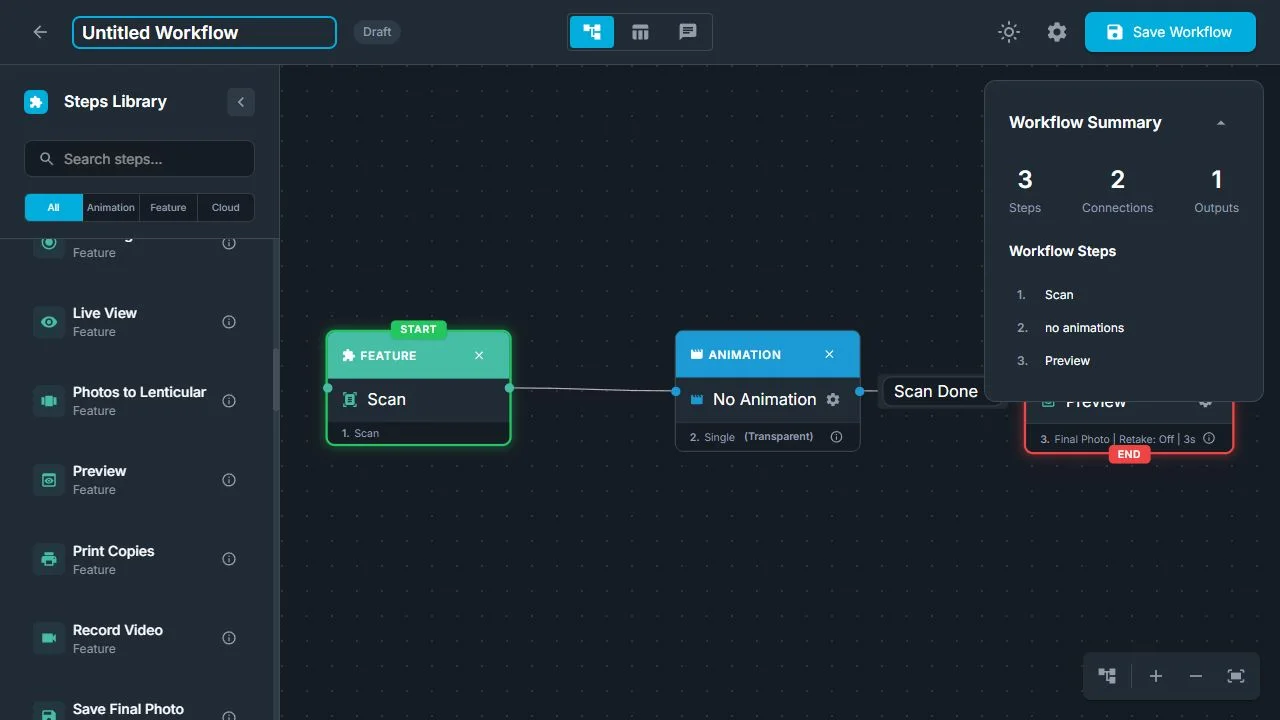
- Select Scan in the Steps Library
- Place it exactly where you want the hand scan to happen in the guest journey
- Connect it to the steps that come before (instructions) and after (AI result, photos, sharing)
Basic behavior in the flow:
- When the workflow reaches the Scan step, FMX tells the scanner to start scanning the guest's hand
- The scan runs in the background: the workflow can either move on immediately to the next step, or show an animation or message that waits until the scan finishes, then continue
The scanned hand image is:
- Automatically processed (for example, rotated and cropped so the hand is centered and clear)
- Saved as a JPEG file in the event's Scan folder
- Available for later steps that are designed to use hand scans: most commonly AI Palm Reading or other hand-analysis logic, and custom external tools or scripts that read the scanned hand image
If the scanner is connected but the hand scan fails for any reason (for example, a hardware error), FMX still produces a final result so the workflow can continue. The output will clearly indicate that the scan did not succeed.
Was this helpful?
Related articles
FMX for Windows: Customizing Your Experience
Everything at a photo booth event (the overlays, the countdown, the on-screen text, the email guests receive, the gallery they get a link to) is something you control. This guide m
FMX for Windows: System Requirements
Before installing FMX on your Windows computer, make sure your system meets the requirements below. Meeting the recommended specifications will ensure smooth performance during eve
Installing FMX on Windows
When to Use First-time installation of FMX on a Windows PC Reinstalling FMX on the same machine Upgrading FMX to a newer version using the latest installer Requirements Windows 10
Login to FMX
When to Use Immediately after installing FMX When switching operators or moving the license to a different PC Requirements A Foto Master Cloud Account (email and password) At least
Building a FMX Preset From Scratch: Video Tutorial
This video covers the basics of building a workflow and layout in FMX: a good starting point before exploring the individual workflow step articles.