
Setting up a Dynamic Overlay/Background using Carousel
A carousel lets guests swipe through a set of images (such as backgrounds or overlays) and choose one during the preview. Here's how to add it to your layout.
Step 1: Open Your Layout
- Log in to your Foto Master Cloud account and go to the Presets → FMX → Layouts tab.
- Select and open the layout template you want to edit.
Step 2: Add the Carousel
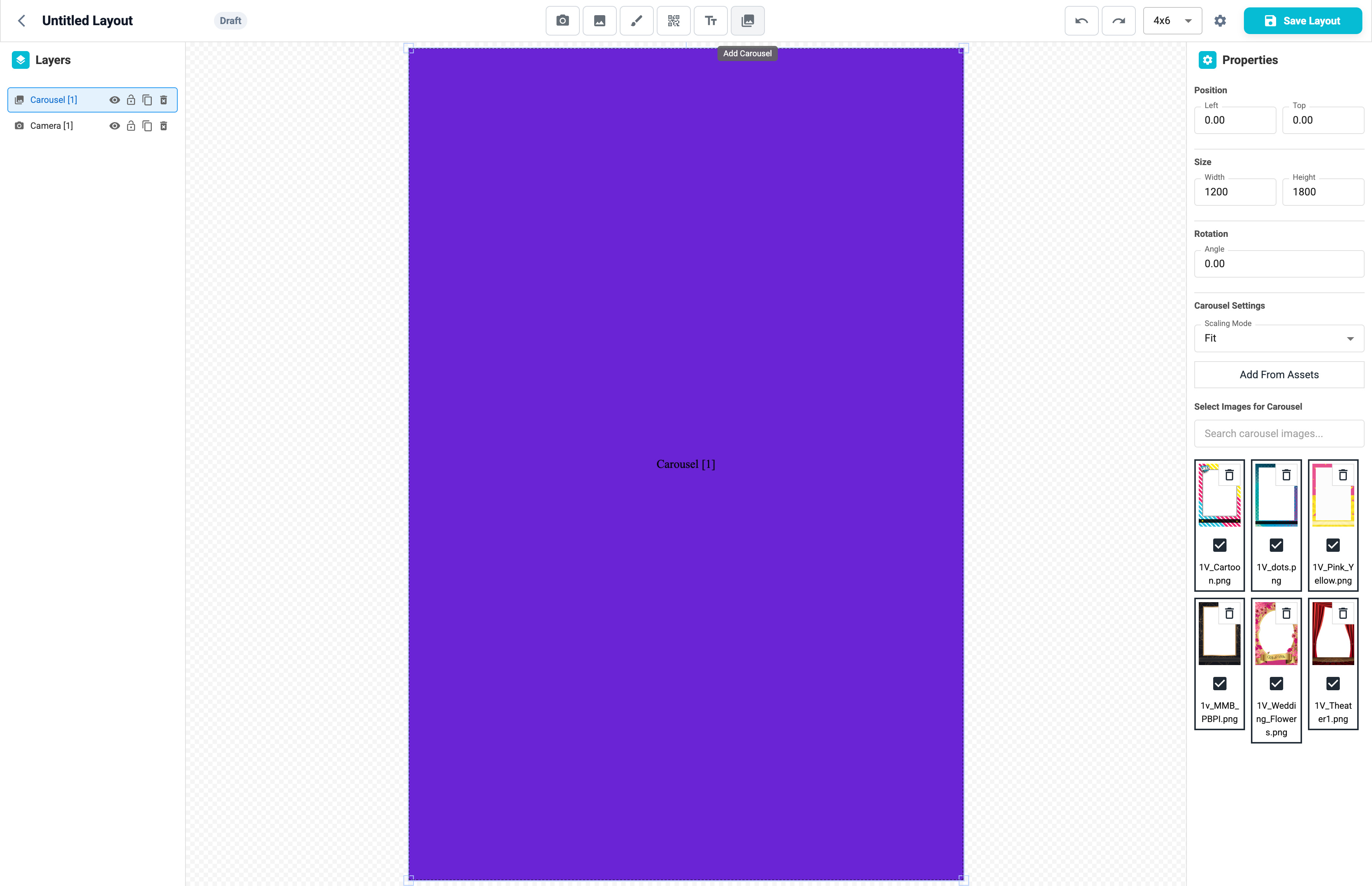
- At the top of the screen, click the Add Carousel button, it's the first button on the right.
- Once added, resize the carousel on your layout as needed.
💡 Tip: If it's an overlay carousel, put the Carousel element on top of the Camera element in the "Layers" menu. If it's a background carousel, it should be behind the photos - so below the Camera element.
Step 3: Assign Your Images
- In the Properties panel on the right, click Add from Assets.
- Choose the set of images you want guests to swipe through; the carousel can be either a set of backgrounds or a set of overlays.
💡 Tip: The images should be the same size and fit the same layout.
Step 4: Save Your Layout
Click Save Layout once you're happy with the setup and Sync on FMX.
Step 5: Check Your Workflow
In your preset's Workflow, ensure to include a "Preview" step with the Retake option on. Then, guests can swipe and select their overlay/background and hit the ✅ button to save.
💡 Tip: Add a dedicated animation right before the preview (for example: choose_overlay_converted.mp4
in the FM Link → Animations → Before Preview), so guests will know they get to swipe.
Was this helpful?
Related articles
FMX for Windows: Customizing Your Experience
Everything at a photo booth event (the overlays, the countdown, the on-screen text, the email guests receive, the gallery they get a link to) is something you control. This guide m
FMX for Windows: System Requirements
Before installing FMX on your Windows computer, make sure your system meets the requirements below. Meeting the recommended specifications will ensure smooth performance during eve
Installing FMX on Windows
When to Use First-time installation of FMX on a Windows PC Reinstalling FMX on the same machine Upgrading FMX to a newer version using the latest installer Requirements Windows 10
Login to FMX
When to Use Immediately after installing FMX When switching operators or moving the license to a different PC Requirements A Foto Master Cloud Account (email and password) At least
Building a FMX Preset From Scratch: Video Tutorial
This video covers the basics of building a workflow and layout in FMX: a good starting point before exploring the individual workflow step articles.