
Queue Management: Overview
The Queue Management screen is the local dashboard for monitoring booth output for the selected event. It provides a real-time view of local sessions, email deliveries, SMS messages, media uploads, FMPrint jobs, and survey responses, giving operators visibility into what has been processed, what is in progress, and what needs attention.
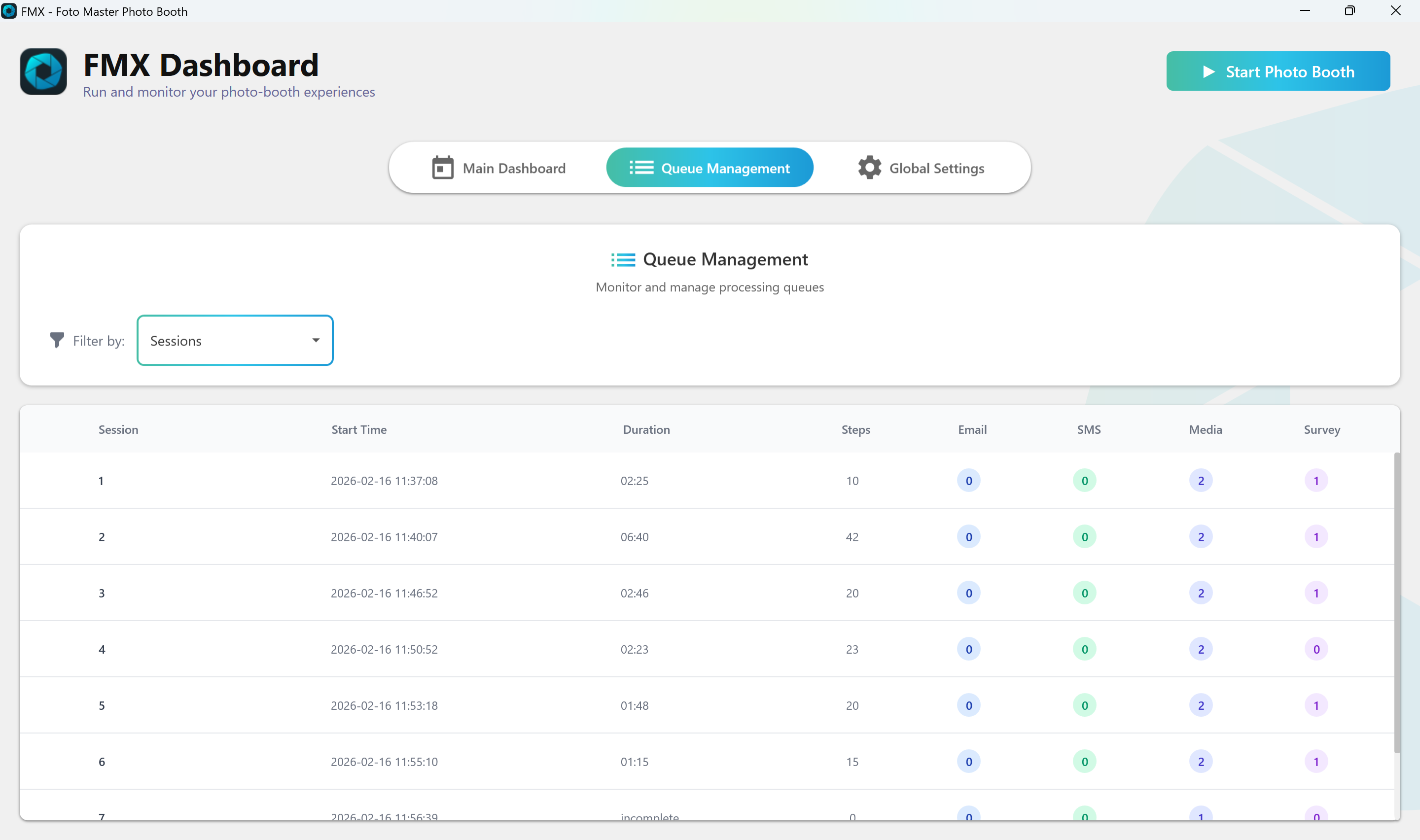
Accessing Queue Management
- Open Queue Management from the FMX main interface.
- Select the event you want to monitor. The queue displays all output items associated with that event.
Filter Tabs
Queue Management organizes output into six filters. Selecting a filter updates the list to show only items of that type:
- Sessions -- All guest sessions recorded for the event.
- Email -- All email delivery jobs sent to guests.
- SMS -- All SMS delivery jobs sent to guests.
- Media -- All media sync items (uploads to Foto Master Cloud).
- FMPrint -- Cloud print jobs submitted for FMPrint stations.
- Survey -- All collected survey responses from guests.
Tip: Column visibility adapts automatically based on the selected filter tab. Each tab displays only the columns relevant to that item type, keeping the view uncluttered.
Status Indicators
Every item in the queue displays a status indicator showing its current state:
- Pending -- The item is awaiting processing. It has been queued but has not yet started.
- Processing -- The item is currently in progress (e.g., an email being sent or a file being uploaded).
- Completed -- The item finished successfully (100% complete).
- Failed -- The item encountered an error during processing. Failed items are eligible for retry.
Available Actions
Two bulk actions are available from the queue toolbar:
- Retry Selected -- Re-queues selected items that are in a Failed or Pending state. Use this to reattempt email, SMS, media upload, or FMPrint jobs that did not complete successfully.
- Remove Selected -- Removes the selected local queue records from the event's session data and cancels pending work where possible. This does not delete original media files from disk and does not undo anything that was already sent to the Cloud.
Successful Email and SMS items are not resent from Queue Management. Use Retry Selected only for Failed or Pending items.
Tip: Use Retry Selected after resolving a connectivity issue to re-process all failed items at once, rather than restarting individual sessions.
Live Updates
The queue list updates in real time as sessions run and item states change. There is no need to manually refresh the view:
- New items appear as guests complete sessions.
- Status indicators transition automatically (Pending to Processing to Completed or Failed).
- Counts and progress values update as processing advances.
Was this helpful?
Related articles
FMX for Windows: Customizing Your Experience
Everything at a photo booth event (the overlays, the countdown, the on-screen text, the email guests receive, the gallery they get a link to) is something you control. This guide m
FMX for Windows: System Requirements
Before installing FMX on your Windows computer, make sure your system meets the requirements below. Meeting the recommended specifications will ensure smooth performance during eve
Installing FMX on Windows
When to Use First-time installation of FMX on a Windows PC Reinstalling FMX on the same machine Upgrading FMX to a newer version using the latest installer Requirements Windows 10
Login to FMX
When to Use Immediately after installing FMX When switching operators or moving the license to a different PC Requirements A Foto Master Cloud Account (email and password) At least
Building a FMX Preset From Scratch: Video Tutorial
This video covers the basics of building a workflow and layout in FMX: a good starting point before exploring the individual workflow step articles.