
How to Share Video Flipbook in Digital Format
You can share Video Flipbook digitally, without using a printer, by adding two Screen Recording nodes to your workflow. This article walks you through setting up the nodes so your guests can receive their flipbook through digital sharing.
Note: Video Flipbook does not include a built-in option to resend the flipbook digitally or save it as a video file. The Screen Recording nodes capture the flipbook as it plays on the Preview screen, which creates a file you can share.
Setting Up the Screen Recording Nodes
- Open the workflow for your Video Flipbook event
- Add a Screen Recording node directly before the Preview node and set it to Start recording.
- Add a second Screen Recording node directly after the Preview node and set it to Stop recording.
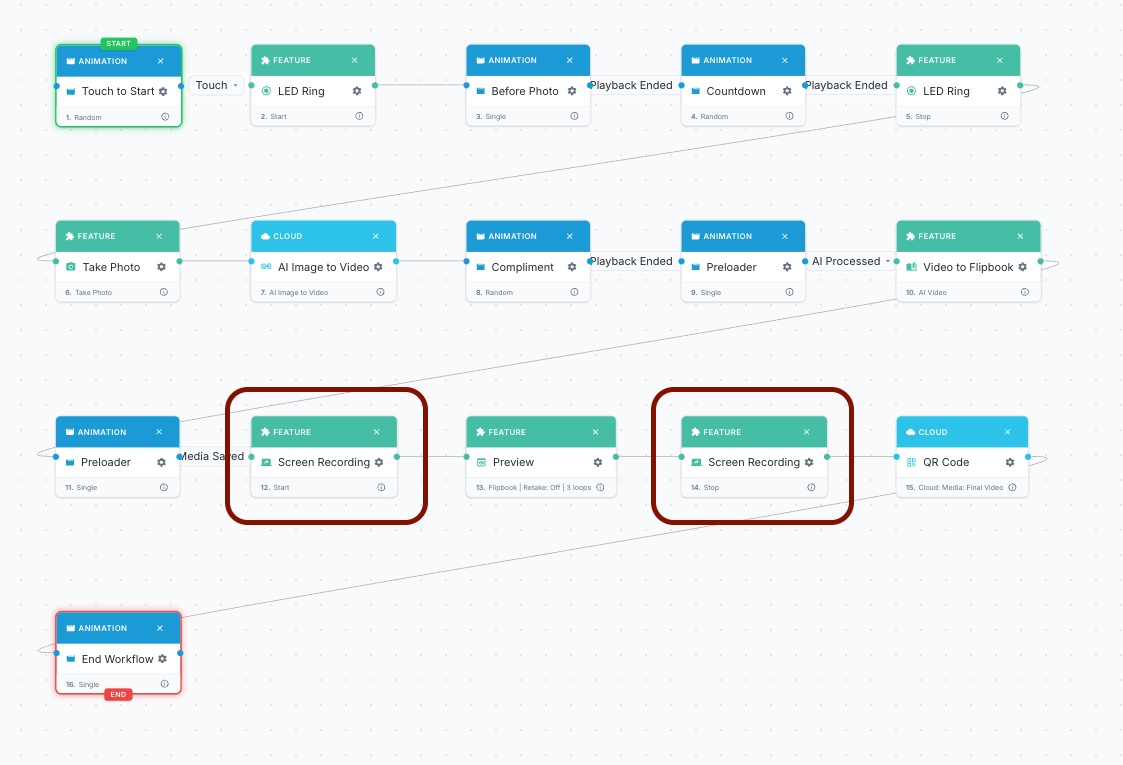
- After the second Screen Recording node, add the digital sharing node of your choice.
- Save your workflow.
Test the setup by running a session and confirming the recorded flipbook is delivered through the sharing method you selected.
Possible issues:
- If the recording is missing part of the flipbook, make sure the Start node is placed before the Preview node and the Stop node is placed after it.
- If guests do not receive the flipbook, make sure the sharing node is placed after the Stop Screen Recording node.
And you’re good to go!
Was this helpful?
Related articles
FMX for Windows: Customizing Your Experience
Everything at a photo booth event (the overlays, the countdown, the on-screen text, the email guests receive, the gallery they get a link to) is something you control. This guide m
FMX for Windows: System Requirements
Before installing FMX on your Windows computer, make sure your system meets the requirements below. Meeting the recommended specifications will ensure smooth performance during eve
Installing FMX on Windows
When to Use First-time installation of FMX on a Windows PC Reinstalling FMX on the same machine Upgrading FMX to a newer version using the latest installer Requirements Windows 10
Login to FMX
When to Use Immediately after installing FMX When switching operators or moving the license to a different PC Requirements A Foto Master Cloud Account (email and password) At least
Building a FMX Preset From Scratch: Video Tutorial
This video covers the basics of building a workflow and layout in FMX: a good starting point before exploring the individual workflow step articles.