
Print Copies: Overview
The Print Copies step is the all-in-one printing step in FMX. It both decides how many copies to print and sends the job to the printer.
What Is the Print Copies Step?
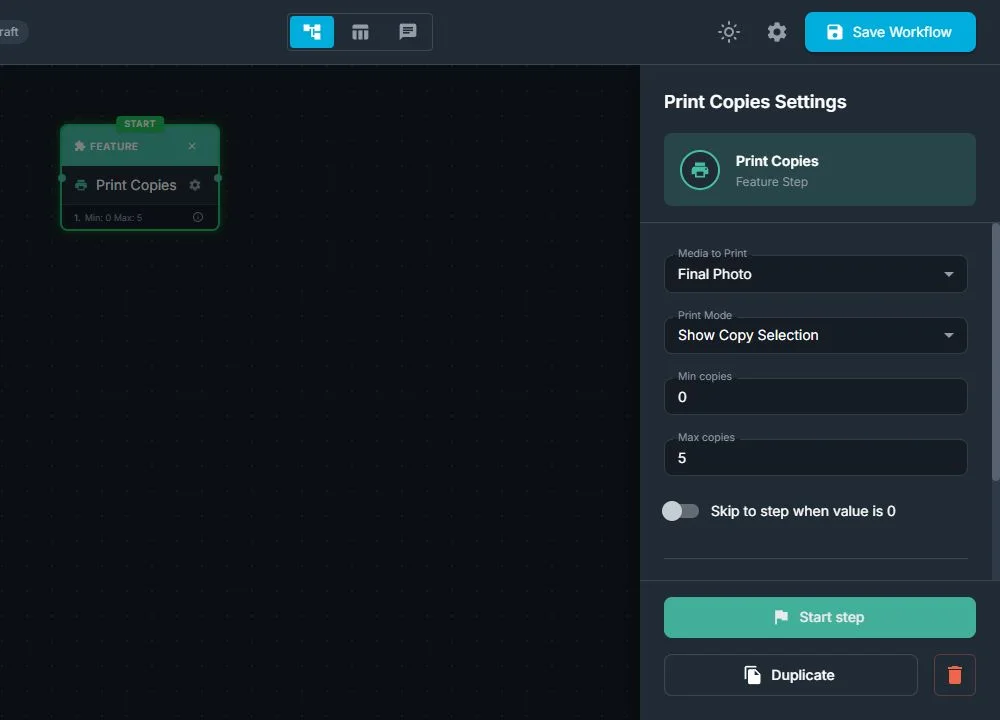
From the workflow point of view, Print Copies:
- Controls how many copies are printed for the current session
- Works in two modes:
- Show Copy Selection: the guest chooses the number of copies
- Auto Print One Copy: always prints one copy without asking
- Lets you set Min copies and Max copies (within 0–10)
- Can allow 0 copies and send guests who choose 0 to a different step (skip)
- Sends the selected media (usually the final photo or layout) to the connected printer
From the guest's point of view:
- In Show Copy Selection, they see a screen like "How many copies would you like?" and tap a number in the allowed range
- In Auto Print One Copy, they don't see anything: one copy prints automatically, and the experience continues
- If 0 is available and they choose it, nothing is printed, and they continue to an alternative screen you define
For a detected 2×6 strip layout, FMX for Windows can label the screen with physical strip counts. With Show even numbers only for Strips enabled for the active local or FMPrint route, one print is shown as 2 strips, two prints as 4 strips, and three prints as 6 strips. The workflow still returns the actual printer-copy value. This setting does not affect Flipbook frames or Lenticular copies.
When Should You Use Print Copies?
Use the Print Copies step when you want to:
- Offer printed photos at the end of the experience
- Let guests decide if they want a print and how many
- Support a no print / digital only option by allowing 0 copies
- Auto-print one copy in fast, high-traffic events where you don't want an extra decision screen
It is normally placed near the end of the workflow, after the guest has approved their photo or layout.
How Print Copies Fit in the Workflow
In the Workflow Builder:
- Select Print Copies in the Steps Library
- Choose a Print Mode: Show Copy Selection (the guest chooses how many copies) or Auto Print One Copy (always prints one copy without asking)
If you use Show Copy Selection:
- Set Min copies (0–10)
- Set Max copies (1–10)
- If Min = 0, you can turn on "Skip to step when value is 0" and choose a step to send guests who select 0 (for example, a Thank You or Email/QR screen)
Typical placement:
- Take Photo → Preview → Print Copies → Email / QR
- AI Effect → Layout → Preview → Print Copies
Why Use Print Copies?
For event operators:
- Useful for events that want to provide printed outputs for their guests
- Gives clear control over how many copies are printed in each session
- Helps control costs and waste by limiting the maximum copies and letting guests skip printing entirely
For clients and guests:
- Supports both quick automatic flows and interactive flows, where guests decide
- Makes it easy to offer a digital-only journey for guests who don't want prints
- Keeps the experience clear and simple: guests immediately understand what will be printed and how many copies they'll receive
Was this helpful?
Related articles
FMX for Windows: Customizing Your Experience
Everything at a photo booth event (the overlays, the countdown, the on-screen text, the email guests receive, the gallery they get a link to) is something you control. This guide m
FMX for Windows: System Requirements
Before installing FMX on your Windows computer, make sure your system meets the requirements below. Meeting the recommended specifications will ensure smooth performance during eve
Installing FMX on Windows
When to Use First-time installation of FMX on a Windows PC Reinstalling FMX on the same machine Upgrading FMX to a newer version using the latest installer Requirements Windows 10
Login to FMX
When to Use Immediately after installing FMX When switching operators or moving the license to a different PC Requirements A Foto Master Cloud Account (email and password) At least
Building a FMX Preset From Scratch: Video Tutorial
This video covers the basics of building a workflow and layout in FMX: a good starting point before exploring the individual workflow step articles.